| « PreviousNext » | |
![]() ![]() ![]() | Did this page help you? Yes | No | Tell us about it... |
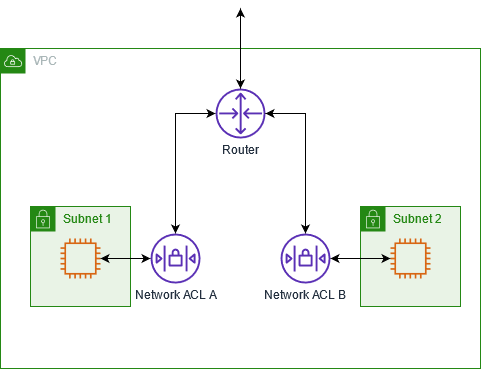
A network access control list (ACL) is an optional layer of security that acts as a firewall for controlling traffic in and out of a subnet. You might set up network ACLs with rules similar to your security groups in order to add an additional layer of security to your VPC. For more information about the differences between security groups and network ACLs, see Comparison of Security Groups and Network ACLs.
Topics
The following are the basic things that you need to know about network ACLs:
A network ACL is a numbered list of rules that we evaluate in order, starting with the lowest numbered rule, to determine whether traffic is allowed in or out of any subnet associated with the network ACL. The highest number that you can use for a rule is 32766. We suggest that you start by creating rules with rule numbers that are multiples of 100, so that you can insert new rules where you need to later on.
A network ACL has separate inbound and outbound rules, and each rule can either allow or deny traffic.
Your VPC automatically comes with a modifiable default network ACL; by default, it allows all inbound and outbound traffic.
You can create custom network ACLs; each custom network ACL starts out closed (permits no traffic) until you add a rule.
Each subnet must be associated with a network ACL; if you don't explicitly associate a subnet with a network ACL, the subnet is automatically associated with the default network ACL.
Network ACLs are stateless; responses to allowed inbound traffic are subject to the rules for outbound traffic (and vice versa).
For information about the number of network ACLs you can create, see Amazon VPC Limits.
You can add or remove rules from the default network ACL, or create additional network ACLs for your VPC. When you add or remove rules from a network ACL, the changes are automatically applied to the subnets it's associated with.
The following are the parts of a network ACL rule:
Rule number. Rules are evaluated starting with the lowest numbered rule.
Protocol. You can specify any protocol that has a standard protocol number. For more information, see Protocol Numbers. If you specify ICMP as the protocol, you can specify any or all of the ICMP types and codes.
[Inbound rules only] The source of the traffic (CIDR range) and the destination (listening) port or port range.
[Outbound rules only] The destination for the traffic (CIDR range) and the destination port or port range.
Choice of allow or deny.
To help you understand what ACL rules look like, here's what the default network ACL looks like in its initial state. It is configured to allow all traffic to flow in and out of each subnet. Each network ACL includes a rule whose rule number is an asterisk. This rule ensures that if a packet doesn't match any of the other rules, it's denied. You can't modify or remove this rule.
| Inbound | ||||
| Rule # | Source IP | Protocol | Port | Allow/Deny |
|
100 |
0.0.0.0/0 |
All |
All |
ALLOW |
|
* |
0.0.0.0/0 |
All |
All |
DENY |
|
Outbound | ||||
| Rule # | Dest IP | Protocol | Port | Allow/Deny |
|
100 |
0.0.0.0/0 |
all |
all |
ALLOW |
|
* |
0.0.0.0/0 |
all |
all |
DENY |
The following table shows an example of a custom network ACL. It includes rules that allow HTTP and HTTPS traffic in (inbound rules 100 and 110). There's a corresponding outbound rule that enables responses to that inbound traffic (outbound rule 120, which covers ephemeral ports 49152-65535). For more information about how to select the appropriate ephemeral port range, see Ephemeral Ports.
The network ACL also includes inbound rules that allow SSH and RDP traffic into the subnet. The outbound rule 120 enables responses to egress the subnet.
The network ACL has outbound rules (100 and 110) that allow outbound HTTP and HTTPS traffic out of the subnet. There's a corresponding inbound rule that enables responses to that outbound traffic (inbound rule 140, which covers ephemeral ports 49152-65535).
| Inbound | |||||
| Rule # | Source IP | Protocol | Port | Allow/Deny | Comments |
|
100 |
0.0.0.0/0 |
TCP |
80 |
ALLOW |
Allows inbound HTTP traffic from anywhere. |
|
110 |
0.0.0.0/0 |
TCP |
443 |
ALLOW |
Allows inbound HTTPS traffic from anywhere. |
|
120 |
192.0.2.0/24 |
TCP |
22 |
ALLOW |
Allows inbound SSH traffic from your home network's public IP address range (over the Internet gateway). |
|
130 |
192.0.2.0/24 |
TCP |
3389 |
ALLOW |
Allows inbound RDP traffic to the web servers from your home network's public IP address range (over the Internet gateway). |
|
140 |
0.0.0.0/0 |
TCP |
49152-65535 |
ALLOW |
Allows inbound return traffic from the Internet (that is, for requests that originate in the subnet). For more information about how to select the appropriate ephemeral port range, see Ephemeral Ports. |
|
* |
0.0.0.0/0 |
all |
all |
DENY |
Denies all inbound traffic not already handled by a preceding rule (not modifiable). |
|
Outbound | |||||
| Rule # | Dest IP | Protocol | Port | Allow/Deny | Comments |
|
100 |
0.0.0.0/0 |
TCP |
80 |
ALLOW |
Allows outbound HTTP traffic from the subnet to the Internet. |
|
110 |
0.0.0.0/0 |
TCP |
443 |
ALLOW |
Allows outbound HTTPS traffic from the subnet to the Internet. |
|
120 |
0.0.0.0/0 |
TCP |
49152-65535 |
ALLOW |
Allows outbound responses to clients on the Internet (for example, serving web pages to people visiting the web servers in the subnet). For more information about how to select the appropriate ephemeral port range, see Ephemeral Ports. |
|
* |
0.0.0.0/0 |
all |
all |
DENY |
Denies all outbound traffic not already handled by a preceding rule (not modifiable). |
As a packet comes to the subnet, we evaluate it against the ingress rules of the ACL the subnet is associated with (starting at the top of the list of rules, and moving to the bottom). Let's say the packet is destined for the SSL port (443). The packet doesn't match the first rule evaluated (rule 100). It does match the second rule (110), which allows the packet into the subnet. If the packet had been destined for port 139 (NetBIOS), the first two rules would not have matched, but the * rule ultimately would have denied the packet.
You might want to add a DENY rule in a situation where you legitimately need to open a wide range of ports, but there are certain ports within that range you want to deny. Just make sure to place the DENY rule earlier in the table than the rule that allows the wide range of port traffic.
The example network ACL in the preceding section uses an ephemeral port range of 49152-65535. However, you might want to use a different range for your network ACLs. This section explains why.
The client that initiates the request chooses the ephemeral port range. The range varies depending on the client's operating system. Many Linux kernels (including the Amazon Linux kernel) use ports 32768-61000. Requests originating from Elastic Load Balancing use ports 1024-65535. Windows operating systems through Windows Server 2003 use ports 1025-5000. Windows Server 2008 uses ports 49152-65535. Therefore, if a request comes in to a web server in your VPC from a Windows XP client on the Internet, your network ACL must have an outbound rule to enable traffic destined for ports 1025-5000.
If an EC2 instance in your VPC is the client initiating a request, your network ACL must have an inbound rule to enable traffic destined for the ephemeral ports specific to the type of instance (Amazon Linux, Windows Server 2008, and so on.).
In practice, to cover the different types of clients that might initiate traffic to public-facing instances in your VPC, you need to open ephemeral ports 1024-65535. However, you can also add rules to the ACL to deny traffic on any malicious ports within that range. Make sure to place the DENY rules earlier in the table than the rule that opens the wide range of ephemeral ports.
This section shows you how to work with network ACLs using the Amazon VPC console.
Topics
To determine which network ACL a subnet is associated with
Open the Amazon VPC console at https://console.aws.amazon.com/vpc/.
Click Subnets in the navigation pane, and then select the subnet.
The network ACL associated with the subnet is included in the details pane, along with the network ACL's rules.

To determine which subnets are associated with a network ACL
Open the Amazon VPC console at https://console.aws.amazon.com/vpc/.
Click Network ACLs in the navigation pane.
The console displays your network ACLs. The Associated With column indicates the number of associated subnets.

Select a network ACL.
In the details pane, click the Associations tab to display the subnets associated with the network ACL.

To create a network ACL
Open the Amazon VPC console at https://console.aws.amazon.com/vpc/.
Click Network ACLs in the navigation pane.
Click the Create Network ACL button.
In the Create Network ACL dialog box, select the ID of your VPC from the VPC list, and then click Yes, Create.

The initial settings for a network ACL block all inbound and outbound traffic. The network ACL has no rules except the * rule present in every ACL.
There are no subnets associated with a new ACL.
When you add or delete a rule from an ACL, any subnets associated with the ACL are subject to the change. You don't have to terminate and relaunch the instances in the subnet; the changes take effect after a short period.
You can't modify rules; you can only add and delete rules. If you need to change the order of a rule in the ACL, you must add a new rule with the new rule number, and then delete the original rule.
To add rules to a network ACL
Open the Amazon VPC console at https://console.aws.amazon.com/vpc/.
Click Network ACLs in the navigation pane, and then select the network ACL.
In the details pane, select either the Inbound or Outbound tab, depending on the type of rule that you need to add.

Select an option from the Create a new rule drop-down list. For example, to add a rule for HTTP, select the HTTP option. To add a rule to allow all TCP traffic, select All TCP. For some of these options (for example, HTTP), we fill in the port for you. To use a protocol that's not listed, select Custom protocol rule.
Provide the rule's details:
In Rule #, enter a rule number (for example, 100). The rule number must not already be used in the network ACL. We process the rules in order, starting with the lowest number.
Tip
We recommend that you leave gaps between the rule numbers (such as 100, 200, 300), rather than using sequential numbers (101, 102, 103). This makes it easier add a new rule where it belongs without having to renumber the existing rules.
(Optional) If you're creating a custom protocol rule, enter the protocol's number (47) or name (GRE) in the Protocol box. For more information, see IANA List of Protocol Numbers.
(Optional) If the protocol you've selected requires a port number, enter the port number or port range separated by a hyphen (for example, 49152-65535).
In the Source or Destination box (depending on whether this is an inbound or outbound rule), enter the CIDR range that the rule applies to.
From the Allow/Deny list, select ALLOW to allow the specified traffic or DENY to deny the specified traffic.
Click Add Rule.
To delete a rule from a network ACL
Open the Amazon VPC console at https://console.aws.amazon.com/vpc/.
Click Network ACLs in the navigation pane, and then select the network ACL.
In the details pane, select either the Inbound or Outbound tab, and then click Delete.

In the Delete Network ACL Rule dialog box, click Yes, Delete.
To apply the rules of a network ACL to a particular subnet, you must associate the subnet with the network ACL. You can associate a network ACL with multiple subnets; however, a subnet can be associated with only one network ACL. Any subnet not associated with a particular ACL is associated with the default network ACL by default.
To associate a subnet with a network ACL
Open the Amazon VPC console at https://console.aws.amazon.com/vpc/.
Click Network ACLs in the navigation pane, and then select the network ACL.
In the details pane, on the Associations tab, select the subnet to associate with the table, and then click Associate.

In the Associate Network ACL dialog box, click Yes, Associate.
You might want to disassociate a subnet from its network ACL. For example, you might have a subnet that is associated with a custom network ACL, and you instead want it associated with the default network ACL. By disassociating the subnet from the custom network ACL, the subnet becomes associated with the default network ACL.
To disassociate a subnet from a network ACL
Open the Amazon VPC console at https://console.aws.amazon.com/vpc/.
Click Network ACLs in the navigation pane, and then select the network ACL.
In the details pane, click the Associations tab.
Click Disassociate.

In the Disassociate Network ACL dialog box, click Yes, Disassociate.
You can change which network ACL a subnet is associated with. For example, when you create a subnet, it is initially associated with the default network ACL. You might want to instead associate it with a custom network ACL that you've created.
After changing a subnet's network ACL, you don't have to terminate and relaunch the instances in the subnet; the changes take effect after a short period.
To change a subnet's network ACL association
Open the Amazon VPC console at https://console.aws.amazon.com/vpc/.
Click Subnets in the navigation pane, and then select the subnet.
In the details pane, next to the ID of the network ACL associated with the subnet, click Replace.

In the Replace Network ACL dialog box, in the drop-down list, select the network ACL to associate the subnet with and click Yes, Replace.

You can delete a network ACL only if there are no subnets associated with it. You can't delete the default network ACL.
To delete a network ACL
Open the Amazon VPC console at https://console.aws.amazon.com/vpc/.
Click Network ACLs in the navigation pane.
Select the network ACL, and then click the Delete button.
In the Delete Network ACL dialog box, click Yes, Delete.
The following table summarizes the available network ACL commands and corresponding API actions.
| Description | Command | API Action |
|---|---|---|
|
Creates a network ACL for your VPC. | ||
|
Describes one or more of your network ACLs. | ||
|
Deletes a network ACL. | ||
|
Adds a rule to a network ACL. | ||
|
Deletes a rule from a network ACL. | ||
|
Replaces an existing rule in a network ACL. | ||
|
Changes which network ACL a subnet is associated with. |