| « PreviousNext » | |
![]() ![]() ![]() | Did this page help you? Yes | No | Tell us about it... |
Topics
This section explores Auto Scaling concepts and terminology briefly introduced in the How Auto Scaling Works section. For information on creating your own Auto Scaling process using these concepts, see Basic Scenario in Auto Scaling.
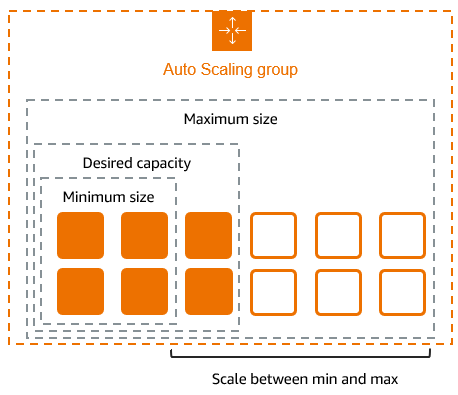
An Auto Scaling group is a representation of multiple Amazon EC2 instances that share similar characteristics, and that are treated as a logical grouping for the purposes of instance scaling and management. For example, if a single application operates across multiple instances, you might want to increase or decrease the number of instances in that group to improve the performance of the application. You can use the Auto Scaling group to automatically scale the number of instances or maintain a fixed number of instances. You create Auto Scaling groups by defining the minimum, maximum, and desired number of running EC2 instances the group must have at any given point of time.
An Auto Scaling group starts by launching the minimum number (or the desired number, if specified) of EC2 instances and then increases or decreases the number of running EC2 instances automatically according to the conditions that you define. Auto Scaling also maintains the current instance levels by conducting periodic health check on all the instances within the Auto Scaling group. If an EC2 instance within the Auto Scaling group becomes unhealthy, Auto Scaling terminates the unhealthy instance and launches a new one to replace the unhealthy instance. This automatic scaling and maintenance of the instance levels in an Auto Scaling group is the core value of the Auto Scaling service. For information on creating an Auto Scaling group, see Basic Auto Scaling Configuration.
A launch configuration is a template that the Auto Scaling group uses to launch Amazon EC2 instances. You create the launch configuration by including information such as the Amazon machine image ID to use for launching the EC2 instance, the instance type, key pairs, security groups, and block device mappings, among other configuration settings. When you create your Auto Scaling group, you must associate it with a launch configuration. You can attach only one launch configuration to an Auto Scaling group at a time. Launch configurations cannot be modified. They are immutable. If you want to change the launch configuration of your Auto Scaling group, you have to first create a new launch configuration and then update your Auto Scaling group by attaching the new launch configuration. When you attach a new launch configuration to your Auto Scaling group, any new instances will be launched using the new configuration parameters. Existing instances are not affected. For information on creating launch configuration, see Basic Auto Scaling Configuration.
An Amazon CloudWatch alarm is an object that monitors a single metric over a specific time period. A metric is a variable that you want to monitor, such as average CPU usage of the Amazon EC2 instances, or incoming network traffic from many different Amazon EC2 instances. The alarm changes its state when the value of the metric breaches a defined range and maintains the change for a specified number of periods.
An alarm has three possible states:
OK—This is the state the alarm is in when the value of the
metric remains within the range you’ve specified.
ALARM—This is the state the alarm goes to when the
value of the metric goes out of the range you’ve specified and remains
outside of the range for a specified time duration.
INSUFFICIENT_DATA—When the alarm is in this state, it either
means that the metric is not yet available or not enough data is available for the
metric to determine the alarm state.
When the alarm changes to ALARM state and remains in that state for a number of time periods, it invokes one or more actions. The actions can be a message sent to an Auto Scaling group to change the desired capacity of the group.
You configure an alarm by identifying the metrics to monitor. For example, you can configure an alarm to watch over the average CPU usage of the EC2 instances in an Auto Scaling group.
You'll have to use Amazon CloudWatch to identify metrics and create alarms. For more information, see Creating Amazon CloudWatch Alarms in the Amazon CloudWatch Developer Guide.
An Auto Scaling policy is a set of instructions for Auto Scaling that tells the service how to respond to Amazon CloudWatch alarm messages. The Auto Scaling policy can give instructions to scale in (terminate EC2 instances) or scale out (launch EC2 instances) the Auto Scaling group.
In addition to creating a launch configuration, an Auto Scaling group, and a CloudWatch alarm, you’ll need to create scaling in and scaling out policies and associate the policies with the Auto Scaling group.
For example, you can configure an alarm to monitor the CPU usages of the EC2 instances in your Auto Scaling Group, and you can create and associate a policy for scaling out. This scale-out policy can state that when the average usage is at 80%, then launch 20 new EC2 instances. Based on the same metric CPU usage, you can create and associate a second policy for scaling in. This scale-in policy can state that if the average CPU usage of the EC2 instances in the Auto Scaling Group falls down to 40%, then terminate 20 EC2 instances.
When the metrics (CPU usage) breaches the defined thresholds (80 % for scale-out or 40% for scale-in), the CloudWatch alarm sends a message to the associated Auto Scaling policy. Auto Scaling then executes the associated policy on the Auto Scaling group. For more information on Auto Scaling policies, see Scale Based on Demand.
Amazon cloud computing resources are housed in highly available data center facilities. To provide additional scalability and reliability, these data centers are in several physical locations. These locations are categorized by Regions and Availability Zones. Regions are large and widely dispersed geographic locations. Availability Zones are distinct locations within a region that are engineered to be isolated from failures in other Availability Zones and provide inexpensive, low-latency network connectivity to other Availability Zones in the same region. For information about this product's regions and endpoints, go to Regions and Endpoints in the Amazon Web Services General Reference.
Auto Scaling lets you take advantage of the safety and reliability of geographic redundancy by spanning Auto Scaling groups across multiple Availability Zones within a region. When one Availability Zone becomes unhealthy or unavailable, Auto Scaling launches new instances in an unaffected Availability Zone. When the unhealthy Availability Zone returns to a healthy state, Auto Scaling automatically redistributes the application instances evenly across all of the designated Availability Zones.
An Auto Scaling group can contain EC2 instances that come from one or more EC2 Availability Zones within the same region. However, Auto Scaling group cannot span multiple regions.
Auto Scaling attempts to distribute instances evenly between the Availability Zones that are enabled for your Auto Scaling group. Auto Scaling does this by attempting to launch new instances in the Availability Zone with the fewest instances. If the attempt fails, however, Auto Scaling will attempt to launch in other zones until it succeeds.
Certain operations and conditions can cause your Auto Scaling group to become unbalanced between the zones. Auto Scaling compensates by creating a rebalancing activity under any of the following conditions:
You issue a request to change the Availability Zones for your group.
You explicitly call for termination of a specific instance that caused the group to become unbalanced.
An Availability Zone that previously had insufficient capacity recovers and has additional capacity available.
Under all the above conditions, Auto Scaling launches new instances before attempting to terminate old ones, so a rebalancing activity will not compromise the performance or availability of your application.
Because Auto Scaling always attempts to launch new instances before terminating old ones when attempting to balance across multiple zones, being at or near the specified maximum capacity could impede or completely halt rebalancing activities. To avoid this problem, the system can temporarily exceed the specified maximum capacity of a group by a 10 percent margin (or by a 1-instance margin, whichever is greater) during a rebalancing activity. The margin is extended only if the group is at or near maximum capacity and needs rebalancing, either as a result of user-requested rezoning or to compensate for zone availability issues. The extension lasts only as long as needed to rebalance the group typically a few minutes.
You can optionally use a load balancer to distribute traffic to the EC2 instances in your Auto Scaling group. A load balancer distributes incoming traffic across multiple instances in your Auto Scaling group in a way that minimizes the risk of overloading one single instance. Auto Scaling supports the use of Elastic Load Balancing load balancers. You can use Elastic Load Balancing to create a load balancer and then register your Auto Scaling group with the load balancer. After you've created your load balancer and registered your Auto Scaling group with the load balancer, your load balancer acts as a single point of contact for all incoming traffic. You can associate multiple load balancers with a single Auto Scaling group. You can also configure your Auto Scaling group to use Elastic Load Balancing metrics (such as request latency or request count) to scale your application. To learn more about creating and managing an Elastic Load Balancing load balancer, see Get Started with Elastic Load Balancing in the Elastic Load Balancing Developer Guide. For information on attaching a load balancer to your Auto Scaling group, see Load Balance Your Auto Scaling Group.
Auto Scaling periodically performs health checks on the instances in your group and replaces instances that fail these checks. By default, these health checks use the results of Amazon EC2 instance status checks to determine the health of an instance. If you use a load balancer with your Auto Scaling group, you can optionally choose to include the results of Elastic Load Balancing health checks.
Auto Scaling marks an instance unhealthy if the calls to the Amazon EC2 action DescribeInstanceStatus returns any other state other than running, the
system status shows impaired, or the calls to Elastic Load Balancing action DescribeInstanceHealth returns OutOfService in the instance state
field.
After an instance is marked unhealthy as a result of an Amazon EC2 or Elastic Load Balancing health check, it is almost immediately scheduled for replacement.
You can customize the health check conducted by your Auto Scaling group by specifying additional checks or by having your own health check system and then sending the instance's health information directly from your system to Auto Scaling.
For more information on Auto Scaling health check, see Maintain a Fixed Number of Running EC2 Instances .
For information on adding Elastic load Balancing health check, see Add an Elastic Load Balancing Health Check to your Auto Scaling Group. For information on adding a customized health check, see Configure Health Checks for Your Auto Scaling Group.
To learn more about Amazon EC2 status checks, see Monitoring the Status of your Instances in the Amazon Elastic Compute Cloud User Guide. To learn more about Elastic Load Balancing healthchecks, see Elastic Load Balancing Health Check in the Elastic Load Balancing Developer Guide.
The Amazon EC2 instances within your Auto Scaling group progresses through the following states over their lifespan.
Pending— refers to the state when the instance is in the process of launching.
InService— refers to the state when the instance is live and running.
Terminating— refers to the state when the instance is in the process of being terminated.
Terminated— refers to the state when the instance is no longer in service. Auto Scaling removes
the terminated instance from the Auto Scaling group as soon as it is terminated. This state is not currently used.
Quarantined— refers to a state that is currently not used.
You can use the DescribeAutoScalingInstances action or the
as-describe-auto-scaling-instances command to see the lifecycle
state of your instance.
A scaling activity is a long-running process that
implements a change to your Auto Scaling group, such as changing the size of the
group. Auto Scaling can invoke a scaling activity to rebalance an Availability Zone,
to maintain the desired capacity of an Auto Scaling group, or to perform any other
long-running operation supported by the service. You can use the DescribeScalingActivities action or the as-describe-scaling-activities command to see the scaling activities
invoked by your Auto Scaling group.
A default cooldown period, when specified, indicates the amount of time after a scaling activity completes before any other scaling activity can start. The default cooldown period is associated with your Auto Scaling group and can be specified when creating or updating your Auto Scaling group. If a default cool down period is not specified for the Auto Scaling group, Auto Scaling uses the default value of 300 as the default cool down period for the group. For more information, see CreateAutoScalingGroup.
A cooldown period, when specified, indicates the amount of time during
which Auto Scaling does not allow the desired size of the Auto Scaling group to be
changed by any other notification from a CloudWatch alarm. A cooldown period gives
the system time to perform and adjust to the most recent scaling activities (such as
scale-in and scale-out) that affect capacity. This period also allows the effect of
a scaling activity to become visible in the metrics that originally triggered the
activity. The cool down period is associated with the Auto Scaling policy and can be
specified when creating or updating an Auto Scaling policy. Use the
cooldown option to specify a different cooldown period than the
DefaultCooldown period specified in the Auto Scaling group. For
more information, see PutScalingPolicy.
When specified, the cool down period associated with your Auto Scaling group takes priority over the default cool down period specified in the Auto Scaling group. If the policy does not specify a cool down period, the group's default cool down period is used.
You can choose to initiate a scaling activity that ignores the cool down period. When you chose this option, you can circumvent the restriction of the cool down period and change the size of the Auto Scaling group before the cool down period ends. For more information, see SetDesiredCapacity action.
Auto Scaling launches and terminates Amazon EC2 instances automatically in response to a scaling activity or to replace an unhealthy instance. A scaling activity can be invoked to rebalance an Availability Zone, to maintain the desired capacity of an Auto Scaling group, or to perform any other long-running operation supported by the service.
Auto Scaling uses the launch configuration associated with your Auto Scaling group to launch instances. Auto Scaling uses a termination policy, which is a set of criteria used for selecting an instance to terminate, when it must terminate one or more instances. By default, Auto Scaling uses the default termination policy, but you can opt to specify a termination policy of your own.
Before Auto Scaling selects an instance to terminate, it first identifies the Availability Zone that has more instances than the other Availability Zones used by the group. If all Availability Zones have the same number of instances, it identifies a random Availability Zone. Within the identified Availability Zone, Auto Scaling uses the termination policy to select the instance for termination.
For more information on the Auto Scaling termination policies, go to Instance Termination Policy for Your Auto Scaling Group .
After Auto Scaling determines which specific instance to terminate, it checks to see whether the instance is part of an Elastic Load Balancing group. If so, Auto Scaling instructs the load balancer to remove the instance from the load balancing group and waits for the removal to complete. If Auto Scaling determines that the instance is not part of an Elastic Load Balancing group, it starts the process for terminating the instance.
Auto Scaling provides you with the following ways to configure your Auto Scaling group:
Maintain current instance levels at all times
You can configure your Auto Scaling group to maintain a minimum number (or a desired number, if specified) of running instances at all times. To maintain the current instance levels, Auto Scaling performs a periodic health check on running instances within an Auto Scaling group. And when it finds that an instance is unhealthy, it terminates that instance and launches a new one. For more information on configuring your Auto Scaling group to maintain the current instance levels, see Maintain a Fixed Number of Running EC2 Instances .
Manual scaling
Manual scaling is the most basic way to scale your resources. You only need to specify the change in the maximum, minimum, or desired capacity of your Auto Scaling group. Auto Scaling manages the process of creating or terminating instances to maintain the updated capacity. For more information on manually scaling your Auto Scaling group, see Change the Size of Your Auto Scaling Group.
Scale based on a schedule
Sometimes you know exactly when you will need to increase or decrease the number of instances in your group, simply because that need arises on a predictable schedule. Scaling by schedule means that scaling actions are performed automatically as a function of time and date. For more information on configuring your Auto Scaling group to scale based on a schedule, see Scale Based on a Schedule.
Scale based on demand
A more advanced way to scale your resources, scaling by policy, lets you define parameters that inform the Auto Scaling process. For example, you can create a policy that calls for enlarging your fleet of EC2 instances whenever the average CPU utilization rate stays above ninety percent for fifteen minutes. This is useful when you can define how you want to scale in response to changing conditions, but you don’t know when those conditions will change. You can set up Auto Scaling to respond for you.
Note that you should have two policies, one for scaling in (terminating instances) and one for scaling out (launching instances), for each event that you want to monitor. For example, if you want to scale out when the network bandwidth reaches a certain level, you'll create a policy telling Auto Scaling to start a certain number of instances to help with your traffic. But you also want an accompanying policy to scale in by a certain number when the network bandwidth level goes back down.For more information on configuring your Auto Scaling group to scale based on demand, see Scale Based on Demand.
You might want to stop automated scaling processes on your groups to perform manual operations or to turn off the automation in emergency situations. You can suspend one or more scaling processes at any time. When you're ready, you can resume any or all of the suspended processes.
If you suspend all of an Auto Scaling group's scaling processes, Auto Scaling creates no new scaling activities for that group for any reason. Scaling activities that were already in progress before the group was suspended continue until complete. Changes made to the desired capacity of the Auto Scaling group still take effect immediately. However, Auto Scaling will not create new scaling activities when there's a difference between the desired size and the actual number of instances.
You can suspend one or more of the following Auto Scaling process types:
| If you suspend... | Auto Scaling... |
|---|---|
| Alarm notifications | Ignores all Amazon CloudWatch notifications. |
| Availability Zone rebalance | Does not attempt active rebalancing. If, however, Auto Scaling initiates the launch or terminate processes for other reasons, Auto Scaling will still launch new instances in underpopulated Availability Zones and terminate existing instances in overpopulated Availability Zones. |
| Health check | Will not automatically check instance health. Auto Scaling will still replace instances that is marked as unhealthy. |
| Launch | Does not launch new instances for any reason. Suspending the launch process effectively suspends the Availability Zone rebalance and replace unhealthy instance processes. |
| Replacing unhealthy instance | Does not replace instances marked as unhealthy. Auto Scaling continues to automatically mark instances as unhealthy. |
| Scheduled actions | Suspends processing of scheduled actions. Auto Scaling silently discards any action scheduled to occur during the suspension. |
| Terminate | Does not terminate new instances for any reason. Suspending the Terminate process effectively suspends the AZRebalance and ReplaceUnhealthy processes. |
Auto Scaling might, at times, suspend processes for Auto Scaling groups that repeatedly fail to launch instances. This is known as an administrative suspension, and most commonly applies to Auto Scaling groups that have zero running instances, have been trying to launch instances for more than 24 hours, and have not succeeded in that time in launching any instances.
Important
Auto Scaling allows you to resume both, suspended and an administrative process.
To learn more about suspending and then resuming scaling processes for your Auto Scaling group, see Suspend and Resume Auto Scaling Process.
An Auto Scaling group tag is a tool for organizing your Auto Scaling resources and providing additional information for your Auto Scaling group such as software version, role, or location. Auto Scaling group tags work like Amazon EC2 tags; Auto Scaling group tags provide search, group, and filter functionality. These tags have a key and value that you can modify. You can also remove Auto Scaling group tags any time. Auto Scaling group tags can optionally be propagated to the EC2 instances launched by the Auto Scaling.
For more information about using tags with Auto Scaling groups, go to Tag Your Auto Scaling Groups and Amazon EC2 Instances.