| « PreviousNext » | |
![]() ![]() ![]() | Did this page help you? Yes | No | Tell us about it... |
If you have flexibility about when to run your applications, or if the performance of your application will scale efficiently with the addition of temporary compute resources, and you want to benefit from the cost-savings of using Amazon EC2 Spot Instances, you can set up Auto Scaling to launch Spot Instances. For more information about Auto Scaling, go to Understanding Auto Scaling.
Spot Instances are a way for you to to purchase unused Amazon EC2 capacity. You bid on certain instances, and, as long as your bid price exceeds the current Spot price for those instances, you get to use them. For more information about Spot Instances, go to Spot Instances in the Amazon Elastic Compute Cloud User Guide.
When you use Spot Instances with Auto Scaling, first you need to understand the basics of Spot Instance bids and how they interact with Auto Scaling.
Spot market price and your bid price. If the market price for Spot Instances rises above your Spot bid price for a running instance, Amazon EC2 will terminate your instance. This is true for all Spot Instances, whether or not you manage them using Auto Scaling. If your Spot bid price exactly matches the Spot market price, your bid may or may not be fulfilled, depending on several factors—such as available Spot Instance capacity.
Setting your bid price. When you use Auto Scaling to launch Spot Instances, you set your Spot bid price in an Auto Scaling launch configuration.
Changing your bid price. If you want to change your Spot bid price, you have to create a new launch configuration and associate it with your Auto Scaling group. You cannot edit launch configurations, which can serve as a record of the configuration history for running and terminated instances and their bid price.
New bid price and running instances. When you change your Spot bid price by creating a new launch configuration, running instances will continue to run as long as the Spot bid price for those running instances is higher than the current Spot market price.
Maintaining your Spot Instances. When your instance is terminated (whether it's a Spot Instance or an On-Demand instance), Auto Scaling will launch another instance in an effort to replace it and maintain the desired capacity specified in the Auto Scaling group. However, whether or not Auto Scaling successfully launches an instance depends on the Spot bid price as compared to the Spot market price: If the bid price is higher than the market price, then an instance will be launched; if the market price is higher than the bid price, then no instance will be launched.
Auto Scaling and Spot Instance termination of instances. Amazon EC2 terminates a Spot Instance when the bid price for that instance falls below the Spot market price. Auto Scaling terminates or replaces instances based on other criteria. For more information, see Auto Scaling Instance Termination.
In this section, we will create a launch configuration and an Auto Scaling group that launches Spot Instances. We will use the Auto Scaling command line interface (CLI) to create the launch configuration and the Auto Scaling group, and to verify and obtain information about the new instances. In this scenario, we will perform the following tasks:
Create a launch configuration, including the --spot-price option to specify the bid price for the Spot Instances to launch.
Create an Auto Scaling group, specifying the launch configuration in which you specified a spot bid price.
Verify and check your Auto Scaling group and instances.
Set up notifications.
Update the bid price.
Schedule spot bids.
Clean up.
You will use the following Auto Scaling command line interface (CLI) commands.
| Command | Description |
|---|---|
|
|
Creates a new launch configuration with specified attributes. |
|
|
Creates a new Auto Scaling group with specified name and other attributes. |
|
|
Describes the Auto Scaling groups, if the groups exist. |
|
|
Describes the Auto Scaling instances, if the instances exist. |
|
|
Describes a set of activities or all activities belonging to a group. |
|
|
Configures an Auto Scaling group to send notifications when specified events take place. |
|
|
Returns a list of notification actions associated with Auto Scaling groups for specified events. |
|
|
Creates or updates a scheduled update group action. |
|
|
Deletes the specified Auto Scaling group, if the group has no instances and no scaling activities are in progress. |
For common conventions the documentation uses to represent command symbols, see Document Conventions.
If you're not familiar with how to create a launch configuration or an Auto Scaling group, we recommend that you go through the steps in the Basic Auto Scaling Configuration. Use the basic scenario to get started with the infrastructure that is typically needed in Auto Scaling.
In Auto Scaling, you place bids for Spot Instances using the as-create-launch-config command.
Specify the maximum price you are willing to pay for an instance using the --spot-price option.
Auto Scaling will request Spot Instances using this price, but this price is not what you actually pay
for the instances when they are launched. You pay the current Spot price as long as it is lower than your bid price. For example, say you bid $0.05 for
m1.small instances. Your bid gets fulfilled if the current Spot market price for an m1.small Spot Instance is $0.03, or any other price below
$0.05, and you will be charged the current market price of $0.03 per hour. In fact, as long as your Spot bid is higher than the Spot market price,
your bid will be fulfilled and a Spot Instance will be launched for you. So, if the current Spot market price drops to $0.02 or rises to $0.04,
you will pay the new price.
It is important that you carefully consider the price you specify for your bid. Only specify Spot bid prices that you are willing to pay. If you intentionally bid too high, you might end up paying your high bid price if the Spot market price rises. Also, if you specify a new Spot bid price that is higher than the bid price for Spot Instances that you are currently running, your new Spot bid may result in your own running instances being replaced at the higher price. To help you choose the appropriate price to bid, you can view the Spot price history using the AWS Management Console, CLI, or API. For more information, see View Spot Price History in the Amazon Elastic Compute Cloud User Guide.
In addition, if you want to specify a new Spot bid price, you have to create a new launch configuration, and update your Auto Scaling group to specify the new launch configuration. Launch configurations represent a record of the details of running and terminated instances. They can be helpful in tracking the history of your instances. For more information about changing Spot bids, see Update the Bid Price for the Spot Instances later in this walkthrough.
For this walkthrough, specify the following values for the as-create-launch-config
command:
Launch configuration name = spotlc-5cents
Note
When Auto Scaling launches instances, it does not distinguish the Spot Instances from the On-Demand instances. To help you identify which of your instances are Spot Instances, refer to their launch configurations. Consider assigning a launch configuration name that includes spot and the bid price.
Image ID = ami-e565ba8c
If you don't have an AMI, and you want to find a suitable one, see Amazon Machine Images (AMIs).
Instance type = m1.small
Spot price = $0.05
Your command should look similar to the following example:
as-create-launch-config spotlc-5cents --image-id ami-e565ba8c --instance-type m1.small --spot-price "0.05"
You should get a confirmation like the following example:
OK-Created launch config
Create your Auto Scaling group by using as-create-auto-scaling-group and then specifying the launch configuration you just created.
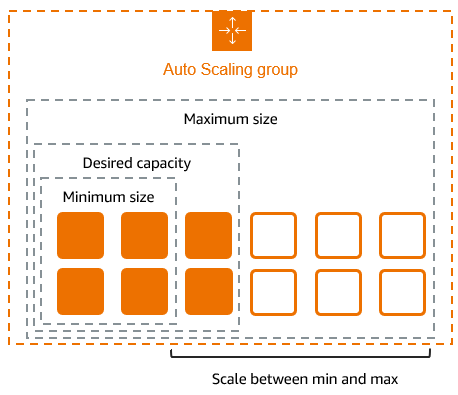
In addition, let Auto Scaling know at what level it should maintain your fleet of Spot Instances by setting
min-size and desired-capacity. If your Spot bid price falls below the Spot price, and Amazon EC2
terminates your instance, Auto Scaling will submit your bid again and launch an instance in an effort to maintain the desired
capacity you specified. However, whether or not Auto Scaling successfully launches an instance depends on the Spot bid price as compared to the
Spot market price: If the Spot bid price is higher than the Spot market price, then an instance will be launched; if the market price is
higher than the bid price, then no instance will be launched at that point. For more detailed information on the syntax of the as-create-auto-scaling-group
command, go to Create an Auto Scaling Group.
Specify these values for the command:
Auto Scaling Group name = spotasg
Launch configuration name = spotlc-5cents
Availability Zone = us-east-1a,us-east-1b
Max size = 5
Min size = 1
Desired capacity = 3
Your command should look like the following example:
as-create-auto-scaling-group spotasg --launch-configuration spotlc-5cents --availability-zones "us-east-1a,us-east-1b" --max-size 5 --min-size 1 --desired-capacity 3
You should get a confirmation that looks like the following example:
OK-Created AutoScalingGroup
You might want to verify details of your Auto Scaling group after you've set it up.
Check whether Auto Scaling is submitting your bids successfully.
The as-describe-scaling-activities command is a useful tool for this task. The command
lists the activities that Auto Scaling performed for a specified Auto Scaling group.
This is the basic syntax:
as-describe-scaling-activities
[
ActivityIds [ActivityIds ...]] [--auto-scaling-group value] [--max-records value] [General Options]
Specifying the Auto Scaling group and the Activity ID is optional. Activity ID is an identifier for an Auto Scaling activity.
If you don't specify the Auto Scaling group, the command will return all activities for all Auto Scaling groups associated with your account. If you specify the Auto Scaling group, only the activities for that Auto Scaling group will be listed.
In this walkthrough, we are using the as-describe-scaling-activities command to see the state of your bid.
Your command should look like the following example:
as-describe-scaling-activities --auto-scaling-group spotasg --headers
If not all your bids are fulfilled, you will get information that looks like the following example:
ACTIVITY ACTIVITY-ID END-TIME GROUP-NAME CODE MESSAGE ACTIVITY 31bcbb67-7f50-4b88-ae7e-e564a8c80a90 spotasg WaitingForSpotInstanceId Placed Spot instance request: sir-fc8a3014. Waiting for instance(s) ACTIVITY 770bbeb5-407c-404c-a826-856f65db1c57 spotasg WaitingForSpotInstanceId Placed Spot instance request: sir-69101014. Waiting for instance(s) ACTIVITY 597e4ebd-220e-42bc-8ac9-2bae4d20b8d7 2012-05-23T17:40:22Z spotasg Successful
In this response, you know that your bids were placed, one of the bids is successful, and Auto Scaling is waiting for the other two bids.
Note
If the as-describe-scaling-activities command returns a list that includes Failed activities, check the data you specified in the
launch configuration. For example:
The Amazon Machine Image (AMI) might not be valid anymore.
The Spot bid price specified in the launch configuration is lower than the Spot market price.
If you run the as-describe-scaling-activities command again later, you can be getting information that is similar to the following example:
ACTIVITY ACTIVITY-ID END-TIME GROUP-NAME CODE ACTIVITY 90630906-b40f-41a6-967a-cd6534b2dfca 2012-06-01T02:32:15Z spotasg Successful ACTIVITY a1139948-ad0c-4600-9efe-9dab8ce23615 2012-06-01T00:48:02Z spotasg Successful ACTIVITY 33001e70-6659-4494-a817-674d1b7a2f58 2012-06-01T02:31:11Z spotasg Successful
The output shows that the listed activities were successful. Because we know that spotasg is an Auto Scaling group that uses a launch configuration with a Spot bid price, you can assume that the activities represent the bids placed by Auto Scaling.
Find out more information about a scaling activity.
You can get more details about the activities and instances by using the
--show-xml option of as-describe-scaling-activities.
Your command should look like the following example:
as-describe-scaling-activities --auto-scaling-group spotasg --show-xml
The information you get should be similar to the following example:
<DescribeScalingActivitiesResponse xmlns="http://autoscaling.amazonaws.com/doc/2011-01-01/">
<DescribeScalingActivitiesResult>
<NextToken>b5a3b43e-10c6-4b61-8e41-2756db1fb8f5</NextToken>
<Activities>
<member>
<StatusCode>Successful</StatusCode>
<Progress>0</Progress>
<ActivityId>90630906-b40f-41a6-967a-cd6534b2dfca</ActivityId>
<StartTime>2012-06-01T00:48:21.942Z</StartTime>
<AutoScalingGroupName>spotasg</AutoScalingGroupName>
<Cause>At 2012-06-01T00:48:21Z a difference between desired and actual capacity changing the desired capacity, increasing the capacity from 2 to 3.</Cause>
<Details>{}</Details>
<Description>Launching a new EC2 instance: i-fe30d187</Description>
<EndTime>2012-06-01T02:32:15Z</EndTime>
</member>
<member>
<StatusCode>Successful</StatusCode>
<Progress>0</Progress>
<ActivityId>a1139948-ad0c-4600-9efe-9dab8ce23615</ActivityId>
<StartTime>2012-06-01T00:47:51.293Z</StartTime>
<AutoScalingGroupName>spotasg</AutoScalingGroupName>
<Cause>At 2012-06-01T00:47:51Z an instance was taken out of service in response to a system health-check.</Cause>
<Details>{}</Details>
<Description>Terminating EC2 instance: i-88ce28f1</Description>
<EndTime>2012-06-01T00:48:02Z</EndTime>
</member>
<member>
<StatusCode>Successful</StatusCode>
<Progress>0</Progress>
<ActivityId>33001e70-6659-4494-a817-674d1b7a2f58</ActivityId>
<StartTime>2012-06-01T00:46:19.723Z</StartTime>
<AutoScalingGroupName>spotasg</AutoScalingGroupName>
<Cause>At 2012-06-01T00:46:19Z a difference between desired and actual capacity changing the desired capacity, increasing the capacity from 2 to 3.</Cause>
<Details>{}</Details>
<Description>Launching a new EC2 instance: i-2c30d155</Description>
<EndTime>2012-06-01T02:31:11Z</EndTime>
</member>
...
</Activities>
</DescribeScalingActivitiesResult>
<ResponseMetadata>
<RequestId>d02af4bc-ad8f-11e1-85db-83e1968c7d8d</RequestId>
</ResponseMetadata>
</DescribeScalingActivitiesResponse>
The XML output shows more detail about the Spot and Auto Scaling activity.
Cause: At 2012-06-01T00:48:21Z a difference between desired and actual capacity changing the desired capacity, increasing the capacity from 2 to 3.
Description: Launching a new EC2 instance: i-fe30d187
If an instance is terminated and the number of instances falls below the desired capacity, Auto Scaling will launch a new instance so that the total number of your running instances rises back to the level specified for desired capacity.
Cause: At 2012-06-01T00:47:51Z an instance was taken out of service in response to a system health-check.
Description: Terminating EC2 instance: i-88ce28f1
Auto Scaling maintains the desired number of instances by monitoring the health status of the instances in the Auto Scaling group. When Auto Scaling receives notification that an instance is unhealthy or terminated, Auto Scaling launches another instance to take the place of the unhealthy instance. For information about how Auto Scaling monitors the health status of instances, go to Maintain a Fixed Number of Running EC2 Instances .
Note
Auto Scaling provides the cause of instance termination that is not the result of a scaling activity. This includes instances that have been terminated because the Spot market price exceeded their bid price.
When Auto Scaling attempts to replace terminated instances resulting from the Spot market price rising above the instances' bid price, Auto Scaling will place the bid specified in the current launch configuration and attempt to launch another instance to maintain the desired capacity.
Confirm that Auto Scaling is launching your Spot Instances according to your specifications.
To confirm that Auto Scaling is launching the instances you want in the Availability Zones you specified, use
as-describe-auto-scaling-groups. The command will show details about the group and instances launched.
For information about the as-describe-auto-scaling-groups command, see
Verify Auto Scaling Group Creation.
This is the basic syntax:
as-describe-auto-scaling-groups
[
AutoScalingGroupNames [AutoScalingGroupNames...]] [--max-records value] [General Options]
Specify the --headers
general option to show the column headers, which can make the information easier to read.
Your command should look like the following example:
as-describe-auto-scaling-groups spotasg --headers
The information you get should be similar to the following example.
AUTO-SCALING-GROUP GROUP-NAME LAUNCH-CONFIG AVAILABILITY-ZONES MIN-SIZE MAX-SIZE DESIRED-CAPACITY AUTO-SCALING-GROUP spotasg spotlc-5cents us-east-1b,us-east-1a 1 5 3 INSTANCE INSTANCE-ID AVAILABILITY-ZONE STATE STATUS LAUNCH-CONFIG INSTANCE i-2c30d155 us-east-1a InService Healthy spotlc-5cents INSTANCE i-fe30d187 us-east-1a InService Healthy spotlc-5cents INSTANCE i-c630d1bf us-east-1a InService Healthy spotlc-5cents
You can see that Auto Scaling launched 3 instances in us-east-1a, as you specified, and they are all running.
Get details about your Spot Instances.
In addition to using as-describe-auto-scaling-groups, you can find out details about the Spot Instances launched for you by Auto Scaling, by using the
as-describe-auto-scaling-instances command.
This is the basic syntax:
as-describe-auto-scaling-instances
[
InstanceIds [InstanceIds ...]] [--max-records value] [General Options]
Specifying InstanceIds is optional. If you specify it, the command will return information about the instance, if it exists. If
you don't specify InstanceIds, the command returns information about all instances associated with your Auto Scaling account.
In this walkthrough, we are assuming that you created one launch configuration and Auto Scaling group, and you want to find out details about all your Spot Instances.
Your command should look like the following example:
as-describe-auto-scaling-instances --headers
The information you get should be similar to the following example:
INSTANCE INSTANCE-ID GROUP-NAME AVAILABILITY-ZONE STATE STATUS LAUNCH-CONFIG INSTANCE i-2c30d155 spotasg us-east-1a InService HEALTHY spotlc-5cents INSTANCE i-c630d1bf spotasg us-east-1a InService HEALTHY spotlc-5cents INSTANCE i-fe30d187 spotasg us-east-1a InService HEALTHY spotlc-5cents
Optionally, you may want to receive notifications when instances are terminated and launched.
When the Spot market price rises above the Spot bid price of your running instances, Amazon EC2 terminates these instances. If your Spot Instances are terminated, Auto Scaling will try to launch replacement instances and satisfy the desired capacity you specified for your Auto Scaling group. You can set up Auto Scaling to notify you using Amazon Simple Notification Service (Amazon SNS) when instance launch or termination events occur.
To do this, you will need the following:
An Amazon Resource Name (ARN), which you generate when you create an Amazon Simple Notification Service (Amazon SNS) topic. An endpoint, such as an email address, must be subscribed to the topic in order for the endpoint to receive messages published to the topic. For more information, see Create a Topic in the Amazon Simple Notification Service Getting Started Guide.
An Auto Scaling Group, which you created earlier in this walkthrough.
A notification configuration. You configure an Auto Scaling group to send notifications when specified events take place by calling the
as-put-notification-configuration CLI command or the PutNotificationConfiguration API action. For more information about the command,
go to PutNotificationConfiguration
in the Auto Scaling API Reference.
A list of Auto Scaling notification types, which are events that will cause the notification to be sent.
For information about setting up email notifications in Auto Scaling, go to Auto Scaling With Email Notifications.
Auto Scaling launch configurations cannot be changed. They represent a record of the launch configuration details of running and terminated instances. They can be helpful in tracking the history of your instances. If you want to modify your bid price for Spot Instances, you must create a new launch configuration.
If, for example, you want to launch a set of Spot Instances that have a higher likelihood of running uninterrupted a long time, you can specify a higher Spot bid price. To do this, you must create a new launch configuration and associate it with your Auto Scaling group, using the same procedure that you followed earlier in this walkthrough.
To update the bid price for Spot Instances
Create a new launch configuration specifying the new Spot bid price, by using the as-create-launch-config command.
Specify the following values:
Launch configuration name = spotlc-7cents
Image ID = ami-e565ba8c
Instance type = m1.small
Spot price = $0.07
Your command should look similar to the following example:
as-create-launch-config spotlc-7cents --image-id ami-e565ba8c --instance-type m1.small --spot-price "0.07"
Modify your Auto Scaling group to specify the new launch configuration, by using the as-update-auto-scaling-group command.
This is the basic syntax:
as-update-auto-scaling-group
AutoScalingGroupName [--availability-zones value[,value...]]
[--default-cooldown value] [--desired-capacity value]
[--grace-period value] [--health-check-type value]
[--launch-configuration value] [--max-size value]
[--min-size value] [--placement-group value]
[--vpc-zone-identifier value] [General Options]
In this walkthrough, the only change to the spotasg Auto Scaling group is the launch configuration it uses.
Your command, specifying the spotasg Auto Scaling group and the spotlc-7cents launch configuration, should look similar to the following example:
as-update-auto-scaling-group spotasg --launch-configuration spotlc-7cents
View your changes.
You can view the status of your Spot bid and a list of the bids that Auto Scaling placed for you by running as-describe-scaling-activities
soon after you create your Auto Scaling group.
Your command should look similar to the following example:
as-describe-scaling-activities --auto-scaling-group spotasg --headers
If not all your bids are fulfilled, you will get information that looks like the following example:
ACTIVITY ACTIVITY-ID END-TIME GROUP-NAME CODE MESSAGE ACTIVITY 5879cc50-1e40-4539-a754-1cb084f1aecd spotasg WaitingForSpotInstanceId Placed Spot instance request: sir-93828812. Waiting for instance(s) ACTIVITY 777fbe1b-7a24-4aaf-b7a9-d368d0511878 spotasg WaitingForSpotInstanceId Placed Spot instance request: sir-016cf812. Waiting for instance(s) ACTIVITY f4b00f81-eaea-4421-80b4-a2e3a35cc782 spotasg WaitingForSpotInstanceId Placed Spot instance request: sir-cf60ea12. Waiting for instance(s) ACTIVITY 31bcbb67-7f50-4b88-ae7e-e564a8c80a90 spotasg WaitingForSpotInstanceId Placed Spot instance request: sir-fc8a3014. Waiting for instance(s) ACTIVITY 770bbeb5-407c-404c-a826-856f65db1c57 spotasg WaitingForSpotInstanceId Placed Spot instance request: sir-69101014. Waiting for instance(s) ACTIVITY 597e4ebd-220e-42bc-8ac9-2bae4d20b8d7 2012-05-23T17:40:22Z spotasg Successful ACTIVITY eca158b4-a6f9-4ec5-a813-78d42c1738e2 2012-05-23T17:40:22Z spotasg Successful ACTIVITY 1a5bd6c6-0b0a-4917-8cf0-eee1044a179f 2012-05-23T17:22:19Z spotasg Successful ACTIVITY c285bf16-d2c4-4ae8-acad-7450655facb5 2012-05-23T17:22:19Z spotasg Successful ACTIVITY 127e3608-5911-4111-906e-31fb16d43f2e 2012-05-23T15:38:06Z spotasg Successful ACTIVITY bfb548ad-8bc7-4a78-a7db-3b41f73501fc 2012-05-23T15:38:07Z spotasg Successful ACTIVITY 82d2b9bb-3d64-46d9-99b6-054a9ecf5ac2 2012-05-23T15:30:28Z spotasg Successful ACTIVITY 95b7589b-f8ac-49bc-8c83-514bf664b4ee 2012-05-23T15:30:28Z spotasg Successful ACTIVITY 57bbf77a-99d6-4d94-a6db-76b2307fb9de 2012-05-23T15:16:34Z spotasg Successful
Bids are represented by values such as sir-93828812 and sir-016cf812.
When you create a new launch configuration that sets a new bid price for Spot Instances, and you have Spot Instances already running based on a different bid price, these instances based on a different bid price will continue running and will only be terminated if the Spot market price goes above the bid price on which the running Spot Instance was based.
You can set up Auto Scaling to launch a certain number of instances at a specific time. This capability is useful when you want to
take advantage of a window of time when prices are lower, for example, or you want to terminate Spot Instances at a specific time. To set
up a schedule, you use as-put-scheduled-update-group-action. This is the basic syntax:
as-put-scheduled-update-group-action
ScheduledActionName --auto-scaling-group value [--desired-capacity value]
[--end-time value][--max-size value][--min-size value]
[--recurrence value][--start-time value][--time value][General Options]
In this walkthrough, use the following values to tell Auto Scaling to increase your fleet of instances to 20 within a five-minute period:
Scheduled action name: as-spotbid-schedule
Auto Scaling group: spotasg
Start time: 2012-05-15T19:10:00Z
End time: 2012-05-15T19:15:00Z
Desired capacity:20
Your command should look similar to the following example:
as-put-scheduled-update-group-action as-spotbid-schedule --auto-scaling-group spotasg --desired-capacity 20 --start-time 2012-05-15T19:10:00Z --end-time 2012-05-15T19:15:00Z
You should get a confirmation like the following example:
OK-Put Scheduled Update Group Action
To check your scheduled action, run as-describe-scheduled-actions.
You will get information similar to the following example:
UPDATE-GROUP-ACTION spotasg as-spotbid-schedule 2012-05-15T19:10:00Z 20
After you're finished using your instances and your Auto Scaling group, it is a good practice to clean up. Run the
as-delete-auto-scaling-group command with the optional --force-delete parameter. Force delete
specifies that EC2 instances that are part of the Auto Scaling group will be terminated with the Auto Scaling group, even if the instances are still running.
If you don't specify the --force-delete parameter, then you cannot delete your Auto Scaling group until you have terminated all instances running in that Auto Scaling group.
Run the command with the following values:
Auto Scaling group name = spotasg
Note
If you have more than one Auto Scaling group, you must run the command for each group that you want to delete.
Force delete (optional parameter) = --force-delete
Your commands should look like the following example:
as-delete-auto-scaling-group spotasg --force-delete
Confirm that you want to delete the Auto Scaling group. After you confirm that you want to delete the Auto Scaling group, Auto Scaling deletes the group, as the following example shows:
Are you sure you want to delete this AutoScalingGroup? [Ny] OK-Deleted AutoScalingGroup
You just performed the following tasks:
Created a launch configuration that launched Spot Instances.
Created an Auto Scaling group.
Obtained information about your Auto Scaling group and instances.
Set up notifications.
Updated the bid price.
Scheduled spot requests.
Cleaned up.
Following is the complete snippet used to perform these tasks. You can copy the snippet, replace the values with your own, and use the code to get started.
Note
The instance associated with the Auto Scaling group you just created is not launched immediately. So, if you run the snippet as a single code block, it could take a few minutes before you see the instance information.
as-create-launch-config spotlc-5cents --image-id ami-e565ba8c --instance-type m1.small --spot-price "0.05" as-create-auto-scaling-group spotasg --launch-configuration spotlc-5cents --availability-zones "us-east-1a,us-east-1b" --max-size 5 --min-size 1 --desired-capacity 3 as-describe-scaling-activities --auto-scaling-group spotasg --headers as-describe-scaling-activities --auto-scaling-group spotasg --show-xml as-describe-auto-scaling-groups spotasg --headers as-describe-auto-scaling-instances --headers as-put-notification-configuration spotasg --topic-arn arn:placeholder:MyTopic --notification-types autoscaling:EC2_INSTANCE_LAUNCH, autoscaling:EC2_INSTANCE_TERMINATE as-describe-notification-configurations spotasg -headers as-create-launch-config spotlc-7cents --image-id ami-e565ba8c --instance-type m1.small --spot-price "0.07" as-update-auto-scaling-group spotasg --launch-configuration spotlc-7cents as-describe-scaling-activities --auto-scaling-group spotasg --headers as-put-scheduled-update-group-action as-spotbid-schedule --auto-scaling-group spotasg --desired-capacity 20 --start-time 2012-05-15T19:10:00Z --end-time 2012-05-15T19:15:00Z as-delete-auto-scaling-group spotasg --force-delete