Auto Scaling
Developer Guide (API Version 2011-01-01)
« PreviousNext »
View the PDF for this guide.Go to the AWS Discussion Forum for this product.Go to the Kindle Store to download this guide in Kindle format.Did this page help you?  Yes | No |  Tell us about it...

Basic Auto Scaling Configuration

You can use Auto Scaling in a number of different ways—for example, you can maintain the number of instances you have running, or add or remove instances based on demand patterns. For any application in which you plan to use Auto Scaling, you must use certain building blocks to get started. In this section, we give you a basic scenario for setting up the infrastructure that will get Auto Scaling started for most applications.

By the end of this section, you will have:

  • A launch configuration that Auto Scaling uses as template for the EC2 instances you want to launch. The template includes information about key pairs, security groups, and block device mapping, among other configuration settings.

  • An Auto Scaling group that references the launch configuration.

  • Verification that the Auto Scaling group is functioning.

To create your basic Auto Scaling infrastructure, you can use the Auto Scaling command line interface (CLI) or the Query API. If you are planning on using the CLI, be sure you have installed the tools. For information on installing the command line interface, see Install the Command Line Interface. For information on creating a query request, see Use Query Requests to Call Auto Scaling APIs.

The following sections walk you through the steps for creating your basic infrastructure using the Auto Scaling CLI or the Query API. Follow the instructions in Using the Query API if you are using the Query API.

Using the Command Line Interface

Use the following Auto Scaling commands to create a launch configuration, Auto Scaling group and to verify if your Auto Scaling group is created.

CommandDescription

as-create-launch-config

Creates a new launch configuration with specified attributes.

as-create-auto-scaling-group

Creates a new Auto Scaling group with specified name and other attributes.

as-describe-auto-scaling-groups

Describes the specified Auto Scaling group(s) if the group exists.

as-describe-auto-scaling-instances

Describes the specified instances. If the instances are not specified, Auto Scaling returns the description of all the instances associated with the AWS account.

For common conventions the documentation uses to represent command symbols, see Document Conventions.

Create a Launch Configuration

The launch configuration specifies the template that Auto Scaling uses to launch Amazon EC2 instances. This template contains all the information necessary for Auto Scaling to launch instances that run your application. In the following example, you will use the as-create-launch-config CLI command. For information about launch configuration, see Launch Configuration.

The as-create-launch-config command takes the following arguments:

as-create-launch-config LaunchConfigurationName --image-id value --instance-type value [--spot-price value] [--iam-instance-profile value] [--block-device-mapping "key1=value1,key2=value2..." ] [--ebs-optimized] [--monitoring-enabled|--monitoring-disabled] [--kernel value ] [--key value ] [--ramdisk value] [--group value[,value...] ] [--user-data value] [--user-data-file value] [General Options]

The only required options are the launch configuration name, image ID, and instance type. For this launch configuration, specify:

  • Launch configuration name: my-test-lc

  • Instance type: m1.small

  • Image ID: ami-0078da69

    Note

    The AMI ID is provided for illustration purposes only. AMI IDs change over time. You can obtain current, valid AMI IDs by calling the ec2-describe-images CLI command.

Open a command prompt and enter the as-create-launch-config command.

as-create-launch-config my-test-lc --image-id ami-0078da69 --instance-type m1.small

If your request was successful, you should get a confirmation like in the following example:

OK-Created launch config

You now have a launch configuration called my-test-lc that launches an m1.small instance using the ami-0078da69 AMI.

Create an Auto Scaling Group

After you have defined your launch configuration, you are ready to create an Auto Scaling group.

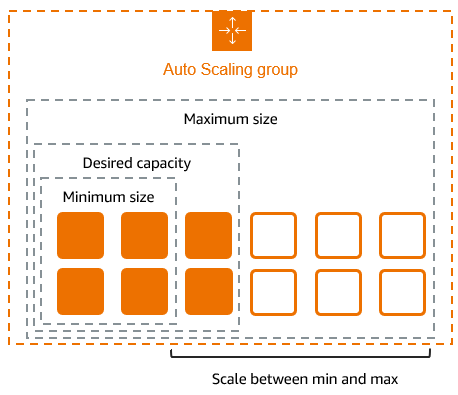
Auto Scaling groups are the core of the Auto Scaling service. An Auto Scaling group is a collection of Amazon EC2 instances. You can specify settings like the minimum, maximum, and desired number of EC2 instances for an Auto Scaling group to which you want to apply certain scaling actions.

To create an Auto Scaling group, use the as-create-auto-scaling-group CLI command. Alternatively, you can use the CreateAutoScalingGroup API call. For more information about the API call, go to CreateAutoScalingGroup in the Auto Scaling API Reference. For information about Auto Scaling groups, see Auto Scaling Group.

The as-create-auto-scaling-group command takes the following arguments:

as-create-auto-scaling-group AutoScalingGroupName --availability-zones value[,value...] --launch-configuration value --max-size value --min-size value [--default-cooldown value] [--desired-capacity value] [--grace-period value] [--health-check-type value] [--load-balancers value[, value]] [--placement-group value] [--vpc-zone-identifier value] [General Options]

This command requires that you specify a name for your Auto Scaling group, a launch configuration, one or more Availability Zones, a minimum group size, and a maximum group size. The Availability Zones you choose determine the physical location of your Auto Scaling instances. The minimum and maximum group size tells Auto Scaling the minimum and maximum number of instances the Auto Scaling group should have.

Desired capacity is an important component of the as-create-auto-scaling-group command. Although it is an optional parameter, desired capacity tells Auto Scaling the number of instances you want to run initially. To adjust the number of instances you want running in your Auto Scaling group, you change the value of --desired-capacity. If you don't specify --desired-capacity, its value is the same as minimum group size.

For this launch configuration, specify the following options:

  • Auto Scaling group name: my-test-asg

  • Launch configuration name: my-test-lc

  • Availability Zone: us-east-1a

  • Minimum size: 1

  • Maximum size: 10

  • Desired capacity: 1

Important

You will incur the standard Amazon EC2 usage fees for the instance until you terminate it as the last task in this tutorial. For more information about Amazon EC2 usage rates, go to the Amazon EC2 product page.

Enter the as-create-auto-scaling-group command as in the following example:

as-create-auto-scaling-group my-test-asg --launch-configuration my-test-lc --availability-zones us-east-1a --min-size 1 --max-size 10 --desired-capacity 1

If your request was successful, you should get a confirmation like in the following example:

OK-Created AutoScalingGroup

Based on the my-test-asg Auto Scaling group and the my-test-lc launch configuration, Auto Scaling will launch one EC2 instance in the us-east-1a Availability Zone.

Verify Auto Scaling Group Creation

You use the as-describe-auto-scaling-groups command to confirm that the my-test-asg Auto Scaling group exists. Use the --headers argument to print headings that describe each value that the command returns.

The as-describe-auto-scaling-groups command takes the following arguments:

as-describe-auto-scaling-groups [AutoScalingGroupNames [AutoScalingGroupNames...]] [--max-records value] [General Options]

Enter the as-describe-auto-scaling-groups command as in the following example:

as-describe-auto-scaling-groups my-test-asg --headers

If your request was successful, you should get the details of your group like in the following example:

AUTO-SCALING-GROUP  GROUP-NAME   LAUNCH-CONFIG  AVAILABILITY-ZONES  MIN-SIZE  MAX-SIZE  DESIRED-CAPACITY
AUTO-SCALING-GROUP  my-test-asg      my-test-lc           us-east-1a          1         10         1

Verify Auto Scaling Instances

You can also use the as-describe-auto-scaling-instances command to check that the my-test-asg Auto Scaling group contains running instances. Use the --headers argument to print headings that describe each value that the command returns.

The as-describe-auto-scaling-instances command takes the following arguments:

as-describe-auto-scaling-instances [InstanceIds [InstanceIds...]] [--max-records value] [General Options]

Enter the as-describe-auto-scaling-instances command as in the following example:

as-describe-auto-scaling-instances --headers

If your request was successful, you should get the details of the launched instance like in the following example:

INSTANCE  INSTANCE-ID  GROUP-NAME   AVAILABILITY-ZONE  STATE      STATUS   LAUNCH-CONFIG
INSTANCE  i-bcdd63d1   my-test-asg      us-east-1a   InService  HEALTHY     my-test-lc

Note

It may take a few minutes for the service to return the information.

Tasks Completed

You just performed the following tasks:

  • Created a launch configuration

  • Created an Auto Scaling group

  • Confirmed that your Auto Scaling group exists

  • Checked that your Auto Scaling group contains running instances

Following is the complete snippet used to perform these tasks. You can copy the snippet, replace the values with your own, and use the code to get started.

Note

The instance associated with the Auto Scaling group you just created is not launched instantly. So, if you run the snippet as a single code block, you will not see see the instance information right away.

as-create-launch-config my-test-lc --image-id ami-0078da69 --instance-type m1.small
as-create-auto-scaling-group my-test-asg --launch-configuration my-test-lc --availability-zones us-east-1a --min-size 1 --max-size 10 --desired-capacity 1
as-describe-auto-scaling-groups --headers
as-describe-auto-scaling-instances --headers

Using the Query API

Use the following Auto Scaling actions to create a launch configuration, Auto Scaling group and to verify if your Auto Scaling group is created.

CommandDescription

CreateLaunchConfiguration

Creates a new launch configuration with specified attributes.

CreateAutoScalingGroup

Creates a new Auto Scaling group with specified name and other attributes.

DescribeAutoScalingGroups

Describes the specified Auto Scaling group(s) if the group exists.

DescribeAutoScalingInstances

Describes the specified instances. If the instances are not specified, Auto Scaling returns the description of all the instances associated with the AWS account.

For more information about Auto Scaling actions, see Auto Scaling API Reference.

For common conventions the documentation uses to represent command symbols, see Document Conventions.

Create a Launch Configuration

The launch configuration specifies the template that Auto Scaling uses to launch Amazon EC2 instances. This template contains all the information necessary for Auto Scaling to launch instances that run your application. For information about launch configuration, see Launch Configuration.

Call the CreateLaunchConfiguration action by specifying the following parameters:

  • Launch configuration name: my-test-lc

  • Instance type: m1.small

  • Image ID: ami-0078da69

    Note

    The AMI ID is provided for illustration purposes only. AMI IDs change over time. You can obtain current, valid AMI IDs by calling the Amazon EC2 DescribeImages action.

Your request should look similar to the following example:

https://autoscaling.amazonaws.com/?LaunchConfigurationName=my-test-lc
&ImageId=ami-0078da69
&InstanceType=m1.small
&Action=CreateLaunchConfiguration
&AUTHPARAMS

If your request was successful, you should get a confirmation like in the following example:

<CreateLaunchConfigurationResponse xmlns="http://autoscaling.amazonaws.com/doc/2011-01-01/">
  <ResponseMetadata>
    <RequestId>7c6e177f-f082-11e1-ac58-3714bEXAMPLE</RequestId>
  </ResponseMetadata>
</CreateLaunchConfigurationResponse> 

You now have a launch configuration called my-test-lc that launches an m1.small instance using the ami-0078da69 AMI.

Create an Auto Scaling Group

After you have defined your launch configuration, you are ready to create an Auto Scaling group.

Auto Scaling groups are the core of the Auto Scaling service. An Auto Scaling group is a collection of Amazon EC2 instances. You can specify settings like the minimum, maximum, and desired number of EC2 instances for an Auto Scaling group to which you want to apply certain scaling actions.

For information about Auto Scaling groups, see Auto Scaling Group.

To create an Auto Scaling group, you must specify a name for your Auto Scaling group, a launch configuration, one or more Availability Zones, a minimum group size, and a maximum group size. The Availability Zones you choose determine the physical location of your Auto Scaling instances. The minimum and maximum group size tells Auto Scaling the minimum and maximum number of instances the Auto Scaling group should have.

Desired capacity is an important component of the Auto Scaling group creation process. Although it is an optional parameter, desired capacity tells Auto Scaling the number of instances you want to run initially. To adjust the number of instances you want running in your Auto Scaling group, you change the value of DesiredCapacity. If you don't specify the desired capacity for your Auto Scaling group, its value is the same as minimum group size.

Call the CreateAutoScalingGroup action by specifying the following parameters:

  • Auto Scaling group name: my-test-asg

  • Launch configuration name: my-test-lc

  • Availability Zone: us-east-1a

  • Minimum size: 1

  • Maximum size: 10

  • Desired capacity: 1

Important

You will incur the standard Amazon EC2 usage fees for the instance until you terminate it as the last task in this tutorial. For more information about Amazon EC2 usage rates, go to the Amazon EC2 product page.

Your request should look similar to the following example:

https://autoscaling.amazonaws.com/?AutoScalingGroupName=my-test-asg
&AvailabilityZones.member.1=us-east-1a
&MinSize=1
&MaxSize=10
&DesiredCapacity=1
&LaunchConfigurationName=my-test-lc
&Action=CreateAutoScalingGroup
&AUTHPARAMS            

If your request is successful, you should get a confirmation like the following example:

<CreateAutoScalingGroupResponse xmlns="http://autoscaling.amazonaws.com/doc/2011-01-01/">
  <ResponseMetadata>
    <RequestId>8d798a29-f083-11e1-bdfb-cb223EXAMPLE</RequestId>
  </ResponseMetadata>
</CreateAutoScalingGroupResponse>

Based on the my-test-asg Auto Scaling group and the my-test-lc launch configuration, Auto Scaling will launch one EC2 instance in the us-east-1a Availability Zone.

Verify Auto Scaling Group Creation

You can confirm if Auto Scaling has launched an EC2 instance using the my-test-lc launch configuration in Availability Zone us-east-1a by looking at the description of your Auto Scaling group my-test-asg.

Call the DescribeAutoScalingGroups action by specifying the following parameter:

  • Auto Scaling group name: my-test-asg

Your request should look similar to the following example:

https://autoscaling.amazonaws.com/?AutoScalingGroupNames.member.1=my-test-asg
&MaxRecords=20
&Action=DescribeAutoScalingGroups
&AUTHPARAMS            

The response includes details about the group and instance launched. The information you get should be similar to the following example:

<DescribeAutoScalingGroupsResponse xmlns="http://autoscaling.amazonaws.com/doc/2011-01-01/">
  <DescribeAutoScalingGroupsResult>
    <AutoScalingGroups>
      <member>
        <Tags/>
        <SuspendedProcesses/>
        <AutoScalingGroupName>my-test-asg</AutoScalingGroupName>
        <HealthCheckType>EC2</HealthCheckType>
        <CreatedTime>2013-02-12T22:14:49.235Z</CreatedTime>
        <EnabledMetrics/>
        <LaunchConfigurationName>my-test-lc</LaunchConfigurationName>
        <Instances>
          <member>
            <HealthStatus>Healthy</HealthStatus>
            <AvailabilityZone>us-east-1a</AvailabilityZone>
            <InstanceId>i-6fecd61f</InstanceId>
            <LaunchConfigurationName>my-test-lc</LaunchConfigurationName>
            <LifecycleState>InService</LifecycleState>
          </member>
        </Instances>
        <DesiredCapacity>1</DesiredCapacity>
        <AvailabilityZones>
          <member>us-east-1a</member>
        </AvailabilityZones>
        <LoadBalancerNames/>
        <MinSize>1</MinSize>
        <VPCZoneIdentifier/>
        <HealthCheckGracePeriod>0</HealthCheckGracePeriod>
        <DefaultCooldown>300</DefaultCooldown>
        <AutoScalingGroupARN>arn:aws:autoscaling:us-east-1:123456789012:autoScalingGroup:5d1ee7f3-f0f6-42bd-851e-0513f88c56b0:autoScalingGroupName/my-test-asg</AutoScalingGroupARN>
        <TerminationPolicies>
          <member>Default</member>
        </TerminationPolicies>
        <MaxSize>10</MaxSize>
      </member>
    </AutoScalingGroups>
  </DescribeAutoScalingGroupsResult>
  <ResponseMetadata>
    <RequestId>e57b79d1-7564-11e2-9320-f7b1aEXAMPLE</RequestId>
  </ResponseMetadata>
</DescribeAutoScalingGroupsResponse>

Verify Auto Scaling Instances

You can also confirm if Auto Scaling has launched your instance by seeing the description of all running instances associated with your AWS account.

Call the DescribeAutoScalingInstances action.

Your request should look similar to the following example:

https://autoscaling.amazonaws.com/?MaxRecords=20
&Action=DescribeAutoScalingInstances
&AUTHPARAMS            

The response includes details about the instance launched. The information you get should be similar to the following example:

<DescribeAutoScalingInstancesResponse xmlns="http://autoscaling.amazonaws.com/doc/2011-01-01/">
  <DescribeAutoScalingInstancesResult>
    <AutoScalingInstances>     
      <member>
        <HealthStatus>HEALTHY</HealthStatus>
        <AutoScalingGroupName>my-test-asg</AutoScalingGroupName>
        <AvailabilityZone>us-east-1a</AvailabilityZone>
        <InstanceId>i-6fecd61f</InstanceId>
        <LaunchConfigurationName>my-test-lc</LaunchConfigurationName>
        <LifecycleState>InService</LifecycleState>
      </member>      
    </AutoScalingInstances>
  </DescribeAutoScalingInstancesResult>
  <ResponseMetadata>
    <RequestId>f6e01d93-7567-11e2-90b3-8dedfEXAMPLE</RequestId>
  </ResponseMetadata>
</DescribeAutoScalingInstancesResponse>

Note

It may take a few minutes for the service to return the information.

Tasks Completed

You just performed the following tasks:

  • Created a launch configuration

  • Created an Auto Scaling group

  • Confirmed that your Auto Scaling group exists

  • Checked that your Auto Scaling group contains running instances