| « PreviousNext » | |
![]() ![]() ![]() | Did this page help you? Yes | No | Tell us about it... |
Topics
Auto Scaling launches and terminates Amazon EC2 instances automatically in response to a scaling activity or to replace an unhealthy instance. A scaling activity can be invoked to rebalance an Availability Zone, to maintain the desired capacity of an Auto Scaling group, or to perform any other long-running operation supported by the service.
Auto Scaling uses the launch configuration associated with your Auto Scaling group to launch instances. For information on creating launch configurations, see Basic Auto Scaling Configuration. Auto Scaling uses a termination policy, which is a set of criteria used for selecting an instance to terminate, when it must terminate one or more instances. By default, Auto Scaling uses the default termination policy, but you can opt to specify a termination policy of your own.
Before Auto Scaling selects an instance to terminate, it first identifies the Availability Zone that has more instances than the other Availability Zones used by the group. If all Availability Zones have the same number of instances, it identifies a random Availability Zone. Within the identified Availability Zone, Auto Scaling uses the termination policy to select the instance for termination.
The default termination policy uses the following steps to identify an instance to terminate:
Within the selected Availability Zone, it identifies the instance that was launched using the oldest launch configuration.
Auto Scaling calls the DescribeLaunchConfiguration
action on the instances in an Auto Scaling group. It then uses the time in the CreatedTime field to identify the
instance with the oldest launch configuration.
If more than one running instance was launched using the oldest launch configuration, it identifies the instance within that subset that is closest to the next instance hour.
By selecting the instance that is closest to the next instance hour, Auto Scaling maximizes the hours your instances run while minimizing the billable instance-hours.
If more than one instance is closest to the next instance hour, it selects a random instance from that subset.
Auto Scaling provides a list of termination policies for you to choose from, in case the default termination policy does not satisfy your requirements. If you specify your termination policy, Auto Scaling will use it instead of the default termination policy. If you do not specify a termination policy, Auto Scaling will use the default termination policy.
Auto Scaling provides the following termination policy options for you to choose from. You can specify one or more of these options in your termination policy.
OldestInstance — Specify this if you want the oldest instance in your Auto Scaling group to be terminated.
Auto Scaling uses the instance launch time to identify the instance that was launched first.
NewestInstance — Specify this if you want the last launched instance to be terminated.
Auto Scaling uses the instance launch time to identify the instance that was launched last.
OldestLaunchConfiguration — Specify this if you want the instance launched using the oldest launch configuration to be terminated.
Auto Scaling calls the DescribeLaunchConfiguration
action on the instances in an Auto Scaling group. It then uses the time in the CreatedTime field to identify the
instance with the oldest launch configuration.
ClosestToNextInstanceHour — Specify this if you want the instance that is closest to completing the billing hour to be terminated.
By selecting the instance that is closest to the next instance hour, you maximize the hours your instances run while minimizing the billable instance-hours.
Default — Specify this if you want Auto Scaling to use the default termination policy to select instances for termination.
To configure your termination policy, you can either specify any one of the policies as a standalone policy, or you can list multiple policies in an ordered list. The policies are executed in the order they are listed.
Important
If you are listing Default as part of a policy list, be sure to order the list such that Default is listed last in the policy list.
Your Termination policy uses the following steps to identify an instance to terminate.
Within the selected Availability Zone, it identifies the instance that matches the specified termination policy.
If more than one running instance matches the specified policy, it goes to the next policy on the list. If there are no more policies specified, it uses the default termination policy to identify an instance for termination.
You can either create a new Auto Scaling group with which you can associate your termination policy or you can update an existing Auto Scaling group to use your termination policy. If you are updating your existing Auto Scaling group, the new termination policy is executed when the next scaling activity takes place for the Auto Scaling group.
In this section, we will walk you through the process of configuring your instance termination policy for your Auto Scaling group. You’ll start by creating a new launch configuration, and then you’ll create a new Auto Scaling group with your termination policy. If you would prefer to update your existing Auto Scaling group instead, skip the initial steps for creating new launch configuration and Auto Scaling group.
The following table outlines the steps for configuring your termination policy. This will be followed by instructions for configuring your termination policy using either the Auto Scaling command line interface (CLI) or the Auto Scaling Query API.
| Steps | Description |
|---|---|
| Step 1 |
1.1 Create Launch Configuration. 1.2 Create Auto Scaling group, specifing the termination policy you want to use to terminate instances. 1.3 Or, Update your Auto Scaling group by specifying the termination policy you want to use to terminate instances. |
| Step 2 | Verify that your Auto Scaling group lanches with your termination policy. |
| Step 3 | Test to ensure that instances in your Auto Scaling group are getting terminated as specified in your termination policy. |
| Step 4 | Clean up. |
If you do not have the latest version of the Auto Scaling command line interface (CLI) installed, go to the Auto Scaling Command Line Tool page to download it now. For instructions on installing and using the Auto Scaling CLI, see Install the Command Line Interface in the Auto Scaling Developer Guide.
You will use the following Auto Scaling commands to configure your termination policy for your Auto Scaling group.
| Command | Description |
|---|---|
|
|
Creates a new launch configuration with specified attributes. |
|
|
Creates a new Auto Scaling group with a specified name and other attributes. |
|
|
Describes the Auto Scaling groups, if the groups exist. |
|
|
Updates the configuration for the specified AutoScalingGroup. |
|
|
Deletes the specified Auto Scaling group, if the group has no instances and no scaling activities are in progress. |
For common conventions the documentation uses to represent command symbols, see Document Conventions.
For detailed information about the command syntax of any of the commands listed above, use
the --help option with the command or go to the Auto Scaling Quick
Reference Card.
Create or update your Auto Scaling group.
If you are updating your existing Auto Scaling group to use your Termination Policy, go to step 1c.
Create launch configuration.
If you're not familiar with how to create a launch configuration or an Auto Scaling group, we recommend that you go through the steps in the Basic Auto Scaling Configuration. Use the basic scenario to get started using the infrastructure that is typically needed in Auto Scaling.
For this walkthrough, specify the following values for the as-create-launch-config command:
Launch configuration name = lc-test-termination-policy
Image ID = ami-0078da69
If you don't have an AMI, and you want to find a suitable one, see Amazon Machine Images (AMIs).
Instance type = m1.small
Your command should look similar to the following example:
as-create-launch-config lc-test-termination-policy --image-id ami-0078da69 --instance-type m1.small
You should get a confirmation like the following example:
OK-Created launch config
Create Auto Scaling group.
Create your Auto Scaling group by using as-create-auto-scaling-group and then specifying the launch configuration you just created. For more detailed information on the syntax of the as-create-auto-scaling-group
command, go to Create an Auto Scaling Group.
Specify the following values for the as-create-auto-scaling-group command:
Auto Scaling group name = asg-test-termination-policy
Launch configuration name = lc-test-termination-policy
Availability Zone = us-east-1e
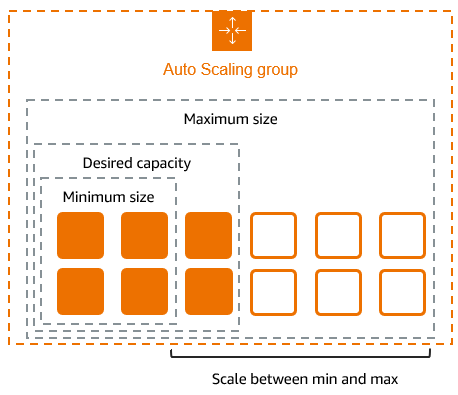
Max size = 3
Desired capacity = 2
Min size = 1
Termination policy = OldestInstance
Your command should look like the following example:
as-create-auto-scaling-group asg-test-termination-policy --launch-configuration lc-test-termination-policy --availability-zones "us-east-1e" --max-size 3 --min-size 1 –desired-capacity 2 -–termination-policies “OldestInstance”
You should get confirmation like the following example:
OK-Created AutoScalingGroup
Skip the following step and go to step 2 to verify that your Auto Scaling group has launched instances with the Termination Policy.
Update Auto Scaling group.
Update your existing Auto Scaling group by using the
as-update-auto-scaling-group command and specifying the following
values:
Auto Scaling group name = your Auto Scaling group name
Termination policy = OldestInstance
Your command should look like the following example:
as-update-auto-scaling-group your Auto Scaling group name --termination-policies "OldestInstance"You should get confirmation like the following example:
OK-Updated AutoScalingGroup
Verify Auto Scaling Group has launched with your termination policy.
To confirm that Auto Scaling has launched your EC2 instances with your termination
policies, use as-describe-auto-scaling-groups command. The command shows details
about the group and instances launched.
Specify this value for the command:
Auto Scaling group name = asg-test-termination-policy
Note
If you've updated your Auto Scaling group, replace the Auto Scaling group name,
asg-test-termination-policy, with the name of your Auto Scaling group and
replace the Desired capacity value with your own value in the rest of the walkthrough.
Your command should look like the following example:
as-describe-auto-scaling-groups asg-test-termination-policy asg-test-termination-policy --headers
Note
Specify the --headers general option to show column headers that will organize the describe command's information.
The information you get should be similar to the following example.
AUTO-SCALING-GROUP GROUP-NAME LAUNCH-CONFIG AVAILABILITY-ZONES MIN-SIZE MAX-SIZE DESIRED-CAPACITY TERMINATION-POLICIES AUTO-SCALING-GROUP asg-test-termination-policy lc-test-termination-policy us-east-1e 1 3 2 OldestInstance INSTANCE INSTANCE-ID AVAILABILITY-ZONE STATE STATUS LAUNCH-CONFIG INSTANCE i-bd9e84c6 us-east-1e InService Healthy lc-test-termination-policy INSTANCE i-bf9e84c4 us-east-1e InService Healthy lc-test-termination-policy
You can see that Auto Scaling launched 2 instances using the lc-test-termination-policy launch configuration, and they are Healthy and running (InService).
Your Auto Scaling group is associated with your termination policy.
Test if instances are being terminated as specified in your termination policy.
To test if your instances are getting terminated as specified in your policy, you’ll have
to first invoke your Auto Scaling group to scale out (launch a new instance) and then use the
termination policy value, OldestInstance, specified in the previous step, to
scale in (terminate an instance).
Increase the Desired capacity of your Auto Scaling group to invoke scaling out activity.
Specify these values for your command:
Auto Scaling group name = asg-test-termination-policy
Desired capacity = 3
Your command should look like the following example:
as-update-auto-scaling-group asg-test-termination-policy –-desired-capacity 3
You should get confirmation like the following example:
OK-Updated AutoScalingGroup
Verify that your Auto Scaling group scaled out to the desired capacity.
Your command should look like the following example.
as-describe-auto-scaling-groups asg-test-termination-policy --headers
The information you get should be similar to the following example.
AUTO-SCALING-GROUP GROUP-NAME LAUNCH-CONFIG AVAILABILITY-ZONES MIN-SIZE MAX-SIZE DESIRED-CAPACITY TERMINATION-POLICIES
AUTO-SCALING-GROUP asg-test-termination-policy lc-test-termination-policy us-east-1e 1 3 3 NewestInstance
INSTANCE INSTANCE-ID AVAILABILITY-ZONE STATE STATUS LAUNCH-CONFIG
INSTANCE i-bd9e84c6 us-east-1e InService Healthy lc-test-termination-policy
INSTANCE i- bf9e84c4 us-east-1e InService Healthy lc-test-termination-policy
INSTANCE i-47b5af3c us-east-1e InService Healthy lc-test-termination-policy
Your Auto Scaling group has launched one new instance, i-47b5af3c. Make a
note of the instance-id of the newly launched instance. You’ll use it to verify the scaling
activity in the next step.
Update your Auto Scaling group to invoke scaling in activity as specified in your termination policy.
You can invoke scaling in of your Auto Scaling group by reducing the value of desired capacity.
Specify these values for your command:
Auto Scaling group name = asg-test-termination-policy
Desired capacity = 2
Your command should like the following example:
as-update-auto-scaling-group asg-test-termination-policy –-desired-capacity 2
You should get confirmation like the following example:
OK-Updated AutoScalingGroup
Verify that your Auto Scaling group scaled in to the desired capacity.
In this step you’ll verify that a scaling in activity was executed on your Auto Scaling group using the termination policy you specified.
Your command should look like the following example:
as-describe-auto-scaling-groups asg-test-termination-policy --headers
The information you get should be similar to the following example:
AUTO-SCALING-GROUP GROUP-NAME LAUNCH-CONFIG AVAILABILITY-ZONES MIN-SIZE MAX-SIZE DESIRED-CAPACITY TERMINATION-POLICIES
AUTO-SCALING-GROUP asg-test-termination-policy lc-test-termination-policy us-east-1e 1 3 2
OldestInstance
INSTANCE INSTANCE-ID AVAILABILITY-ZONE STATE STATUS LAUNCH-CONFIG
INSTANCE i- bf9e84c4 us-east-1e Terminating Healthy lc-test-termination-policy
INSTANCE i-bd9e84c6 us-east-1e InService Healthy lc-test-termination-policy
INSTANCE i-47b5af3c us-east-1e InService Healthy lc-test-termination-policy
Your Auto Scaling group description shows that instance i- bf9e84c4 is
terminating. This instance was launched along with i- bd9e84c6 when Auto
Scaling group was created in Step 1. When Auto Scaling executed the termination policy
value, OldestInstance, for this Auto Scaling group to identify an instance to terminate, it
found more than one instance meeting the criteria. Since there were no other policies
mentioned, the Default policy was executed.
As per the Default Termination Policy, both the instances were launched using the same launch configuration
and were closest to the next instance hour. Auto Scaling then selected a random instance, i- bf9e84c4, for termination.
Update your Auto Scaling group with a new termination policy and invoke termination of an instance as specified in your new termination policy.
You can invoke termination of an instance in your Auto Scaling group by reducing the value of desired capacity.
To decrease the desired capacity and change the termination policy for your Auto Scaling
group, use the as-update-auto-scaling-policy command by specifying the
following values:
Auto Scaling group name = asg-test-termination-policy
Desired capacity = 1
Termination Policy = NewestInstance
Your command should like the following example:
as-update-auto-scaling-group asg-test-termination-policy –-desired-capacity 1 --termination-policies "NewestInstance"
You should get confirmation like the following example:
OK-Updated AutoScalingGroup
Verify that your Auto Scaling group scaled in to the desired capacity using the new termination policy.
In this step you’ll verify that a scaling in activity was implemented on your Auto Scaling group using the new termination policy.
Your command should look like the following example:
as-describe-auto-scaling-groups asg-test-termination-policy --headers
The information you get should be similar to the following example:
AUTO-SCALING-GROUP GROUP-NAME LAUNCH-CONFIG AVAILABILITY-ZONES MIN-SIZE MAX-SIZE DESIRED-CAPACITY TERMINATION-POLICIES
AUTO-SCALING-GROUP asg-test-termination-policy lc-test-termination-policy us-east-1e 1 3 1
NewestInstance
INSTANCE INSTANCE-ID AVAILABILITY-ZONE STATE STATUS LAUNCH-CONFIG
INSTANCE i-bd9e84c6 us-east-1e InService Healthy
lc-test-termination-policy
INSTANCE i-47b5af3c us-east-1e Terminating Healthy lc-test-termination-policy
Your Auto Scaling group description shows that instance i-47b5af3c is
terminating. Note that the terminating instance was launched when you updated your Auto
Scaling group in Step 3e. This is your newest instance.
Clean up.
If you were working on your existing Auto Scaling group and want to keep it, you can skip this step.
Instead, use as-update-auto-scaling groups to set the parameters to the values you want to
keep for this Auto Scaling group.
After you're finished using your instances and your Auto Scaling group for testing your
termination policy, it is a good practice to clean up. Run the
as-delete-auto-scaling-group command with the optional
--force-delete parameter. Force delete specifies that EC2 instances that are
part of the Auto Scaling group will be terminated with the Auto Scaling group, even if the
instances are still running. If you don't specify the --force-delete parameter,
then you cannot delete your Auto Scaling group until you have terminated all instances
running in that Auto Scaling group.
Run the command using the following values:
Auto Scaling group name = asg-test-termination-policy
Force delete (optional parameter) = --force-delete
Your command should look like the following example:
as-delete-auto-scaling-group as-test-termination-policy --force-delete
Confirm that you want to delete the Auto Scaling group. After you confirm that you want to delete the Auto Scaling group, Auto Scaling deletes the group, as the following example shows:
Are you sure you want to delete this AutoScalingGroup? [Ny] OK-Deleted AutoScalingGroup
Congratulations! You've successfully created two new termination policies and then you invoked scaling in and scaling out activities to test your new termination policies.
If you are not familiar with using the Auto Scaling Query API to make Query requests, see Use Query Requests to Call Auto Scaling APIs section in the Auto Scaling Developer Guide.
You will use the following Auto Scaling Query API actions to configure your termination policy for your Auto Scaling group.
| Actions | Description |
|---|---|
|
Creates a new launch configuration with specified attributes. | |
|
Creates a new Auto Scaling group with a specified name and other attributes. | |
|
Describes the Auto Scaling groups, if the groups exist. | |
|
Updates the configuration for the specified AutoScalingGroup. | |
|
Deletes the specified Auto Scaling group, if the group has no instances and no scaling activities are in progress. |
For common conventions the documentation uses to represent command symbols, see Document Conventions.
For detailed descriptions of the Auto Scaling API actions, go to Auto Scaling API Reference.
Create or update your Auto Scaling Group.
If you are updating your existing Auto Scaling group to use your Termination Policy, go to step 1c.
Create launch configuration.
If you're not familiar with how to create a launch configuration or an Auto Scaling group, we recommend that you go through the steps in the Basic Auto Scaling Configuration. Use the basic scenario to get started using the infrastructure that is typically needed in Auto Scaling.
To create a new launch configuration to use with your termination policy, call the
CreateLaunchConfiguration action with the following parameters:
LaunchConfigurationName = lc-test-termination-policy
ImageId = ami-0078da69
If you don't have an AMI, and you want to find a suitable one, see Amazon Machine Images (AMIs).
InstanceType = m1.small
If your request is successful, you should get a confirmation like the following example:
<CreateLaunchConfigurationResponse xmlns="http://autoscaling.amazonaws.com/doc/2011-01-01/">
<ResponseMetadata>
<RequestId>7c6e177f-f082-11e1-ac58-3714bEXAMPLE</RequestId>
</ResponseMetadata>
</CreateLaunchConfigurationResponse> Create Auto Scaling group.
Create your Auto Scaling group by using CreateAutoScalingGroup action with
the following parameters:
AutoScalingGroup name = asg-test-termination-policy
LaunchConfigurationName = lc-test-termination-policy
AvailabilityZones = us-east-1e
MaxSize = 3
DesiredCapacity = 2
MinSize = 1
TerminationPolicy = OldestInstance
If your request is successful, you should get a confirmation like the following example:
<CreateAutoScalingGroupResponse xmlns="http://autoscaling.amazonaws.com/doc/2011-01-01/">
<ResponseMetadata>
<RequestId>8d798a29-f083-11e1-bdfb-cb223EXAMPLE</RequestId>
</ResponseMetadata>
</CreateAutoScalingGroupResponse>Skip the following step and go to step 2 to verify that your Auto Scaling group has launched instances with the termination policy.
Update Auto Scaling group.
Update your existing Auto Scaling group by using the UpdateAutoScalingGroups
action with the following parameters:
AutoScalingGroupName = your Auto Scaling group name
TerminationPolicy = OldestInstance
If your request is successful, you should get a confirmation like the following example:
<UpdateAutoScalingGroupResponse xmlns="http://autoscaling.amazonaws.com/doc/2011-01-01/">
<ResponseMetadata>
<RequestId>126a833c-f06c-11e1-baa6-f5fc8EXAMPLE</RequestId>
</ResponseMetadata>
</UpdateAutoScalingGroupResponse>Verify that the Auto Scaling group has launched with your termination policy.
To confirm that Auto Scaling has launched your EC2 instances with your termination
policies, call DescribeAutoScalingGroups action with the following
parameter:
AutoScalingGroupName = asg-test-termination-policy
Note
If you've updated your Auto Scaling group, replace the Auto Scaling group name,
asg-test-termination-policy, with the name of your Auto Scaling group and
replace the DesiredCapacity value with your own value, in the rest of the
walkthrough.
The response shows details about the group and instances launched. The information you get should be similar to the following example:
<DescribeAutoScalingGroupsResponse xmlns="http://autoscaling.amazonaws.com/doc/2011-01-01/">
<DescribeAutoScalingGroupsResult>
<AutoScalingGroups>
<member>
<Tags/>
<SuspendedProcesses/>
<AutoScalingGroupName>asg-test-termination-policy</AutoScalingGroupName>
<HealthCheckType>EC2</HealthCheckType>
<CreatedTime>2012-08-27T20:12:40.335Z</CreatedTime>
<EnabledMetrics/>
<LaunchConfigurationName>lc-test-termination-policy</LaunchConfigurationName>
<Instances>
<member>
<HealthStatus>Healthy</HealthStatus>
<AvailabilityZone>us-east-1e</AvailabilityZone>
<InstanceId>i-bd9e84c6</InstanceId>
<LaunchConfigurationName>lc-test-termination-policy</LaunchConfigurationName>
<LifecycleState>InService</LifecycleState>
</member>
<member>
<HealthStatus>Healthy</HealthStatus>
<AvailabilityZone>us-east-1e</AvailabilityZone>
<InstanceId> i-bf9e84c4</InstanceId>
<LaunchConfigurationName>lc-test-termination-policy</LaunchConfigurationName>
<LifecycleState>InService</LifecycleState>
</member>
</Instances>
<DesiredCapacity>2</DesiredCapacity>
<AvailabilityZones>
<member>us-east-1e</member>
</AvailabilityZones>
<LoadBalancerNames/>
<MinSize>1</MinSize>
<VPCZoneIdentifier/>
<HealthCheckGracePeriod>0</HealthCheckGracePeriod>
<DefaultCooldown>300</DefaultCooldown>
<AutoScalingGroupARN>arn:aws:autoscaling:us-east-1:803981987763:autoScalingGroup:70eb78a1-687e-4a2b-836c-ef53806746a5:autoScalingGroupName/asg-test-term
ination-policy</AutoScalingGroupARN>
<TerminationPolicies>
<member>OldestInstance</member>
</TerminationPolicies>
<MaxSize>3</MaxSize>
</member>
</AutoScalingGroups>
</DescribeAutoScalingGroupsResult>
<ResponseMetadata>You can see that Auto Scaling launched 2 instances using the lc-test-termination-policy launch configuration, and they are Healthy and running (InService).
Your Auto Scaling group is associated with your termination policy.
Test if instances are being terminated as specified in your termination policy.
To test if your instances are getting terminated as specified in your policy, you’ll have
to first invoke your Auto Scaling group to scale out (launch a new instance) and then use the
termination policy value, OldestInstance, specified in the previous step to
scale in (terminate an instance).
Increase the Desired capacity of your Auto Scaling group to invoke scaling out activity.
Call UpdateAutoScalingGroup action with the following parameters:
AutoScalingGroupName = asg-test-termination-policy
DesiredCapacity = 3
If your request is successful, you should get a confirmation like the following example:
<UpdateAutoScalingGroupResponse xmlns="http://autoscaling.amazonaws.com/doc/2011-01-01/">
<ResponseMetadata>
<RequestId>126a833c-f06c-11e1-baa6-f5fc8fEXAMPLE</RequestId>
</ResponseMetadata>
</UpdateAutoScalingGroupResponse>Verify that your Auto Scaling group scaled out to the desired capacity.
To verify that your Auto Scaling group has scaled out as per the updated desired
capacity, call DescribeAutoScalingGroups by specifying the following
parameters:
AutoScalingGroupName = asg-test-termination-policy
If your request is successful, you should get confirmation similar to the following example.
<DescribeAutoScalingGroupsResponse xmlns="http://autoscaling.amazonaws.com/doc/2011-01-01/">
<DescribeAutoScalingGroupsResult>
<AutoScalingGroups>
<member>
<Tags/>
<SuspendedProcesses/>
<AutoScalingGroupName>asg-test-termination-policy</AutoScalingGroupName>
<HealthCheckType>EC2</HealthCheckType>
<CreatedTime>2012-08-27T17:01:09.850Z</CreatedTime>
<EnabledMetrics/>
<LaunchConfigurationName>lc-termination-policy</LaunchConfigurationName>
<Instances>
<member>
<HealthStatus>Healthy</HealthStatus>
<AvailabilityZone>us-east-1e</AvailabilityZone>
<InstanceId>i-bf9e84c4</InstanceId>
<LaunchConfigurationName>lc-termination-policy</LaunchConfigurationName>
<LifecycleState>InService</LifecycleState>
</member>
<member>
<HealthStatus>Healthy</HealthStatus>
<AvailabilityZone>us-east-1e</AvailabilityZone>
<InstanceId>i-bd9e84c6</InstanceId>
<LaunchConfigurationName>lc-termination-policy</LaunchConfigurationName>
<LifecycleState>InService</LifecycleState>
</member>
<member>
<HealthStatus>Healthy</HealthStatus>
<AvailabilityZone>us-east-1e</AvailabilityZone>
<InstanceId>i-47b5af3c</InstanceId>
<LaunchConfigurationName>lc-termination-policy</LaunchConfigurationName>
<LifecycleState>InService </LifecycleState>
</member>
</Instances>
<DesiredCapacity>3</DesiredCapacity>
<AvailabilityZones>
<member>us-east-1e</member>
</AvailabilityZones>
<LoadBalancerNames/>
<MinSize>1</MinSize>
<VPCZoneIdentifier/>
<HealthCheckGracePeriod>0</HealthCheckGracePeriod>
<DefaultCooldown>300</DefaultCooldown>
<AutoScalingGroupARN>arn:aws:autoscaling:us-east-1:803981987763:autoScalingGroup:9cad1ceb-09ba-468f-aefa-399aa74a3864:autoScalingGroupName/asg-test-term
ination-policy</AutoScalingGroupARN>
<TerminationPolicies>
<member>OldestInstance</member>
</TerminationPolicies>
<MaxSize>3</MaxSize>
</member>
</AutoScalingGroups>
</DescribeAutoScalingGroupsResult>
<ResponseMetadata>
<RequestId>2d4116b4-f06c-11e1-82d0-431d8EXAMPLE</RequestId>
</ResponseMetadata>
</DescribeAutoScalingGroupsResponse>
Your Auto Scaling group has launched one new instance, i-47b5af3c. Make a
note of the instance-id of the newly launched instance. You’ll use it to verify the scaling
activity in the next step.
Update your Auto Scaling group to invoke scaling in activity as specified in your termination policy.
You can invoke scaling in of your Auto Scaling group by reducing the value of desired capacity.
Call the UpdateAutoScalingGroups action by specifying the following
parameters:
AutoScalingGroupName = asg-test-termination-policy
DesiredCapacity = 2
If your request is successful, you should get a confirmation like the following example:
<UpdateAutoScalingGroupResponse xmlns="http://autoscaling.amazonaws.com/doc/2011-01-01/">
<ResponseMetadata>
<RequestId>126a833c-f06c-11e1-baa6-f5fc8fEXAMPLE</RequestId>
</ResponseMetadata>
</UpdateAutoScalingGroupResponse>Verify that your Auto Scaling group scaled in to the desired capacity.
In this step you’ll verify that a scaling in activity was executed on your Auto Scaling group using the termination policy you specified.
Call the DescribeAutoScalingGroup action by specifying the following
parameters:
AutoScalingGroupName = asg-test-termination-policy
If your request is successful, you should get confirmation like the following example:
<DescribeAutoScalingGroupsResponse xmlns="http://autoscaling.amazonaws.com/doc/2011-01-01/">
<DescribeAutoScalingGroupsResult>
<AutoScalingGroups>
<member>
<Tags/>
<SuspendedProcesses/>
<AutoScalingGroupName>asg-test-termination-policy</AutoScalingGroupName>
<HealthCheckType>EC2</HealthCheckType>
<CreatedTime>2012-08-27T17:01:09.850Z</CreatedTime>
<EnabledMetrics/>
<LaunchConfigurationName>lc-termination-policy</LaunchConfigurationName>
<Instances>
<member>
<HealthStatus>Healthy</HealthStatus>
<AvailabilityZone>us-east-1e</AvailabilityZone>
<InstanceId>i-bf9e84c4</InstanceId>
<LaunchConfigurationName>lc-termination-policy</LaunchConfigurationName>
<LifecycleState>Terminating</LifecycleState>
</member>
<member>
<HealthStatus>Healthy</HealthStatus>
<AvailabilityZone>us-east-1e</AvailabilityZone>
<InstanceId>i-bd9e84c6</InstanceId>
<LaunchConfigurationName>lc-termination-policy</LaunchConfigurationName>
<LifecycleState>InService</LifecycleState>
</member>
<member>
<HealthStatus>Healthy</HealthStatus>
<AvailabilityZone>us-east-1e</AvailabilityZone>
<InstanceId>i-47b5af3c</InstanceId>
<LaunchConfigurationName>lc-termination-policy</LaunchConfigurationName>
<LifecycleState>InService</LifecycleState>
</member>
</Instances>
<DesiredCapacity>2</DesiredCapacity>
<AvailabilityZones>
<member>us-east-1e</member>
</AvailabilityZones>
<LoadBalancerNames/>
<MinSize>1</MinSize>
<VPCZoneIdentifier/>
<HealthCheckGracePeriod>0</HealthCheckGracePeriod>
<DefaultCooldown>300</DefaultCooldown>
<AutoScalingGroupARN>arn:aws:autoscaling:us-east-1:803981987763:autoScalingGroup:9cad1ceb-09ba-468f-aefa-399aa74a3864:autoScalingGroupName/asg-test-termination-policy</AutoScalingGroupARN>
<TerminationPolicies>
<member>OldestInstance</member>
</TerminationPolicies>
<MaxSize>3</MaxSize>
</member>
</AutoScalingGroups>
</DescribeAutoScalingGroupsResult>
<ResponseMetadata>
<RequestId>c4ea02b1-f06c-11e1-a139-71b5eEXAMPLE</RequestId>
</ResponseMetadata>
</DescribeAutoScalingGroupsResponse> Your Auto Scaling group description shows that instance i-bf9e84c4 is
terminating. This instance was launched along with i-bd9e84c6 when Auto
Scaling group was created in Step 1. When Auto Scaling executed the termination policy
value, OldestInstance, for this Auto Scaling group to identify an instance to terminate, it
found more than one instance meeting the criteria. Since there were no other policies
mentioned, the Default policy was executed.
As per the Default Termination Policy, both the instances were launched using the same
launch configuration and were closest to the next instance hour. Auto Scaling then selected
a random instance, i-bf9e84c4, for termination.
Update your Auto Scaling group with a new termination policy and invoke termination of an instance as specified in your new termination policy.
You can invoke termination of an instance in your Auto Scaling group by reducing the value of desired capacity.
To decrease the desired capacity and change the termination policy for your Auto scaling
group, call the UpdateAutoScalingGroups command by specifying the following
values:
AutoScalingGroupName = asg-test-termination-policy
DesiredCapacity = 1
TerminationPolicy = NewestInstance
If your request is successful, you should get a confirmation like the following example:
<UpdateAutoScalingGroupResponse xmlns="http://autoscaling.amazonaws.com/doc/2011-01-01/">
<ResponseMetadata>
<RequestId>126a833c-f06c-11e1-baa6-f5fc8fEXAMPLE</RequestId>
</ResponseMetadata>
</UpdateAutoScalingGroupResponse>Verify that your Auto Scaling group scaled in to the desired capacity using the new termination policy.
In this step, you’ll verify that a scaling in activity was executed on your Auto Scaling
group using the new termination policies by calling the
DescribeAutoScalingGroups action and specifying the following
parameter:
AutoScalingGroupName = asg-test-termination-policy
If your request is successful, you should get a confirmation like the following example:
<DescribeAutoScalingGroupsResponse xmlns="http://autoscaling.amazonaws.com/doc/2011-01-01/">
<DescribeAutoScalingGroupsResult>
<AutoScalingGroups>
<member>
<Tags/>
<SuspendedProcesses/>
<AutoScalingGroupName>asg-test-termination-policy</AutoScalingGroupName>
<HealthCheckType>EC2</HealthCheckType>
<CreatedTime>2012-08-27T17:01:09.850Z</CreatedTime>
<EnabledMetrics/>
<LaunchConfigurationName>lc-termination-policy</LaunchConfigurationName>
<Instances>
<member>
<HealthStatus>Healthy</HealthStatus>
<AvailabilityZone>us-east-1e</AvailabilityZone>
<InstanceId>i-bd9e84c6</InstanceId>
<LaunchConfigurationName>lc-termination-policy</LaunchConfigurationName>
<LifecycleState>InService</LifecycleState>
</member>
<member>
<HealthStatus>Healthy</HealthStatus>
<AvailabilityZone>us-east-1e</AvailabilityZone>
<InstanceId>i-47b5af3c</InstanceId>
<LaunchConfigurationName>lc-termination-policy</LaunchConfigurationName>
<LifecycleState>Terminating</LifecycleState>
</member>
</Instances>
<DesiredCapacity>1</DesiredCapacity>
<AvailabilityZones>
<member>us-east-1e</member>
</AvailabilityZones>
<LoadBalancerNames/>
<MinSize>1</MinSize>
<VPCZoneIdentifier/>
<HealthCheckGracePeriod>0</HealthCheckGracePeriod>
<DefaultCooldown>300</DefaultCooldown>
<AutoScalingGroupARN>arn:aws:autoscaling:us-east-1:803981987763:autoScal
ingGroup:9cad1ceb-09ba-468f-aefa-399aa74a3864:autoScalingGroupName/asg-test-termination-policy</AutoScalingGroupARN>
<TerminationPolicies>
<member>NewestInstance</member>
</TerminationPolicies>
<MaxSize>3</MaxSize>
</member>
</AutoScalingGroups>
</DescribeAutoScalingGroupsResult>
<ResponseMetadata>
<RequestId>fd525c2b-f06d-11e1-b584-cddb6EXAMPLE</RequestId>
</ResponseMetadata>
</DescribeAutoScalingGroupsResponse>
Your Auto Scaling group description shows that instance i-47b5af3c is
terminating. Note that the terminating instance was launched when you updated your Auto
Scaling group in Step 3e. This is your newest instance.
Clean up.
If you were working on your existing Auto Scaling group and want to keep it, you can skip
this step. Instead, call the UpdateAutoScalingGroups to set the parameters to
the values you want to keep for this Auto Scaling group.
After you're finished using your instances and your Auto Scaling group for testing your
termination policy, it is a good practice to clean up. Call the
DeleteAutoScalingGroup action by setting the optional ForceDelete
parameter to true. ForceDelete specifies that EC2 instances that are part of the Auto Scaling
group will be terminated with the Auto Scaling group, even if the instances are still
running. If you don't set the ForceDelete parameter to true, then you cannot
delete your Auto Scaling group until you have terminated all instances running in that Auto
Scaling group.
Call the DeleteAutoScalingGroup action by specifying the following parameters:
AutoScalingGroupName = asg-test-termination-policy
ForceDelete (optional parameter) = true
If your request is successful, you should see a prompt like in the following example:
Are you sure you want to delete this AutoScalingGroup? [Ny]
Type y to confirm that you want to delete the Auto Scaling group. After you
confirm, Auto Scaling deletes the group. You should get a confirmation like the following
example:
<DeleteAutoScalingGroupResponse xmlns="http://autoscaling.amazonaws.com/doc/2011-01-01/">
<ResponseMetadata>
<RequestId>c7f33164-f071-11e1-a5a8-e129b4EXAMPLE</RequestId>
</ResponseMetadata>
</DeleteAutoScalingGroupResponse> Congratulations! You've successfully created two new termination policies and then you invoked scaling in and scaling out activities to test your new termination policies.