Troubleshooting launch and post-launch errors
This section describes common errors that occur during or after launching drill or recovery instances, including conversion errors, Windows-specific issues, and instance store volume conflicts.
Topics
Windows License activation – AWS
AWS Elastic Disaster Recovery converts the Windows OS licenses to AWS Windows licenses and activates them against the AWS KMS.
If license activation failed, follow this AWS guide
Important
When performing a failback, AWS DRS does not have access to the Customer licenses and therefore cannot activate the licenses. After failback is complete, you can activate the licenses manually or using post-launch scripts.
Replicating Instance Store Volumes
When installing the DRS agent on an EC2 Instance with Instance Store volumes attached, device name conflicts can arise in the Recovery Instance's EC2 Launch Template if the template also specifies Instance Store volumes.
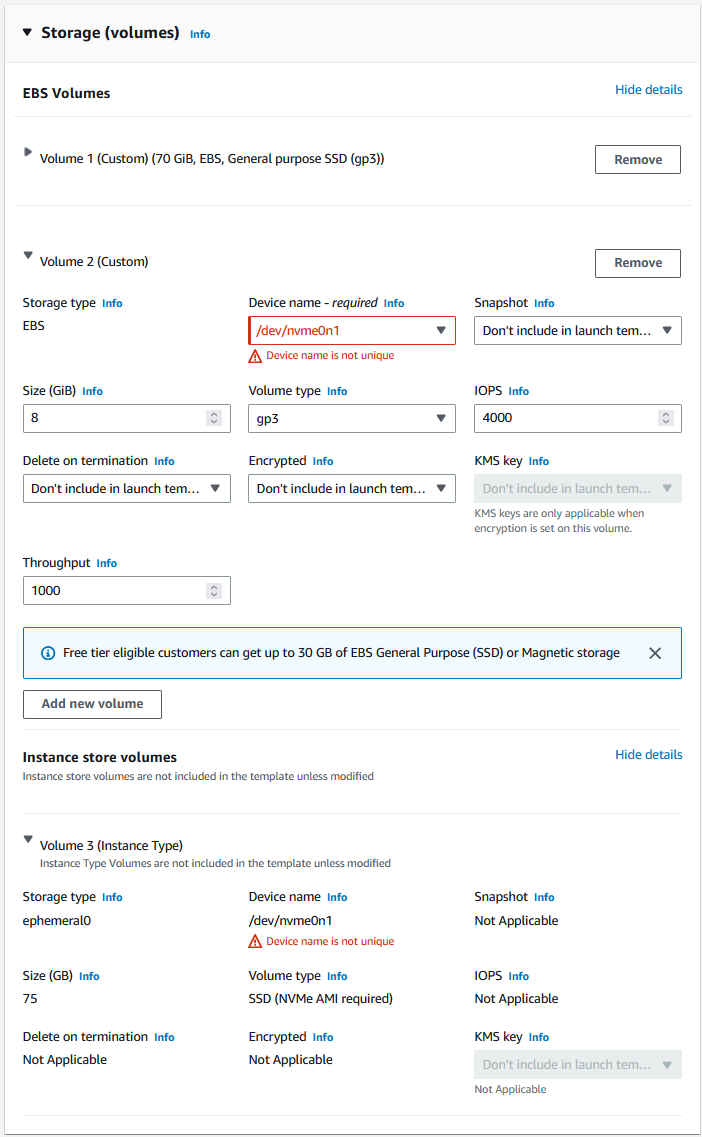
You can resolve this error in one of two ways:
-
If you require protection of the data on the Source Server's Instance Store Volume, ensure the Recovery Instance's EC2 Launch Template is reconfigured to provide a unique Device Name that will not collide with the default Instance Store mappings. For example, the "Device Name" for the EBS volume can be changed to /dev/xvdc1.
-
If you do not require protection of the data on the Source Server's Instance Store volume, ensure instance store volumes are excluded from replication via the --devices installation parameter. The DRS agent will not populate any volumes excluded from replication in the EC2 Launch Template.
Windows Drive changes
Users may see changes in Windows drive letter assignments (for example, Drive D changed to E) on Target machines launched by AWS Elastic Disaster Recovery.
This happens because Windows sometimes reconfigures the drive letters when a machine comes up on a new infrastructure, for example, if the source server had a drive letter mapped to a disk that was not replicated (such as a network drive). You can solve this issue by remapping the drive letters on the drill or recovery instance correctly after it has been launched.
Error: Failed to connect using HTTP channel
This error occurs when the Conversion server is unable to communicate with the necessary AWS endpoints on TCP port 443. Although the replication server operates in the same staging area subnet, the Conversion server is a separate instance that may be affected by changes made after replication was established.
Check if any network changes were made to the staging area since replication was set up (security group rules, network ACL changes, route table modifications, or DNS configuration changes) that could affect the Conversion server reaching the required AWS endpoints.
Windows Dynamic Disk troubleshooting
Moving a Windows Dynamic Disk from a local computer to another computer may change the disk
status to "Foreign", resulting in a disruption in replication. The solution is to import the
foreign disk, as discussed in this Microsoft troubleshooting article
Error: Conversion server launch failed
If you see Conversion server launch failed, the conversion server
could not be launched or did not become available within the expected time.
Retry the launch. If the issue persists, create a case with AWS Support and include the recovery job ID from the AWS Elastic Disaster Recovery Console.
Error: Conversion failed
If you see Conversion failed in the recovery job history, the
volume conversion process did not complete successfully.
Retry the launch. If the issue persists, create a case with AWS Support and include the recovery job ID from the AWS Elastic Disaster Recovery Console.
Error: Failed to take snapshot
If you see Failed to take snapshot in the recovery job history,
AWS Elastic Disaster Recovery was unable to create a point-in-time snapshot for the launch.
If you are using a custom KMS key for EBS encryption, verify that the key exists, is enabled, and that the AWS Elastic Disaster Recovery service roles have the required permissions to use it.
Retry the launch. If the issue persists, create a case with AWS Support and include the recovery job ID.
Error: Instance not launched due to lifecycle state
If you see instance not launched because server lifecycle state is not
READY_FOR_TEST or a similar lifecycle state error, the source server has
not completed initial sync or is not in the correct state for the requested
action.
For recovery drills, the source server must be in Ready for recovery state (initial sync completed).
Check the source server's data replication status in the AWS Elastic Disaster Recovery Console to verify that initial sync has completed.
If the source server is in Stalled or Disconnected state, resolve the replication issue first.
Error: OS BYOL can only be used with EC2 Dedicated Hosts
If you see OS BYOL can only be used with EC2 Dedicated Hosts,
the launch configuration has Bring Your Own License (BYOL) enabled but the
target instance is not configured to launch on a Dedicated Host.
To resolve, either:
Configure the EC2 Launch Template to use a Dedicated Host.
Disable the BYOL option in the AWS Elastic Disaster Recovery launch settings for the source server.
Error: EBS encryption key not found
If you see The EBS encryption key could not be found in this account,
the KMS key specified in the replication settings does not exist or is not
accessible.
Verify that the KMS key ARN in the replication settings is correct.
Ensure the KMS key has not been deleted or disabled.
Verify that the AWS Elastic Disaster Recovery service roles have
kms:CreateGrantandkms:DescribeKeypermissions on the key.
Error: Missing IAM permissions for launch
If you see errors such as Your IAM user do not have permission for
ec2:CreateSecurityGroup or similar permission errors during launch,
the IAM credentials lack the required permissions.
Verify that the required AWS Elastic Disaster Recovery IAM policies are attached. See Identity-based policies for Elastic Disaster Recovery for the full list of required permissions.
