Troubleshooting Agent Issues
Note
To gather detailed system information for troubleshooting agent installation, replication, or launch issues, use the following tools and attach the output to your support case:
Windows: MGN Toolkit for Windows
Topics
Agent log locations and status
Use the following to check the agent status and view log files:
Error: Installation Failed
When the installation of the AWS Replication Agent on a source server fails during the running of the Installer file, you will receive an error message.
This type of error means that the Agent was not installed on the source server, and therefore the server will not appear on the AWS Elastic Disaster Recovery Console. After you fix the issue that caused the installation to fail, you need to rerun the Agent Installer file to install the Agent.
This app cant run on your PC error – Windows
If you encounter the following error "This app can't run on your PC", when trying to install the AWS Replication Agent on your Windows 10 source machine, try the following.
This error is indicative that your particular version of Windows 10 is likely the 32-bit version. To verify this, you can
1. Use the Windows key + I keyboard shortcut to open the Settings app.
2. Click System.
3. Click About.
4. Under System type, you will see two pieces of information: if it says 32-bit operating system, x64-based processor, then it means that your PC is running a 32-bit version of Windows 10 on a 64-bit processor.
If it says 32-bit operating system, x86-based processor, then your computer doesn't support Windows 10 (64-bit).
At the moment, only 64 bit operating systems are supported for Elastic Disaster Recovery Service.
If your OS is indeed 64-bit, then there may be other elements blocking the installation of your agent. The block is actually coming from the Windows Operating System itself. You would need to identify what the cause is, (for example, broken registry key),
Is having a mounted '/tmp' directory a requirement for the Agent?
The simple requirement is just to have enough free space. There is no need for this to be a separate mount. The need for the '/tmp' requirement is actually only if '/tmp' is a separate mount. If '/tmp' is not a separate mount, then it would fall under '/', for which we have the 2 GiB free requirement. This allows for the '/tmp' to fall into this requirement.
Installation Failed – Old Agent
Installation may fail due to an old AWS Replication Agent. Ensure that you are attempting to install the latest version of the AWS Replication Agent. You can learn how to download the Agent here.
Installation Failed on Linux Server
If the installation failed on a Linux source server, check the following:
-
Free Disk Space
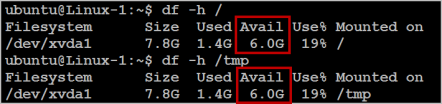
Free disk space on the root directory – verify that you have at least 3 GB of free disk on the root directory (/) of your Source machine. To check the available disk space on the root directory, run the following command:
df -h /Free disk space on the /tmp directory – for the duration of the installation process only, verify that you have at least 500 MB of free disk on the /tmp directory. To check the available disk space on the /tmp directory run the following command: df -h /tmp
After you have entered the above commands for checking the available disk space, the results will be displayed as follows:
-
The format of the list of disks to replicate
During the installation, when you are asked to enter the disks you want to replicate, do NOT use apostrophes, brackets, or disk paths that do not exist. Type only existing disk paths, and separate them with a comma, as follows:
/dev/xvdal,/dev/xvda2.
-
Version of the Kernel headers package
Verify that you have kernel-devel/linux-headers installed that are exactly of the same version as the kernel you are running.
The version number of the kernel headers should be completely identical to the version number of the kernel. To handle this issue, follow these steps:
-
Identify the version of your running kernel.
To identify the version of your running kernel, run the following command:
uname -r
The 'uname -r' output version should match the version of one of the installed kernel headers packages (kernel-devel-<version number> / linux-headers-<version number>).
-
Identify the version of your kernel-devel/linux-headers.
To identify the version of your running kernel, run the following command:
On RHEL/CENTOS/Oracle/SUSE:
rpm -qa | grep kernel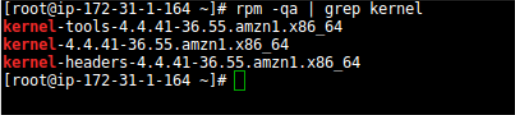
Note: This command looks for kernel-devel.
On Debian/Ubuntu: apt-cache search linux-headers

-
Verifying that the folder that contains the kernel-devel/linux-headers is not a symbolic link.
Sometimes, the content of the kernel-devel/linux-headers, which match the version of the kernel, is actually a symbolic link. In this case, you will need to remove the link before installing the required package.
To verify that the folder that contains the kernel-devel/linux-headers is not a symbolic link, run the following command:
On RHEL/CENTOS/Oracle/SUSE:
ls -l /usr/src/kernels
On Debian/Ubuntu:
ls -l /usr/src

In the above example, the results show that the linux-headers are not a symbolic link.
-
[If a symbolic link exists] Delete the symbolic link.
If you found that the content of the kernel-devel/linux-headers, which match the version of the kernel, is actually a symbolic link, you need to delete the link. Run the following command:
rm /usr/src/<LINK NAME>
For example: rm /usr/src/linux-headers-4.4.1
-
Install the correct kernel-devel/linux-headers from the repositories.
If none of the already installed kernel-devel/linux-headers packages match your running kernel version, you need to install the matching package.
Note: You can have several kernel headers versions simultaneously on your OS, and you can therefore safely install new kernel headers packages in addition to your existing ones (without uninstalling the other versions of the package.) A new kernel headers package does not impact the kernel, and does not overwrite older versions of the kernel headers.
Note: For everything to work, you need to install a kernel headers package with the exact same version number of the running kernel.
To install the correct kernel-devel/linux-headers, run the following command:
On RHEL/CENTOS/Oracle/SUSE:
sudo yum install kernel-devel-`uname -r`On Debian/Ubuntu:
sudo apt-get install linux-headers-`uname -r` -
[If no matching package was found] Download the matching kernel-devel/linux-headers package.
If no matching package was found on the repositories configured on your machine, you can download it manually from the Internet and then install it.
To download the matching kernel-devel/linux-headers package, navigate to the following sites:
-
-
The make, openssl, wget, curl, gcc and build-essential packages
Note: Usually, the existence of these packages is not required for Agent installation. However, in some cases where the installation fails, installing these packages will solve the problem.
If the installation failed, the make, openssl, wget, curl, gcc, and build-essential packages should be installed and stored in your current path.
To verify the existence and location of the required packages, run the following command:
which <package>
For example, to locate the make package:
which make

-
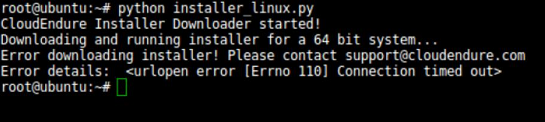
Error: urlopen error [Errno 110] Connection times out
This error occurs when outbound traffic is not allowed over TCP Port 443. Port 443 needs to be open outbound to the AWS Elastic Disaster Recovery Manager.
-
Powerpath support
powermt check

If so, contact AWS Support for instructions on how to install the AWS Replication Agent on such machines.
-
Error: You need to have root privileges to run this script

Make sure you run the installer either as root or by adding sudo at the beginning:
sudo python installer_linux.py Error: version `GLIBC_2.7' not found (required by ./aws-replication-installer-64bit)
You receive this error when you try to install the agent on an unsupported Linux operating system. See Supported Linux operating systems .
Installation Failed on Windows Machine
If the installation failed on a Windows Source server, check the following:
-
.NET Framework
Verify that .NET Framework version 3.5 or above is installed on your Windows Source servers.
-
Free disk space
Verify that there is at least 1 GB of free disk space on the root directory (C:\) of your Source servers for the installation.
-
net.exe and sc.exe location
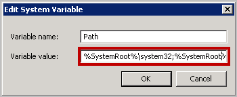
Verify that the net.exe and/or sc.exe files, located by default in the C:\Windows\System32 folder, are included in the PATH Environment Variable.
-
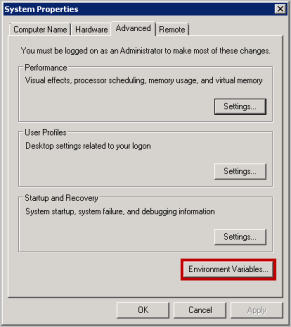
Navigate to Control Panel >System and Security >System >Advanced system settings.
-
On the System Properties dialog box Advanced tab, click the Environment Variables button.
-
On the System Variables section of the Environment Variables pane, select the Path variable. Then, click the Edit button to view its contents.

-
On the Edit System Variable pane, review the defined paths in the Variable value field. If the path of the net.exe and/or sc.exe files does not appear there, manually add it to the Variable value field, and click OK.
-
Windows – Installation Failed - Request Signature
If the AWS Replication Agent installation fails on Windows with the following error:
botocore.exceptions.ClientError: An error occurred (InvalidSignatureException) when
                calling the GetAgentInstallationAssetsElastic Disaster RecoveryInternal operation: {"message":"The
                request signature we calculated does not match the signature you provided. Check your AWS Secret
                Access Key and signing method. Consult the service documentation for details.
Attempt to rerun the installer with power shell instead of CMD. At times, when the installer is ran in CMD, the AWS Secret Key does not get pasted properly into the installer and causes installation to fail.
Error – driver was compiled for a different kernel not loading
This error may manifest if a significant amount of time has passed between when you performed a failover and when you are performing a failback.
This error may occur on the source server or on the recovery instance. You can identify this error by looking at the agent log in /var/lib/aws-replication-agent/agent.log.0
To fix this issue on a recovery instance, reboot the recovery instance and reinstall the AWS Replication Agent as recovery instance.
To fix this issue on a source server, reboot the source server and then reinstall the AWS Replication Agent.
Error: insmod permission denied or operation not permitted
If you see insmod: ERROR: could not insert module ./aws-replication-driver.ko: Permission denied
or Operation not permitted, this can be caused by SELinux, Secure Boot, or
antivirus software blocking the kernel driver insertion.
SELinux: Check if SELinux is enabled with
sestatus. If the security context of the module is incorrect, restore it with:
restorecon /lib/modules/*/extra/aws-replication-driver.ko
Secure Boot: To check if Secure Boot is
enabled, run mokutil --sb-state. If it is enabled, you will need
to disable it to use the AWS Replication Agent.
Important
Disabling Secure Boot is a significant security configuration change. Consult your organization's security team before disabling Secure Boot on production source servers. Consider the security implications and whether alternative approaches (such as signing the driver module) are available for your environment.
Antivirus: Endpoint protection software may block the driver. Check if your antivirus has a mechanism to allow-list the DRS agent components.
Error: Failed to set system user permissions
If you see Failed to set system user permissions: "getpwnam(): name not found: 'aws-replication'",
the agent could not create the aws-replication user.
Ensure that /etc/passwd, /etc/group, and /etc/shadow
are writable by root and do not have the immutable attribute set. Check with:
lsattr /etc/passwd /etc/group /etc/shadow
If the immutable attribute (i) is set, remove it with:
Important
The immutable attribute on these files may have been set intentionally as a security hardening measure. Consult your system administrator before removing it. Re-apply the attribute after the agent installation completes if required by your security policy.
chattr -i /etc/passwd /etc/group /etc/shadow
Error: failed to map segment from shared object
If you see error while loading shared libraries: libz.so.1: failed to map segment from shared object,
the /tmp directory is mounted with the noexec option.
Remount /tmp with exec permissions:
Note
The noexec mount option on /tmp is a common
security hardening practice. This change is temporary and will revert on
reboot. Consider using the TMPDIR alternative below to avoid
modifying mount options.
sudo mount /tmp -o remount,exec
Alternatively, set a different temporary directory:
TMPDIR='/path/to/exec/dir' sudo ./aws-replication-installer-init
Multipath configuration issues
If the installer does not correctly identify disks on a multipath-configured server,
use the --devices and --no-prompt parameters to specify disks explicitly:
sudo python3 aws-replication-installer-init.py --region <region> --aws-access-key-id <key> --aws-secret-access-key <secret> --devices /dev/sda,/dev/mapper/mpatha,/dev/mapper/mpathb --no-prompt
If that does not work, add the --force-volumes parameter.
Important
The --force-volumes parameter disables automatic disk
detection in AWS Elastic Disaster Recovery. When using this parameter, you must manually
verify that all required disks are included in the replication
configuration. Incorrect disk selection may result in incomplete
replication.
Windows: Cannot open self or archive
If you see Cannot open self AwsReplicationWindowsInstaller.exe or archive,
the installer file may be corrupted or incomplete. Re-download the installer and verify
the hash:
https://aws-elastic-disaster-recovery-hashes-<REGION>.s3.<REGION>.amazonaws.com/latest/windows/AwsReplicationWindowsInstaller.exe.sha512
Windows: TLS connection error when downloading installer
If you see The underlying connection was closed: An unexpected error occurred on a send
when downloading the installer via PowerShell, enforce TLS 1.2:
[System.Net.ServicePointManager]::SecurityProtocol = 'TLS12'
Windows: The directory is not empty
If you see OSError: [WinError 145] The directory is not empty during installation:
Confirm that you ran the installation as Administrator.
Ensure the user has full permissions on the temporary directory shown in the error.
Temporarily disable any antivirus software.
Ensure no Group Policy is blocking deletion of temporary files.
Error – certificate verify failed
This error (CERTIFICATE_VERIFY_FAILED) may indicate that the OS does not trust the certification authority used by our endpoints.
Important
Installing or updating root certificates is typically managed by your organization's system administrators. Consult your system administrator before modifying the trusted certificate store.
To resolve this issue:
-
Open Microsoft Edge or Internet Explorer to update the operating system trusted root certificates. This will work if the operating system does not have restrictions to download the certificates.
-
If the first step does not resolve the issue, the Amazon Root Certificates
may need to be installed manually.
Error: Account not initialized
If you see AWS Replication Agent installation failed due to the account not being initialized,
the AWS Elastic Disaster Recovery service has not been set up in the target Region.
Initialize AWS Elastic Disaster Recovery by following the steps in Elastic Disaster Recovery initialization and permissions, then run the AWS Replication Agent installer again.
Error: Failed to validate AWS credentials
If you see Failed to validate AWS credentials, the AWS Access Key ID
or AWS Secret Access Key provided during installation is incorrect or expired.
Verify that:
The AWS Access Key ID and Secret Access Key are correct and active.
The credentials have not expired (if using temporary credentials).
You are copying the credentials correctly — use PowerShell instead of CMD on Windows to avoid pasting issues.
Error: Missing agent installation policy
If the installation fails due to missing permissions, verify that the IAM user or role used for installation has the AWSElasticDisasterRecoveryAgentInstallationPolicy managed policy attached.
Error: Agent IAM role missing
If the installation fails because the agent IAM role is missing, the AWS Elastic Disaster Recovery service roles may not have been created or may have been deleted.
These roles are automatically created during Elastic Disaster Recovery initialization. If they were deleted, reinitialize the service from the AWS Elastic Disaster Recovery Console.
Error: Account Region mismatch
If you see Cannot install agent, as this server was previously installed to
replicate into another region or account, the source server was previously
registered with a different Region or account.
Important
Resolving this error requires disconnecting and deleting the existing source server from the AWS Elastic Disaster Recovery Console. This action removes the server from AWS Elastic Disaster Recovery and terminates its replication resources. Consult your disaster recovery administrator before proceeding to avoid disrupting an active DR configuration.
After the existing source server has been removed, run the installer again with the correct Region and credentials.
Error: Reboot required after uninstallation
If you see The server has not been restarted since agent uninstallation,
the previous agent was uninstalled but the server was not rebooted.
Reboot the source server and run the installer again.
Error: Unsupported Linux kernel version
If you see Your Linux kernel version is not supported, the running
kernel is not compatible with the AWS Replication Agent driver.
See Supported Linux operating systems for the list of supported kernels. If your kernel is listed but the error persists, ensure that the matching kernel headers are installed.
Error: gcc not found
If you see gcc was not found and could not be automatically fetched,
the GNU C Compiler is required to build the replication driver but is not installed
and could not be installed from the configured package repositories.
Install gcc manually and run the installer again:
RHEL/CentOS/Amazon Linux:
sudo yum install gccDebian/Ubuntu:
sudo apt-get install gccSUSE:
sudo zypper install gcc
Error: Oracle ASM Filter Driver detected
If you see The agent cannot be installed on this server because Oracle ASM
Filter Driver is active, the Oracle ASM Filter Driver (ASMFD) conflicts
with the AWS Replication Agent driver.
Important
Disabling Oracle ASM Filter Driver may affect your Oracle ASM configuration. Consult your database administrator before making changes.
To resolve, deactivate the ASM Filter Driver, reboot, and run the installer again. After the agent is installed and replication is active, you can reactivate the ASM Filter Driver if needed.
Error: BitLocker is not supported
If you see BitLocker is not supported. Please disable BitLocker and try
again, the source server has BitLocker drive encryption enabled.
Important
Disabling BitLocker decrypts the drive. Ensure this is acceptable per your organization's security policy before proceeding.
Disable BitLocker on the source server and run the installer again. You can re-enable BitLocker after the agent is installed if needed, though this may affect replication performance.
Error: Volume too large
If you see an error indicating that a volume is too large, the source server has a volume that exceeds the supported size limit.
AWS Elastic Disaster Recovery supports the following volume size limits:
Maximum volume size: 16 TiB per volume
Maximum boot volume size: 16 TiB
Maximum volumes per source server: 63
To resolve, exclude the oversized volume from replication using the
--devices installer parameter, or reduce the volume size on the
source server.
Error: Source server already exists
If you see already exists during installation, the source server
is already registered with AWS Elastic Disaster Recovery.
If you are reinstalling the agent on the same server:
Run the installer again without providing tags. Tags cannot be updated via installation — use the AWS Elastic Disaster Recovery Console or API instead.
If you want to register the server as a new source server, first disconnect and delete the existing source server from the AWS Elastic Disaster Recovery Console.
Error: Missing marketplace license permissions
If you see Missing permissions to retrieve marketplace licenses from the
source account, the IAM credentials used for installation do not have
the required permissions to access AWS Marketplace product codes.
Ensure that the IAM user or role has the
ec2:DescribeInstances permission to retrieve marketplace
product codes from the source instance.
