Terjemahan disediakan oleh mesin penerjemah. Jika konten terjemahan yang diberikan bertentangan dengan versi bahasa Inggris aslinya, utamakan versi bahasa Inggris.
# Publikasikan & Berlangganan dengan IVS Android Broadcast SDK
Bagian ini membawa Anda melalui langkah-langkah yang terlibat dalam penerbitan dan berlangganan ke panggung menggunakan aplikasi Android Anda.
## Buat Tampilan
Kami mulai dengan membuat tata letak sederhana untuk aplikasi kami menggunakan `activity_main.xml` file yang dibuat secara otomatis. Tata letak berisi `EditText` untuk menambahkan token, Gabung`Button`, a `TextView` untuk menunjukkan status panggung, dan `CheckBox` untuk mengaktifkan penerbitan.
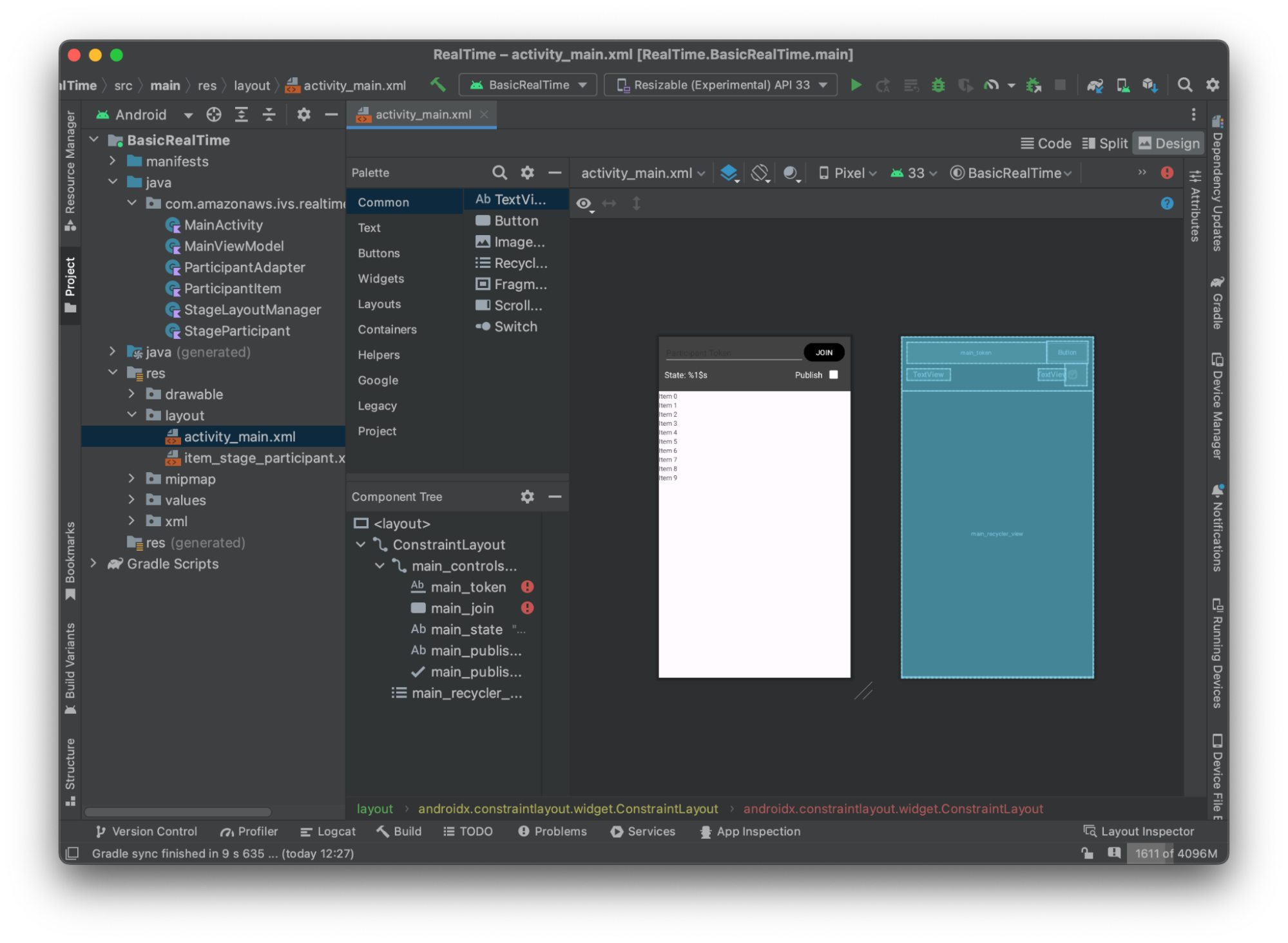
Berikut adalah XML di balik tampilan:
```
```
Kami mereferensikan beberapa ID string di sini, jadi kami akan membuat seluruh `strings.xml` file kami sekarang:
```
BasicRealTimeJoinLeaveParticipant TokenPublishState: %1$s
```
Mari kita tautkan pandangan tersebut di XML ke`MainActivity.kt`:
```
import android.widget.Button
import android.widget.CheckBox
import android.widget.EditText
import android.widget.TextView
import androidx.recyclerview.widget.RecyclerView
private lateinit var checkboxPublish: CheckBox
private lateinit var recyclerView: RecyclerView
private lateinit var buttonJoin: Button
private lateinit var textViewState: TextView
private lateinit var editTextToken: EditText
override fun onCreate(savedInstanceState: Bundle?) {
super.onCreate(savedInstanceState)
setContentView(R.layout.activity_main)
checkboxPublish = findViewById(R.id.main_publish_checkbox)
recyclerView = findViewById(R.id.main_recycler_view)
buttonJoin = findViewById(R.id.main_join)
textViewState = findViewById(R.id.main_state)
editTextToken = findViewById(R.id.main_token)
}
```
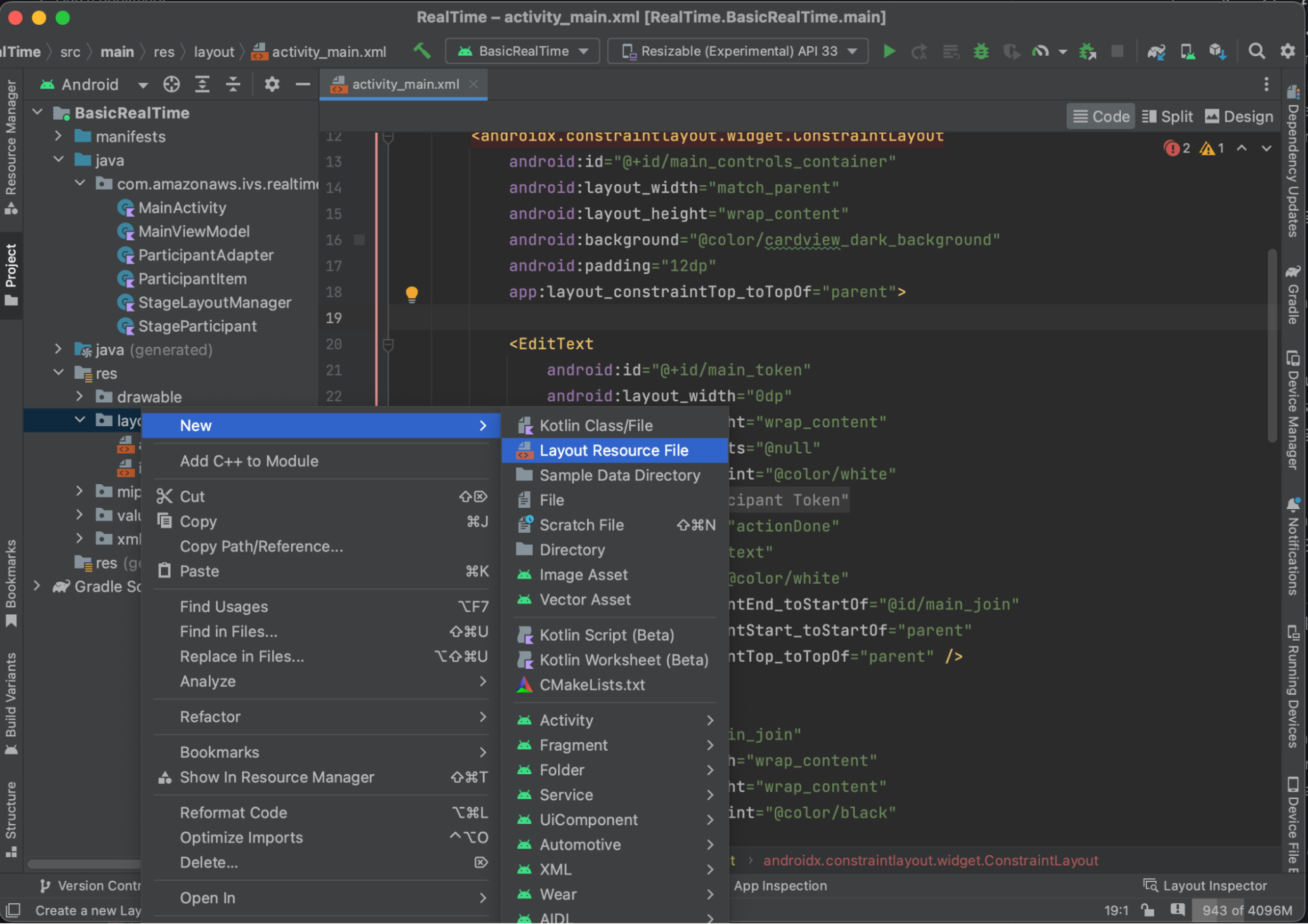
Sekarang kita membuat tampilan item untuk kita`RecyclerView`. Untuk melakukan ini, klik kanan `res/layout` direktori Anda dan pilih ** New > Layout Resource File**. Beri nama file baru ini`item_stage_participant.xml`.
Tata letak untuk item ini sederhana: berisi tampilan untuk merender aliran video peserta dan daftar label untuk menampilkan informasi tentang peserta:

Berikut adalah XML:
```
```
File XML ini menggembungkan kelas yang belum kita buat,`ParticipantItem`. Karena XML menyertakan namespace lengkap, pastikan untuk memperbarui file XML ini ke namespace Anda. Mari kita membuat kelas ini dan mengatur tampilan, tetapi jika tidak, biarkan kosong untuk saat ini.
Buat kelas Kotlin baru,: `ParticipantItem`
```
package com.amazonaws.ivs.realtime.basicrealtime
import android.content.Context
import android.util.AttributeSet
import android.widget.FrameLayout
import android.widget.TextView
import kotlin.math.roundToInt
class ParticipantItem @JvmOverloads constructor(
context: Context,
attrs: AttributeSet? = null,
defStyleAttr: Int = 0,
defStyleRes: Int = 0,
) : FrameLayout(context, attrs, defStyleAttr, defStyleRes) {
private lateinit var previewContainer: FrameLayout
private lateinit var textViewParticipantId: TextView
private lateinit var textViewPublish: TextView
private lateinit var textViewSubscribe: TextView
private lateinit var textViewVideoMuted: TextView
private lateinit var textViewAudioMuted: TextView
private lateinit var textViewAudioLevel: TextView
override fun onFinishInflate() {
super.onFinishInflate()
previewContainer = findViewById(R.id.participant_preview_container)
textViewParticipantId = findViewById(R.id.participant_participant_id)
textViewPublish = findViewById(R.id.participant_publishing)
textViewSubscribe = findViewById(R.id.participant_subscribed)
textViewVideoMuted = findViewById(R.id.participant_video_muted)
textViewAudioMuted = findViewById(R.id.participant_audio_muted)
textViewAudioLevel = findViewById(R.id.participant_audio_level)
}
}
```
## Izin
Untuk menggunakan kamera dan mikrofon, Anda perlu meminta izin dari pengguna. Kami mengikuti alur izin standar untuk ini:
```
override fun onStart() {
super.onStart()
requestPermission()
}
private val requestPermissionLauncher =
registerForActivityResult(ActivityResultContracts.RequestMultiplePermissions()) { permissions ->
if (permissions[Manifest.permission.CAMERA] == true && permissions[Manifest.permission.RECORD_AUDIO] == true) {
viewModel.permissionGranted() // we will add this later
}
}
private val permissions = listOf(
Manifest.permission.CAMERA,
Manifest.permission.RECORD_AUDIO,
)
private fun requestPermission() {
when {
this.hasPermissions(permissions) -> viewModel.permissionGranted() // we will add this later
else -> requestPermissionLauncher.launch(permissions.toTypedArray())
}
}
private fun Context.hasPermissions(permissions: List): Boolean {
return permissions.all {
ContextCompat.checkSelfPermission(this, it) == PackageManager.PERMISSION_GRANTED
}
}
```
## Status Aplikasi
Aplikasi kami melacak peserta secara lokal di a `MainViewModel.kt` dan negara bagian akan dikomunikasikan kembali ke `MainActivity` penggunaan Kotlin. [ StateFlow ](https://kotlinlang.org/api/kotlinx.coroutines/kotlinx-coroutines-core/kotlinx.coroutines.flow/-state-flow/)
Buat kelas `MainViewModel` Kotlin baru:
```
package com.amazonaws.ivs.realtime.basicrealtime
import android.app.Application
import androidx.lifecycle.AndroidViewModel
class MainViewModel(application: Application) : AndroidViewModel(application), Stage.Strategy, StageRenderer {
}
```
Dalam `MainActivity.kt` kami mengelola model tampilan kami:
```
import androidx.activity.viewModels
private val viewModel: MainViewModel by viewModels()
```
Untuk menggunakan `AndroidViewModel` dan `ViewModel` ekstensi Kotlin ini, Anda harus menambahkan yang berikut ke `build.gradle` file modul Anda:
```
implementation 'androidx.core:core-ktx:1.10.1'
implementation "androidx.activity:activity-ktx:1.7.2"
implementation 'androidx.appcompat:appcompat:1.6.1'
implementation 'com.google.android.material:material:1.10.0'
implementation "androidx.lifecycle:lifecycle-extensions:2.2.0"
def lifecycle_version = "2.6.1"
implementation "androidx.lifecycle:lifecycle-livedata-ktx:$lifecycle_version"
implementation "androidx.lifecycle:lifecycle-viewmodel-ktx:$lifecycle_version"
implementation 'androidx.constraintlayout:constraintlayout:2.1.4'
```
### RecyclerView Adaptor
Kami akan membuat `RecyclerView.Adapter` subkelas sederhana untuk melacak peserta kami dan memperbarui acara `RecyclerView` di atas panggung kami. Tapi pertama-tama, kita membutuhkan kelas yang mewakili peserta. Buat kelas `StageParticipant` Kotlin baru:
```
package com.amazonaws.ivs.realtime.basicrealtime
import com.amazonaws.ivs.broadcast.Stage
import com.amazonaws.ivs.broadcast.StageStream
class StageParticipant(val isLocal: Boolean, var participantId: String?) {
var publishState = Stage.PublishState.NOT_PUBLISHED
var subscribeState = Stage.SubscribeState.NOT_SUBSCRIBED
var streams = mutableListOf()
val stableID: String
get() {
return if (isLocal) {
"LocalUser"
} else {
requireNotNull(participantId)
}
}
}
```
Kita akan menggunakan kelas ini di `ParticipantAdapter` kelas yang akan kita buat selanjutnya. Kami mulai dengan mendefinisikan kelas dan membuat variabel untuk melacak peserta:
```
package com.amazonaws.ivs.realtime.basicrealtime
import android.view.LayoutInflater
import android.view.ViewGroup
import androidx.recyclerview.widget.RecyclerView
class ParticipantAdapter : RecyclerView.Adapter() {
private val participants = mutableListOf()
```
Kami juga harus mendefinisikan kami `RecyclerView.ViewHolder` sebelum menerapkan sisa penggantian:
```
class ViewHolder(val participantItem: ParticipantItem) : RecyclerView.ViewHolder(participantItem)
```
Dengan menggunakan ini, kita dapat menerapkan penggantian `RecyclerView.Adapter` standar:
```
override fun onCreateViewHolder(parent: ViewGroup, viewType: Int): ViewHolder {
val item = LayoutInflater.from(parent.context)
.inflate(R.layout.item_stage_participant, parent, false) as ParticipantItem
return ViewHolder(item)
}
override fun getItemCount(): Int {
return participants.size
}
override fun getItemId(position: Int): Long =
participants[position]
.stableID
.hashCode()
.toLong()
override fun onBindViewHolder(holder: ViewHolder, position: Int) {
return holder.participantItem.bind(participants[position])
}
override fun onBindViewHolder(holder: ViewHolder, position: Int, payloads: MutableList) {
val updates = payloads.filterIsInstance()
if (updates.isNotEmpty()) {
updates.forEach { holder.participantItem.bind(it) // implemented later }
} else {
super.onBindViewHolder(holder, position, payloads)
}
}
```
Terakhir, kami menambahkan metode baru yang akan kami panggil dari kami `MainViewModel` ketika perubahan pada peserta dilakukan. Metode ini adalah operasi CRUD standar pada adaptor.
```
fun participantJoined(participant: StageParticipant) {
participants.add(participant)
notifyItemInserted(participants.size - 1)
}
fun participantLeft(participantId: String) {
val index = participants.indexOfFirst { it.participantId == participantId }
if (index != -1) {
participants.removeAt(index)
notifyItemRemoved(index)
}
}
fun participantUpdated(participantId: String?, update: (participant: StageParticipant) -> Unit) {
val index = participants.indexOfFirst { it.participantId == participantId }
if (index != -1) {
update(participants[index])
notifyItemChanged(index, participants[index])
}
}
```
Kembali `MainViewModel` kita perlu membuat dan menyimpan referensi ke adaptor ini:
```
internal val participantAdapter = ParticipantAdapter()
```
## Status Panggung
Kita juga perlu melacak beberapa status tahap di dalamnya`MainViewModel`. Mari kita tentukan properti itu sekarang:
```
private val _connectionState = MutableStateFlow(Stage.ConnectionState.DISCONNECTED)
val connectionState = _connectionState.asStateFlow()
private var publishEnabled: Boolean = false
set(value) {
field = value
// Because the strategy returns the value of `checkboxPublish.isChecked`, just call `refreshStrategy`.
stage?.refreshStrategy()
}
private var deviceDiscovery: DeviceDiscovery? = null
private var stage: Stage? = null
private var streams = mutableListOf()
```
Untuk melihat pratinjau Anda sendiri sebelum bergabung dengan panggung, kami segera membuat peserta lokal:
```
init {
deviceDiscovery = DeviceDiscovery(application)
// Create a local participant immediately to render our camera preview and microphone stats
val localParticipant = StageParticipant(true, null)
participantAdapter.participantJoined(localParticipant)
}
```
Kami ingin memastikan kami membersihkan sumber daya ini ketika kami `ViewModel` dibersihkan. Kami `onCleared()` segera mengganti, jadi kami tidak lupa untuk membersihkan sumber daya ini.
```
override fun onCleared() {
stage?.release()
deviceDiscovery?.release()
deviceDiscovery = null
super.onCleared()
}
```
Sekarang kami mengisi `streams` properti lokal kami segera setelah izin diberikan, menerapkan `permissionsGranted` metode yang kami panggil sebelumnya:
```
internal fun permissionGranted() {
val deviceDiscovery = deviceDiscovery ?: return
streams.clear()
val devices = deviceDiscovery.listLocalDevices()
// Camera
devices
.filter { it.descriptor.type == Device.Descriptor.DeviceType.CAMERA }
.maxByOrNull { it.descriptor.position == Device.Descriptor.Position.FRONT }
?.let { streams.add(ImageLocalStageStream(it)) }
// Microphone
devices
.filter { it.descriptor.type == Device.Descriptor.DeviceType.MICROPHONE }
.maxByOrNull { it.descriptor.isDefault }
?.let { streams.add(AudioLocalStageStream(it)) }
stage?.refreshStrategy()
// Update our local participant with these new streams
participantAdapter.participantUpdated(null) {
it.streams.clear()
it.streams.addAll(streams)
}
}
```
## Menerapkan Stage SDK
Tiga [ konsep inti men ](android-publish-subscribe.md#android-publish-subscribe-concepts) dasari fungsionalitas waktu nyata: panggung, strategi, dan perender. Tujuan desain adalah meminimalkan jumlah logika sisi klien yang diperlukan untuk membangun produk yang berfungsi.
### Stage.Strategy
`Stage.Strategy`Implementasi kami sederhana:
```
override fun stageStreamsToPublishForParticipant(
stage: Stage,
participantInfo: ParticipantInfo
): MutableList {
// Return the camera and microphone to be published.
// This is only called if `shouldPublishFromParticipant` returns true.
return streams
}
override fun shouldPublishFromParticipant(stage: Stage, participantInfo: ParticipantInfo): Boolean {
return publishEnabled
}
override fun shouldSubscribeToParticipant(stage: Stage, participantInfo: ParticipantInfo): Stage.SubscribeType {
// Subscribe to both audio and video for all publishing participants.
return Stage.SubscribeType.AUDIO_VIDEO
}
```
Untuk meringkas, kami menerbitkan berdasarkan `publishEnabled` status internal kami, dan jika kami menerbitkan, kami akan mempublikasikan aliran yang kami kumpulkan sebelumnya. Akhirnya untuk sampel ini, kami selalu berlangganan peserta lain, menerima audio dan video mereka.
### StageRenderer
`StageRenderer`Implementasinya juga cukup sederhana, meskipun mengingat jumlah fungsi itu berisi sedikit lebih banyak kode. Pendekatan umum dalam perender ini adalah memperbarui kami `ParticipantAdapter` ketika SDK memberi tahu kami tentang perubahan pada peserta. Ada skenario tertentu di mana kami menangani peserta lokal secara berbeda, karena kami telah memutuskan untuk mengelolanya sendiri sehingga mereka dapat melihat pratinjau kamera mereka sebelum bergabung.
```
override fun onError(exception: BroadcastException) {
Toast.makeText(getApplication(), "onError ${exception.localizedMessage}", Toast.LENGTH_LONG).show()
Log.e("BasicRealTime", "onError $exception")
}
override fun onConnectionStateChanged(
stage: Stage,
connectionState: Stage.ConnectionState,
exception: BroadcastException?
) {
_connectionState.value = connectionState
}
override fun onParticipantJoined(stage: Stage, participantInfo: ParticipantInfo) {
if (participantInfo.isLocal) {
// If this is the local participant joining the stage, update the participant with a null ID because we
// manually added that participant when setting up our preview
participantAdapter.participantUpdated(null) {
it.participantId = participantInfo.participantId
}
} else {
// If they are not local, add them normally
participantAdapter.participantJoined(
StageParticipant(
participantInfo.isLocal,
participantInfo.participantId
)
)
}
}
override fun onParticipantLeft(stage: Stage, participantInfo: ParticipantInfo) {
if (participantInfo.isLocal) {
// If this is the local participant leaving the stage, update the ID but keep it around because
// we want to keep the camera preview active
participantAdapter.participantUpdated(participantInfo.participantId) {
it.participantId = null
}
} else {
// If they are not local, have them leave normally
participantAdapter.participantLeft(participantInfo.participantId)
}
}
override fun onParticipantPublishStateChanged(
stage: Stage,
participantInfo: ParticipantInfo,
publishState: Stage.PublishState
) {
// Update the publishing state of this participant
participantAdapter.participantUpdated(participantInfo.participantId) {
it.publishState = publishState
}
}
override fun onParticipantSubscribeStateChanged(
stage: Stage,
participantInfo: ParticipantInfo,
subscribeState: Stage.SubscribeState
) {
// Update the subscribe state of this participant
participantAdapter.participantUpdated(participantInfo.participantId) {
it.subscribeState = subscribeState
}
}
override fun onStreamsAdded(stage: Stage, participantInfo: ParticipantInfo, streams: MutableList) {
// We don't want to take any action for the local participant because we track those streams locally
if (participantInfo.isLocal) {
return
}
// For remote participants, add these new streams to that participant's streams array.
participantAdapter.participantUpdated(participantInfo.participantId) {
it.streams.addAll(streams)
}
}
override fun onStreamsRemoved(stage: Stage, participantInfo: ParticipantInfo, streams: MutableList) {
// We don't want to take any action for the local participant because we track those streams locally
if (participantInfo.isLocal) {
return
}
// For remote participants, remove these streams from that participant's streams array.
participantAdapter.participantUpdated(participantInfo.participantId) {
it.streams.removeAll(streams)
}
}
override fun onStreamsMutedChanged(
stage: Stage,
participantInfo: ParticipantInfo,
streams: MutableList
) {
// We don't want to take any action for the local participant because we track those streams locally
if (participantInfo.isLocal) {
return
}
// For remote participants, notify the adapter that the participant has been updated. There is no need to modify
// the `streams` property on the `StageParticipant` because it is the same `StageStream` instance. Just
// query the `isMuted` property again.
participantAdapter.participantUpdated(participantInfo.participantId) {}
}
```
## Menerapkan Kustom RecyclerView LayoutManager
Menetapkan jumlah peserta yang berbeda bisa rumit. Anda ingin mereka mengambil seluruh bingkai tampilan induk tetapi Anda tidak ingin menangani setiap konfigurasi peserta secara independen. Untuk mempermudah ini, kita akan berjalan melalui penerapan a`RecyclerView.LayoutManager`.
Buat kelas baru lainnya,`StageLayoutManager`, yang harus diperpanjang`GridLayoutManager`. Kelas ini dirancang untuk menghitung tata letak untuk setiap peserta berdasarkan jumlah peserta dalam row/column tata letak berbasis aliran. Setiap baris memiliki tinggi yang sama dengan yang lain, tetapi kolom dapat memiliki lebar yang berbeda per baris. Lihat komentar kode di atas `layouts` variabel untuk deskripsi tentang cara menyesuaikan perilaku ini.
```
package com.amazonaws.ivs.realtime.basicrealtime
import android.content.Context
import androidx.recyclerview.widget.GridLayoutManager
import androidx.recyclerview.widget.RecyclerView
class StageLayoutManager(context: Context?) : GridLayoutManager(context, 6) {
companion object {
/**
* This 2D array contains the description of how the grid of participants should be rendered
* The index of the 1st dimension is the number of participants needed to active that configuration
* Meaning if there is 1 participant, index 0 will be used. If there are 5 participants, index 4 will be used.
*
* The 2nd dimension is a description of the layout. The length of the array is the number of rows that
* will exist, and then each number within that array is the number of columns in each row.
*
* See the code comments next to each index for concrete examples.
*
* This can be customized to fit any layout configuration needed.
*/
val layouts: List> = listOf(
// 1 participant
listOf(1), // 1 row, full width
// 2 participants
listOf(1, 1), // 2 rows, all columns are full width
// 3 participants
listOf(1, 2), // 2 rows, first row's column is full width then 2nd row's columns are 1/2 width
// 4 participants
listOf(2, 2), // 2 rows, all columns are 1/2 width
// 5 participants
listOf(1, 2, 2), // 3 rows, first row's column is full width, 2nd and 3rd row's columns are 1/2 width
// 6 participants
listOf(2, 2, 2), // 3 rows, all column are 1/2 width
// 7 participants
listOf(2, 2, 3), // 3 rows, 1st and 2nd row's columns are 1/2 width, 3rd row's columns are 1/3rd width
// 8 participants
listOf(2, 3, 3),
// 9 participants
listOf(3, 3, 3),
// 10 participants
listOf(2, 3, 2, 3),
// 11 participants
listOf(2, 3, 3, 3),
// 12 participants
listOf(3, 3, 3, 3),
)
}
init {
spanSizeLookup = object : SpanSizeLookup() {
override fun getSpanSize(position: Int): Int {
if (itemCount <= 0) {
return 1
}
// Calculate the row we're in
val config = layouts[itemCount - 1]
var row = 0
var curPosition = position
while (curPosition - config[row] >= 0) {
curPosition -= config[row]
row++
}
// spanCount == max spans, config[row] = number of columns we want
// So spanCount / config[row] would be something like 6 / 3 if we want 3 columns.
// So this will take up 2 spans, with a max of 6 is 1/3rd of the view.
return spanCount / config[row]
}
}
}
override fun onLayoutChildren(recycler: RecyclerView.Recycler?, state: RecyclerView.State?) {
if (itemCount <= 0 || state?.isPreLayout == true) return
val parentHeight = height
val itemHeight = parentHeight / layouts[itemCount - 1].size // height divided by number of rows.
// Set the height of each view based on how many rows exist for the current participant count.
for (i in 0 until childCount) {
val child = getChildAt(i) ?: continue
val layoutParams = child.layoutParams as RecyclerView.LayoutParams
if (layoutParams.height != itemHeight) {
layoutParams.height = itemHeight
child.layoutParams = layoutParams
}
}
// After we set the height for all our views, call super.
// This works because our RecyclerView can not scroll and all views are always visible with stable IDs.
super.onLayoutChildren(recycler, state)
}
override fun canScrollVertically(): Boolean = false
override fun canScrollHorizontally(): Boolean = false
}
```
Kembali `MainActivity.kt` kita perlu mengatur adaptor dan manajer tata letak untuk`RecyclerView`:
```
// In onCreate after setting recyclerView.
recyclerView.layoutManager = StageLayoutManager(this)
recyclerView.adapter = viewModel.participantAdapter
```
## Mengaitkan Tindakan UI
Kami semakin dekat; hanya ada beberapa tindakan UI yang perlu kita hubungkan.
Pertama kita akan `MainActivity` mengamati `StateFlow` perubahan dari`MainViewModel`:
```
// At the end of your onCreate method
lifecycleScope.launch {
repeatOnLifecycle(Lifecycle.State.CREATED) {
viewModel.connectionState.collect { state ->
buttonJoin.setText(if (state == ConnectionState.DISCONNECTED) R.string.join else R.string.leave)
textViewState.text = getString(R.string.state, state.name)
}
}
}
```
Selanjutnya kita menambahkan pendengar ke tombol Gabung dan kotak centang Publikasikan:
```
buttonJoin.setOnClickListener {
viewModel.joinStage(editTextToken.text.toString())
}
checkboxPublish.setOnCheckedChangeListener { _, isChecked ->
viewModel.setPublishEnabled(isChecked)
}
```
Kedua fungsi panggilan di atas di kami`MainViewModel`, yang kami terapkan sekarang:
```
internal fun joinStage(token: String) {
if (_connectionState.value != Stage.ConnectionState.DISCONNECTED) {
// If we're already connected to a stage, leave it.
stage?.leave()
} else {
if (token.isEmpty()) {
Toast.makeText(getApplication(), "Empty Token", Toast.LENGTH_SHORT).show()
return
}
try {
// Destroy the old stage first before creating a new one.
stage?.release()
val stage = Stage(getApplication(), token, this)
stage.addRenderer(this)
stage.join()
this.stage = stage
} catch (e: BroadcastException) {
Toast.makeText(getApplication(), "Failed to join stage ${e.localizedMessage}", Toast.LENGTH_LONG).show()
e.printStackTrace()
}
}
}
internal fun setPublishEnabled(enabled: Boolean) {
publishEnabled = enabled
}
```
## Merender Peserta
Terakhir, kita perlu merender data yang kita terima dari SDK ke item peserta yang kita buat sebelumnya. `RecyclerView`Logikanya sudah selesai, jadi kita hanya perlu mengimplementasikan `bind` API di`ParticipantItem`.
Kita akan mulai dengan menambahkan fungsi kosong dan kemudian berjalan melalui langkah demi langkah:
```
fun bind(participant: StageParticipant) {
}
```
Pertama kita akan menangani status mudah, ID peserta, status publikasi, dan status berlangganan. Untuk ini, kami hanya memperbarui `TextViews` secara langsung:
```
val participantId = if (participant.isLocal) {
"You (${participant.participantId ?: "Disconnected"})"
} else {
participant.participantId
}
textViewParticipantId.text = participantId
textViewPublish.text = participant.publishState.name
textViewSubscribe.text = participant.subscribeState.name
```
Selanjutnya kita akan memperbarui status audio dan video yang dibisukan. Untuk mendapatkan status dibisukan, kita perlu menemukan `ImageDevice` dan `AudioDevice` dari array streams. Untuk mengoptimalkan kinerja, kami mengingat ID perangkat terakhir yang terpasang.
```
// This belongs outside the `bind` API.
private var imageDeviceUrn: String? = null
private var audioDeviceUrn: String? = null
// This belongs inside the `bind` API.
val newImageStream = participant
.streams
.firstOrNull { it.device is ImageDevice }
textViewVideoMuted.text = if (newImageStream != null) {
if (newImageStream.muted) "Video muted" else "Video not muted"
} else {
"No video stream"
}
val newAudioStream = participant
.streams
.firstOrNull { it.device is AudioDevice }
textViewAudioMuted.text = if (newAudioStream != null) {
if (newAudioStream.muted) "Audio muted" else "Audio not muted"
} else {
"No audio stream"
}
```
Akhirnya kami ingin membuat pratinjau untuk`imageDevice`:
```
if (newImageStream?.device?.descriptor?.urn != imageDeviceUrn) {
// If the device has changed, remove all subviews from the preview container
previewContainer.removeAllViews()
(newImageStream?.device as? ImageDevice)?.let {
val preview = it.getPreviewView(BroadcastConfiguration.AspectMode.FIT)
previewContainer.addView(preview)
preview.layoutParams = FrameLayout.LayoutParams(
FrameLayout.LayoutParams.MATCH_PARENT,
FrameLayout.LayoutParams.MATCH_PARENT
)
}
}
imageDeviceUrn = newImageStream?.device?.descriptor?.urn
```
Dan kami menampilkan statistik audio dari`audioDevice`:
```
if (newAudioStream?.device?.descriptor?.urn != audioDeviceUrn) {
(newAudioStream?.device as? AudioDevice)?.let {
it.setStatsCallback { _, rms ->
textViewAudioLevel.text = "Audio Level: ${rms.roundToInt()} dB"
}
}
}
audioDeviceUrn = newAudioStream?.device?.descriptor?.urn
```