MCP App (Preview)
Security Hub provides an agentic experience with a Model Context Protocol (MCP) App. With this app, your AI agent can investigate exposure findings. It can also diagnose an existing Azure connector or assess Azure connector prerequisites before creation.
Each findings tool call returns a text summary for the agent to reason over. When available, it also returns an interactive visualization for you to verify in the same conversation. Connector Diagnostics returns structured text that separates confirmed findings from checks that could not be verified.
The MCP App is a local MCP server that runs on your machine and calls Security Hub APIs directly using your existing AWS credentials. Connector Diagnostics can also run bounded, read-only Azure CLI queries using your existing Azure CLI session. Every tool is read-only and does not modify your security posture or connector resources. The MCP App is available in all AWS commercial Regions where Security Hub is available.
Important
The Security Hub MCP App is in public preview.
MCP App examples
The following examples show how the MCP App renders interactive visualizations inside Claude Desktop while you investigate your exposures.
Top exposures – Lists your most critical exposure findings, in an interactive table. The following image shows the top exposures table.

Finding detail – Review a single exposure finding’s overview alongside its correlated-finding trait summary, attack path, and remediation guidance. The following image shows the finding detail view.

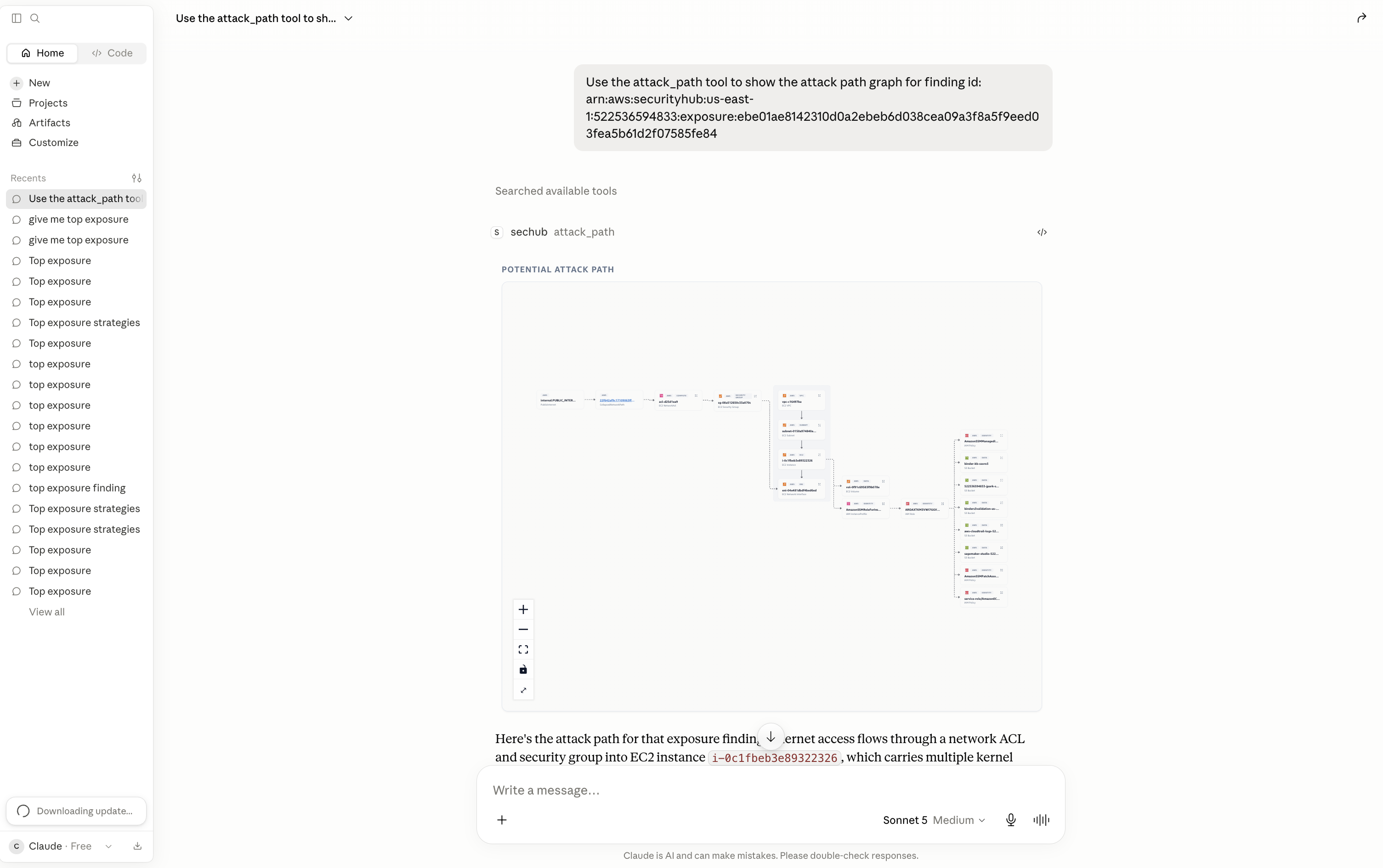
Attack path – Visualize how an exposure is reachable as an interactive graph. Nodes represent resources, identities, and services. Edges represent the relationships between them. The following image shows the attack path graph.
Network path – Explore the ordered network hops from the AWS edge to the target resource (for example, Internet Gateway to NACL to Security Group to ENI to Instance). The following image shows the network path.

Connector diagnosis – Ask why an existing Azure connector is degraded or failed. The agent identifies confirmed issues, distinguishes checks that could not be verified, and recommends the smallest repair without changing your environment.
Connector readiness – Check Azure prerequisites before you create a connector. The agent reports which prerequisites passed, failed, or could not be verified.
Key concepts
Exposure finding – A finding that correlates multiple signals — such as vulnerabilities, misconfigurations, network reachability, and sensitive data — into a single view of a resource that is exposed to risk.
Connector Diagnostics – Three read-only tools for Azure connectors. The tools diagnose an existing connector, assess a proposed setup, and retrieve exact excerpts from the supported Azure setup script. The agent selects the tools and translates their structured results into an explanation.
Local MCP server – A program that runs on your computer and acts as a secure, two-way bridge between Claude Desktop and Security Hub. The server contains the tools your AI agent uses, including the tools that render the UI within Claude Desktop. It uses your machine’s AWS credential chain and holds no credentials of its own.
MCP App – An interactive application that renders inside Claude Desktop. Each MCP App view performs a single job, such as showing the top exposures table or an attack path graph.
Dual response – A single findings tool call returns two outputs: a compact text summary that your agent reasons over, and an interactive visualization rendered in the same conversation for you to review.
Prerequisites
-
An AWS account with Security Hub enabled. Exposure findings are required only for the findings and exposure tools.
-
Claude Desktop installed. For the installer, see the Claude Desktop download
on the Claude website. -
AWS credentials configured in your standard AWS SDK credential chain.
-
For Azure-side Connector Diagnostics, install the Azure CLI. Authenticate to the connector’s tenant by running
az login --tenanttenant-id, wheretenant-idis the ID of the Azure tenant that contains the connector. The MCP App uses the resulting local Azure CLI session. Do not add Azure credentials to the MCP configuration.
Note
You can run Connector Diagnostics without an authenticated Azure CLI session. The result includes the available AWS-side assessment and marks Azure-dependent checks as not verified. It never treats unavailable Azure evidence as healthy.
Setting up the MCP server
The MCP App installs in Claude Desktop from a bundle file. Before you install,
confirm that aws sts get-caller-identity succeeds and that aws
configure get region returns a Region in your terminal, so that the server can
read your AWS credentials and Region.
-
Download the Security Hub MCP App bundle
. -
Open the downloaded
.mcpbfile. Claude Desktop starts a configuration flow. Follow the instructions to install the server. -
To verify the connection, enter a question in Claude Desktop, such as “What are my top security exposures?” or “My Azure connector in us-west-2 is degraded. Can you determine what is wrong?” If you receive an error, review the guidance in the error message and confirm your credentials and Region.
Using Connector Diagnostics
Describe the connector problem or proposed setup in natural language. The agent selects the appropriate read-only tool, interprets its structured result, and tells you which checks were confirmed and which checks were not verified.
Diagnose an existing connector
-
Identify the connector by its connector ID or exact name. Also provide the AWS account and Region that contain the connector if the agent cannot determine them from your request.
-
Ask a question such as “My Azure connector in us-west-2 is degraded. Can you determine what is wrong and tell me what to fix first?”
-
Review the confirmed findings separately from the checks that were not verified. When Azure authentication is unavailable, the agent limits its conclusions to AWS-side evidence.
Assess a proposed connector
-
Provide the AWS account, AWS Region, and Azure tenant ID. Also provide 1–10 Azure subscription IDs that the proposed connector will cover. Tell the agent which service prerequisites to assess: Cloud Security Posture Management (CSPM), Inspector VM scanning, or threat detection. These selections scope the readiness checks. They are not connector-creation settings.
-
Ask a question such as “Before I create my Azure connector, check whether the prerequisites are ready for these subscriptions.”
-
Review the passed, failed, and unverified checks. A healthy readiness result means that the checked prerequisites passed. It does not mean that a connector exists, is running, or has recovered.
Retrieve setup instructions
If a result refers to an onboarding step, ask the agent to show that step. For example, ask “Show me step 6 from the supported Azure connector setup script.” For the complete script, see Configuring Microsoft Azure to integrate with Security Hub. The tool returns an exact excerpt but does not execute it. Run the complete supported script because its steps share configuration and helper functions.
Note
Connector Diagnostics never repairs or changes resources. Remediation is guidance for a separate action that you control. Diagnosis reports recovery only when fresh runtime evidence proves it.
Available tools
top_exposures – Lists your most
urgent exposure findings as an interactive table. Call this tool first because the
per-finding tools require a finding ID from this list.
finding_detail – Returns the
overview of one finding, including its correlated-finding trait summary.
finding_overview – Returns a text
summary of one finding by finding ID.
correlated_finding_detail – Lists
the findings correlated to one exposure for a single trait, such as Vulnerability,
Misconfiguration, or Reachability.
attack_path – Builds the attack
path graph for one finding.
network_path – Expands a
finding’s network path into ordered hops from the AWS edge to the target
resource.
recommendation – Returns
remediation guidance for one finding, including documentation links.
resource_detail – Returns the
configuration of one AWS resource by short ID (for example, i-1234) or
ARN.
diagnose_connector – Diagnoses an
existing Azure connector using Security Hub state and bounded Azure CLI evidence when
available. It returns confirmed findings, affected scope, remediation guidance, and
data freshness. It also lists any checks that could not be verified.
assess_connector_readiness –
Assesses AWS-side and Azure-side prerequisites for a proposed Azure connector before
creation. It does not create a connector.
get_connector_setup_instructions
– Returns exact excerpts from the packaged, supported Azure onboarding script.
It does not execute the script.
