Restoring a DB instance to a specified time for Amazon RDS
You can restore a DB instance to a specific point in time, creating a new DB instance without modifying the source DB instance.
When you restore a DB instance to a point in time, you can choose the default virtual private cloud (VPC) security group. Or you can apply a custom VPC security group to your DB instance.
Restored DB instances are automatically associated with the default DB parameter and option groups. However, you can apply a custom parameter group and option group by specifying them during a restore.
If tags are provided in the request then the provided tags are applied to the restored DB instance. If tags are not provided in the request and if the source DB instance is in-region active and has tags, RDS adds the latest tags from the source DB instance to the restored DB instance.
RDS uploads transaction logs for DB instances to Amazon S3 every five
minutes. To see the latest restorable time for a DB instance, use the AWS CLI describe-db-instances command
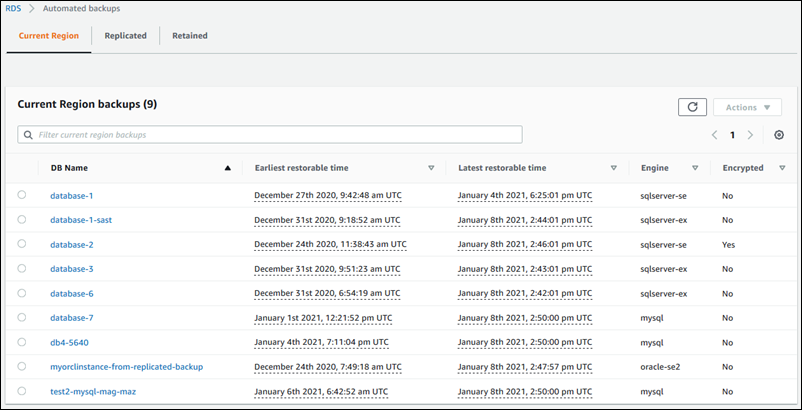
and look at the value returned in the LatestRestorableTime field for the DB instance. To see the latest restorable time for each DB instance in the Amazon RDS console,
choose Automated backups.
You can restore to any point in time within your backup retention period. To see the earliest restorable time for each DB instance, choose Automated backups in the Amazon RDS console.
Note
We recommend that you restore to the same or similar DB instance size—and IOPS if using Provisioned IOPS storage—as the source DB instance. You might get an error if, for example, you choose a DB instance size with an incompatible IOPS value.
For information about restoring a DB instance with an RDS Extended Support version, see Restoring a DB instance or a Multi-AZ DB cluster with Amazon RDS Extended Support.
Some Amazon RDS database engines have special considerations when restoring from a point in time:
-
If you use password authentication with an Amazon RDS for Db2 DB instance, user management actions, including
rdsadmin.add_user, won't be captured in the logs. These actions require a full snapshot backup.With the BYOL model, your RDS for Db2 DB instances must be associated with a custom parameter group that contains your IBM Site ID and your IBM Customer ID. Otherwise, attempts to restore a DB instance to a specific point in time will fail. Your Amazon RDS for Db2 DB instances must also be associated with an AWS License Manager self-managed license. For more information, see Bring your own license (BYOL) for Db2.
With the Db2 license through AWS Marketplace model, you need an active AWS Marketplace subscription for the particular IBM Db2 edition that you want to use. If you don't already have one, subscribe to Db2 in AWS Marketplace for that IBM Db2 edition. For more information, see Db2 license through AWS Marketplace.
-
When you restore an RDS for Oracle DB instance to a point in time, you can specify a different DB engine, license model, and DBName (SID) for the restored DB instance. You can also specify that RDS should store manage master user passwords in AWS Secrets Manager. For more information, see Overview of managing master user passwords with AWS Secrets Manager.
-
When you restore a Microsoft SQL Server DB instance to a point in time, each database within that instance is restored to a point in time within 1 second of each other database within the instance. Transactions that span multiple databases within the instance might be restored inconsistently.
-
For a SQL Server DB instance, the
OFFLINE,EMERGENCY, andSINGLE_USERmodes aren't supported. Setting any database into one of these modes causes the latest restorable time to stop moving ahead for the whole instance. -
Some actions, such as changing the recovery model of a SQL Server database, can break the sequence of logs that are used for point-in-time recovery. In some cases, Amazon RDS can detect this issue and the latest restorable time is prevented from moving forward. In other cases, such as when a SQL Server database uses the
BULK_LOGGEDrecovery model, the break in log sequence isn't detected. It might not be possible to restore a SQL Server DB instance to a point in time if there is a break in the log sequence. For these reasons, Amazon RDS doesn't support changing the recovery model of SQL Server databases.
You can also use AWS Backup to manage backups of Amazon RDS DB instances. If your DB instance is associated with a backup plan in AWS Backup,
that backup plan is used for point-in-time recovery. Backups that were created with AWS Backup have names ending in
awsbackup:. For information about AWS Backup, see the AWS Backup Developer Guide.AWS-Backup-job-number
Note
Information in this topic applies to Amazon RDS. For information on restoring an Amazon Aurora DB cluster, see Restoring a DB cluster to a specified time.
You can restore a DB instance to a point in time using the AWS Management Console, the AWS CLI, or the RDS API.
Note
You can't reduce the amount of storage when you restore a DB instance. When you increase the allocated storage, it must be by at least 10 percent. If you try to increase the value by less than 10 percent, you get an error. You can't increase the allocated storage when restoring RDS for SQL Server DB instances.
To restore a DB instance to a specified time
Sign in to the AWS Management Console and open the Amazon RDS console at https://console.aws.amazon.com/rds/
. -
In the navigation pane, choose Automated backups.
The automated backups are displayed on the Current Region tab.
-
Choose the DB instance that you want to restore.
-
For Actions, choose Restore to point in time.
The Restore to point in time window appears.
-
Choose Latest restorable time to restore to the latest possible time, or choose Custom to choose a time.
If you chose Custom, enter the date and time to which you want to restore the instance.
Note
Times are shown in your local time zone, which is indicated by an offset from Coordinated Universal Time (UTC). For example, UTC-5 is Eastern Standard Time/Central Daylight Time.
-
For DB instance identifier, enter the name of the target restored DB instance. The name must be unique.
-
Choose other options as needed, such as DB instance class, storage, and whether you want to use storage autoscaling.
For information about each setting, see Settings for DB instances.
-
Choose Restore to point in time.
To restore a DB instance to a specified time, use the AWS CLI command restore-db-instance-to-point-in-time to create a new DB instance. This example also sets the allocated storage size and enables storage autoscaling.
Resource tagging is supported for this operation. When you use the --tags option, the source DB instance tags
are ignored and the provided ones are used. Otherwise, the latest tags from the source instance are used.
You can specify other settings. For information about each setting, see Settings for DB instances.
For Linux, macOS, or Unix:
aws rds restore-db-instance-to-point-in-time \ --source-db-instance-identifiermysourcedbinstance\ --target-db-instance-identifiermytargetdbinstance\ --restore-time2017-10-14T23:45:00.000Z\ --allocated-storage100\ --max-allocated-storage1000
For Windows:
aws rds restore-db-instance-to-point-in-time ^ --source-db-instance-identifiermysourcedbinstance^ --target-db-instance-identifiermytargetdbinstance^ --restore-time2017-10-14T23:45:00.000Z^ --allocated-storage100^ --max-allocated-storage1000
Example
The following example shows adding a volume when restoring the instance to a point in time.
For Linux, macOS, or Unix:
aws rds restore-db-instance-to-point-in-time \ --source-db-instance-identifiermy-asv-instance\ --target-db-instance-identifiermy-pitr-instance\ --use-latest-restorable-time \ --additional-storage-volumes '[{ \ "VolumeName": "rdsdbdata2", \ "StorageType":"gp3", \ "AllocatedStorage":5000, \ "IOPS":12000\ }]'
For Windows:
aws rds restore-db-instance-to-point-in-time ^ --source-db-instance-identifiermy-asv-instance^ --target-db-instance-identifiermy-pitr-instance^ --use-latest-restorable-time ^ --additional-storage-volumes '[{ ^ "VolumeName": "rdsdbdata2", ^ "StorageType":"gp3", ^ "AllocatedStorage":5000, ^ "IOPS":12000^ }]'
To restore a DB instance to a specified time, call the Amazon RDS API
RestoreDBInstanceToPointInTime operation with the following parameters:
-
SourceDBInstanceIdentifier -
TargetDBInstanceIdentifier -
RestoreTime
