Scaling up DB instance storage
You can scale up the storage of an existing DB instance by increasing the allocated storage for the primary volume. When you increase the allocated storage, you must increase it by at least 10 percent. If you try to increase the value by less than 10 percent, you get an error. You can't reduce the amount of storage on a volume after you have allocated storage for it.
Note
For RDS for SQL Server DB instances, you can scale storage for only the General Purpose SSD and Provisioned IOPS SSD storage types.
To monitor the amount of free storage for your DB instance so you can respond when necessary, we recommend that you create an Amazon CloudWatch alarm. For more information on setting CloudWatch alarms, see Using CloudWatch alarms.
Scaling storage usually doesn't cause any outage or performance degradation of the DB instance. After you modify the storage size for a DB instance, the status of the DB instance is storage-optimization.
Storage optimization can take several hours. After storage optimization completes on
the instance, you can make additional storage modifications. You can perform a maximum
of four storage modifications within any 24-hour period. You can view the storage
optimization progress in the AWS Management Console or by using the describe-db-instances
AWS CLI command. During optimization, the response includes
StorageOperationStatus="Optimizing" and a
StorageOperationPercentProgress value on the affected volume. The
per-volume fields also appear on each entry in the
AdditionalStorageVolumes array, so you can identify which volume is being
optimized. For more information, see Viewing Amazon RDSDB instance status.
To increase storage for a DB instance
Sign in to the AWS Management Console and open the Amazon RDS console at https://console.aws.amazon.com/rds/
. -
In the navigation pane, choose Databases.
-
Choose the DB instance that you want to modify.
-
Choose Modify.
-
Enter a new value for Allocated storage. It must be at least 10% greater than the current value.
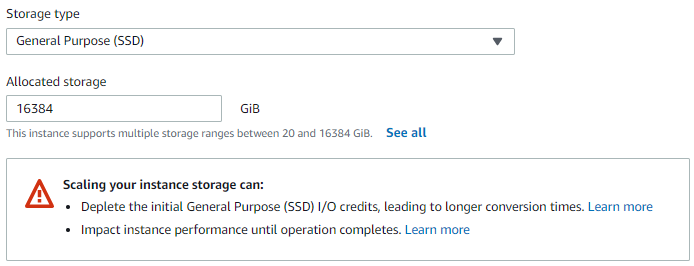
-
Choose Continue.
-
Choose Apply immediately in the Scheduling of modifications section to apply the storage changes to the DB instance immediately.
Or choose Apply during the next scheduled maintenance window to apply the changes during the next maintenance window.
-
When the settings are as you want them, choose Modify DB instance.
To increase the storage for a DB instance, use the AWS CLI command modify-db-instance. Set the following
parameters:
-
--allocated-storage– Amount of storage to be allocated for the DB instance, in gibibytes. -
--apply-immediately– Use--apply-immediatelyto apply the storage changes immediately.Or use
--no-apply-immediately(the default) to apply the changes during the next maintenance window. An immediate outage occurs when the changes are applied.
The following example scales up the storage for mydbinstance
to 1,000 GiB and applies the change immediately. The command also migrates
the storage volume to gp3 and sets the provisioned IOPS to 6000.
aws rds modify-db-instance \
    --db-instance-identifier mydbinstance \
    --allocated-storage 1000 \
    --storage-type gp3 \
    --iops 6000 \
    --apply-immediately
For more information about storage, see Amazon RDS DB instance storage.
To increase storage for a DB instance, use the Amazon RDS API operation ModifyDBInstance. Set the following
parameters:
-
AllocatedStorage– Amount of storage to be allocated for the DB instance, in gibibytes. -
ApplyImmediately– Set this option toTrueto apply the storage changes immediately. Set this option toFalse(the default) to apply the changes during the next maintenance window. An immediate outage occurs when the changes are applied.
For more information about storage, see Amazon RDS DB instance storage.
