Extending full-screen across selected monitors
If there are three or more monitors connected, DCV can also extend full-screen across a selection of those available monitors. If your selected monitors cannot go full screen, an error message will appear and you will need to perform the procedure again.
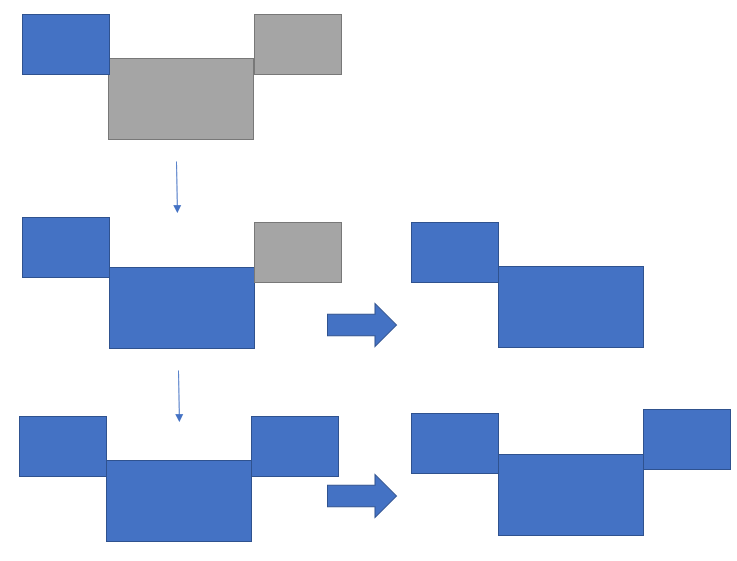
Selected monitors must be set adjacent, or sharing a side with each other, in your display setting.
Examples of adjacent monitor placement.
Note
The blue boxes are DCV enabled monitors.
The gray boxes are other monitors.
Examples of nonadjacent monitor placement.
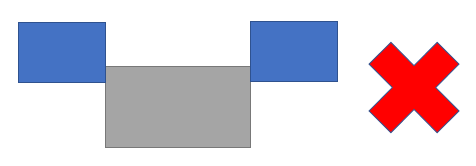
If your monitors are not set adjacent in your Windows display configuration, you will need to exit DCV and change your Display settings on your local machine.
Windows client
Go to the top menu.
Select the Full Screen icon.
Note
The Full Screen drop-down menu will appear.

Select Across selected monitors from the drop down menu.
Note
The Across selected monitors window will appear displaying your current monitor layout.
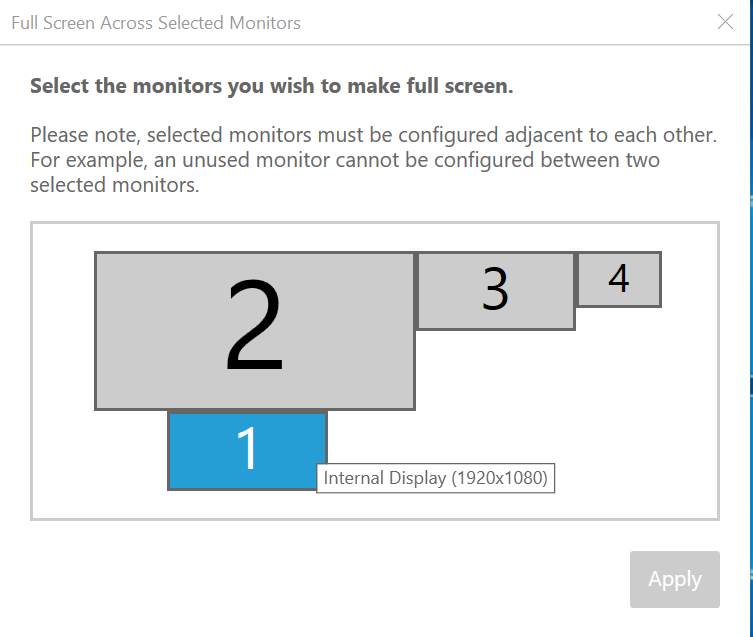
Select which monitors you want DCV to be displayed full screen.
Click Apply.
macOS client
Go to the top menu.
Select View.
Note
The View drop-down menu will appear.

Select Full Screen Selected Monitors from the drop down menu.
Note
The Full Screen Selected Monitors window will appear displaying your current monitor layout.
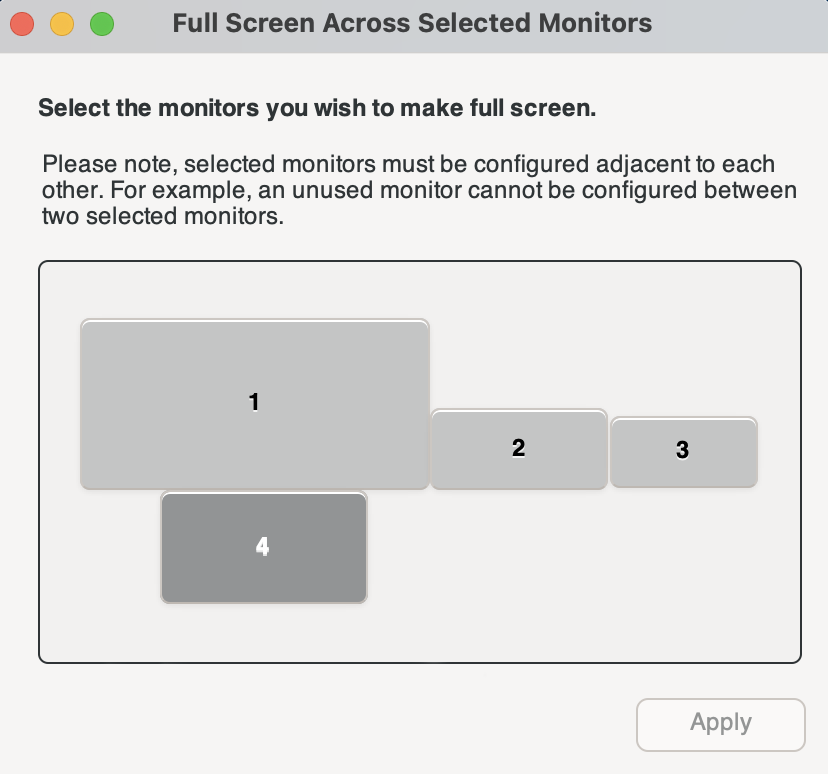
Select which monitors you want DCV to be displayed full screen.
Click Apply.
Linux client
Go to the top menu.
Select Full Screen icon.
Note
The Full Screen drop-down menu will appear.

Select Across selected monitors from the drop down menu.
Note
The Across selected monitors window will appear displaying your current monitor layout.
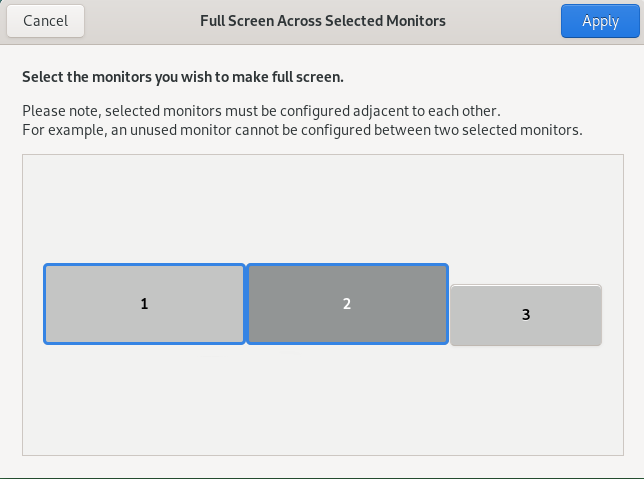
Select which monitors you want DCV to be displayed full screen.
Click Apply.
