Amazon Elastic Compute Cloud
User Guide (API Version 2013-02-01)
« PreviousNext »
View the PDF for this guide.Go to the AWS Discussion Forum for this product.Go to the Kindle Store to download this guide in Kindle format.Did this page help you?  Yes | No |  Tell us about it...

Amazon EC2 Instance Store

Each Amazon EC2 instance, unless it's a micro or M3 instance, can access storage from disks that are physically attached to the host computer. This disk storage is referred to as instance store.

Instance Storage Concepts

An Amazon EC2 instance store provides temporary block-level storage for use with an Amazon EC2 instance. The size of an instance store ranges from 150 GiB to up to 48 TiB, and varies by instance type. Larger instance types have larger instance stores. For more information, see Instance Stores Available on Instance Types.

An instance store consists of one or more instance store volumes. Instance store volumes must be mounted before they can be used. By default, instances launched from an Amazon EBS-backed instance have no mounted instance store volumes. Instances launched from an instance store-backed AMI have a mounted instance store volume for the virtual machine's root device volume, and can have other mounted instances store volumes, depending on the instance type. For more information about instance store-backed AMIs and Amazon EBS-backed AMIs, see Storage for the Root Device.

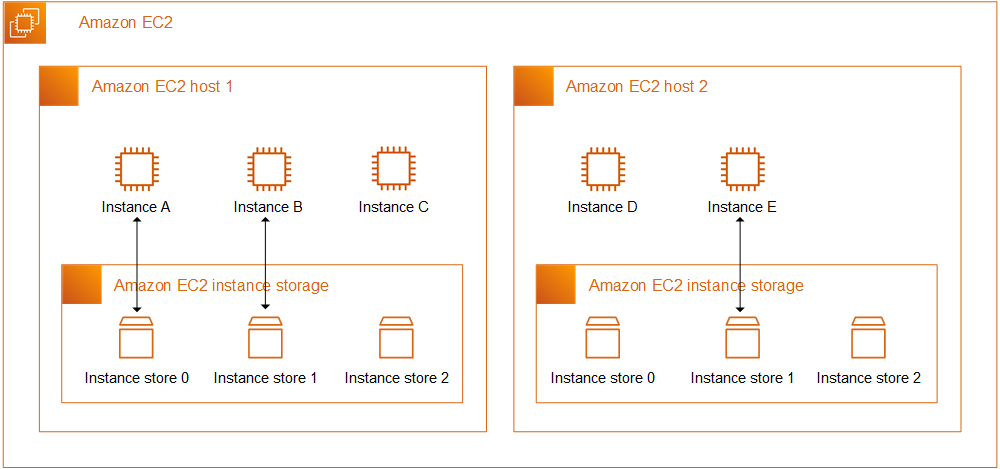
Instance store volumes are usable only from a single instance during its lifetime; they can't be detached and then attached to another instance. If you create an AMI from an instance, the data on its instance store volumes isn't preserved and isn't present on the instance store volumes for the instances that you launch from this AMI. While an instance store is dedicated to a particular instance, the disk subsystem is shared among instances on a host computer, as shown in the following figure.

Amazon EC2 instance storage

The data in an instance store persists only during the lifetime of its associated instance. If an instance reboots (intentionally or unintentionally), data in the instance store persists. However, data on instance store volumes is lost under the following circumstances:

  • Failure of an underlying drive

  • Stopping an Amazon EBS-backed instance

  • Terminating an instance

Therefore, do not rely on instance store volumes for valuable, long-term data. Instead, keep your data safe by using a replication strategy across multiple instances, storing data in Amazon S3, or using Amazon EBS volumes. For more information, see Amazon Elastic Block Store (Amazon EBS).

When you launch an instance, whether it's launched from an Amazon EBS-backed AMI or an instance store-backed AMI, you can attach instance store volumes to the instance using block device mapping. For more information, see Adding Instance Store Volumes to an AMI.

Instance Stores Available on Instance Types

Amazon EC2 instances are divided into different instance types, which determine the size of the instance store available on the instance by default. When you launch an instance, you can specify an instance type or use the default instance type, which is an m1.small instance.

The instance type also determines the type of hardware for your instance store volumes. A high I/O instance (hi1.4xlarge) uses solid state drives (SSD) to deliver very high random I/O performance. This is a good option when you need storage with very low latency, but you don't need it to persist when the instance terminates, or you can take advantage of fault tolerant architectures. For more information see High I/O Instances.

The following table shows the instance types along with the size of the instance store available with each instance type.

TypeNameInstance Store Volumes
Microt1.microNone (use Amazon EBS volumes)

M1 Small

m1.small

1 x 150 GiB

M1 Medium

m1.medium

1 x 400 GiB

M1 Large

m1.large

2 x 420 GiB (840 GiB)

M1 Extra Large

m1.xlarge

4 x 420 GiB (1680 GiB)

M3 Extra Large

m3.xlarge

None (use Amazon EBS volumes)

M3 Double Extra Large

m3.2xlarge

None (use Amazon EBS volumes)

High-CPU Medium

c1.medium

1 x 340 GiB

High CPU Extra Large

c1.xlarge

4 x 420 GiB (1680 GiB)

High-Memory Extra Large

m2.xlarge

1 x 410 GiB

High-Memory Double Extra Large

m2.2xlarge

1 x 840 GiB

High-Memory Quadruple Extra Large

m2.4xlarge

2 x 840 GiB (1680 GiB)

High I/O

hi1.4xlarge

2 x 1 TiB SSD (2 TiB)

High Storage

hs1.8xlarge

24 x 2 TiB hard disk drives (48 TiB)

High-Memory Cluster

cr1.8xlarge

2 x 120 GiB SSD (240 GiB)

Cluster Compute Quadruple Extra Large

cc1.4xlarge

2 x 840 GiB (1680 GiB)

Cluster Compute Eight Extra Large

cc2.8xlarge

4 x 840 GiB (3360 GiB)

Cluster GPU Quadruple Extra Large

cg1.4xlarge

2 x 840 GiB (1680 GiB)

Instance Store Device Names

Within an instance store, instance store volumes are exposed as block devices. The virtual devices for instance store volumes are ephemeral[0-3]. Instance types that support one instance store volume have ephemeral0. Instance types that support two instance store volumes have ephemeral0 and ephemeral1. Instance types that support four instance store volumes have ephemeral0, ephemeral1, ephemeral2, and ephemeral3. Each instance store volume is pre-formatted with the ext3 file system. However, you can reformat volumes with the file system of your choice after you launch your instance. A Windows instance uses a built-in tool, EC2Config Service, to reformat the instance store volumes available on an instance with the NTFS file system.

Every instance store-backed AMI and instance has a mapping of the instance store volumes attached to the instance. Each entry in the mapping consists of a device name and the volume that it's mapped to. The instance store volumes are available to the instance, but you can't access them until they are mounted. A Windows instance uses the EC2Config Service to mount the instance store volumes for an instance. On Linux, the instance type determines which instance store volumes are mounted for you and which are available for you to mount yourself. The block device driver for the instance assigns the actual volume name when mounting the volume, and the name assigned can be different than the name that Amazon EC2 recommends.

The following table lists the devices names reserved for instance store volumes by instance type, and the default state of the storage device (formatted, mounted, available) on an instance store-backed instance. For example, an m1.small instance has ephemeral0 (ext3, 15 GiB) and swap (Linux swap, 896 MB).

Device NameLinux/UNIX instance store-backed instanceWindows instance store-backed instance
/dev/sda1Formatted and mounted as root (/). Formatted and mounted as C:\.
/dev/sda2, xvdbFormatted and mounted as /mnt or /media/ephemeral0 on m1.small and c1.medium instances. Formatted and mounted on small instance types.
/dev/sda3Formatted and mounted as /swap on m1.small and c1.medium instances. Not available.
/dev/sdb, xvdbFormatted and mounted as /mnt or /media/ephemeral0 on m1.medium, m1.large, m1.xlarge, c1.xlarge, cc1.4xlarge, cc2.8xlarge, cr1.8xlarge, m2.xlarge, m2.2xlarge, m2.4xlarge, and hi1.4xlarge.Formatted and mounted on m1.medium, m1.large, m1.xlarge, c1.xlarge, m2.xlarge, and m2.2xlarge.
/dev/sdc, xvdcAvailable on m1.large, m1.xlarge, cc2.8xlarge, cc1.4xlarge, c1.xlarge, cr1.8xlarge, and hi1.4xlarge.Formatted and mounted on m1.large, m1.xlarge, c1.xlarge, and m2.4xlarge.
/dev/sdd, xvddAvailable on m1.xlarge, c1.xlarge, and cc2.8xlarge.Formatted and mounted on m1.xlarge and c1.xlarge.
/dev/sde, xvdeAvailable on m1.xlarge and c1.xlarge.Formatted and mounted on m1.xlarge and c1.xlarge.

An instance can have multiple instance store volumes mapped to a device. However, the number and size of these volumes must not exceed the instance store available for the instance type. For more information, see Instance Stores Available on Instance Types.

Instance Store Usage Scenarios

Instance store volumes are ideal for temporary storage of information that changes frequently, such as buffers, caches, scratch data, and other temporary content, or for data that is replicated across a fleet of instances, such as a load-balanced pool of web servers.

Making Instance Stores Available on Your Instances

Instances that use Amazon EBS for the root device do not, by default, have instance store available at boot time. Also, you can't attach instance store volumes after you've launched an instance. Therefore, if you want your Amazon EBS-backed instance to use instance store volumes, you must specify them using a block device mapping when you create your AMI or launch your instance. Examples of block device mapping entries are: /dev/sdb=ephemeral0 and /dev/sdc=ephemeral1. For more information about block device mapping, see Block Device Mapping

The following procedure describes how to launch an Amazon EBS-backed m1.large Windows instance with instance store volumes.

Accessing Instance Stores on Amazon EBS-backed Windows Instances

1

Locate an Amazon EBS-backed Windows AMI.

2

Add block device mapping entries.

Console: For more information, see To add volumes to an instance.

CLI: Use the ec2-run-instances command to launch an m1.large instance; specify volumes for the block device mapping using the following options: -b "/dev/xvdb=ephemeral0" and -b "/dev/xvdc=ephemeral1"

3

Connect to the instance.

4

On the Start menu, choose Computer.

5

Devices listed:

  • Local Disk C:/ 9.98GiB

  • Local Disk D:/ 419GiB

  • Local Disk E:/ 419GiB

6

Double-click Local Disk C:/. You can see the list of installed applications. This is your root drive.

7

Double-click Local Disk D:/ and then double-click Local Disk E:/. These drives are empty. They are the instance stores that come with your m1.large instance, and they are available for you to use with your applications.


The following procedure describes how to launch an Amazon EBS-backed m1.large Linux instance with instance store volumes.

Accessing Instance Stores on Amazon EBS-backed Linux Instances

1

Locate an Amazon EBS-backed Linux/UNIX AMI.

2

Add block device mapping entries.

Console: For more information, see To add volumes to an instance.

CLI: Use the ec2-run-instances command to launch an m1.large instance; specify volumes for the block device mapping using the following options: -b "/dev/xvdb=ephemeral0" and -b "/dev/xvdc=ephemeral1"

3

Connect to the instance.

4

Verify the instance stores currently mounted on the disk.

5

Notice a 10GiB root partition mounted on the root and 420 GiB mounted on an ephemeral0 volume. Your m1.large instance comes with 2 420 GiB instance store volumes; the second volume is available but must be mounted before it can be used.

6

To format and mount the other 420 GiB instance store volume:

a. Create a file system of your choice on the device /dev/sdc (requires root privileges).
b. Create a directory on which to mount the device.
c. Mount the device on the newly created directory.

7

Verify that the device has been mounted.

8

Optionally, list the files on the root device.


You can also map instance store volumes to block devices when you create an AMI. The instances launched from such an AMI have instance store volumes at boot time. For information about adding a block device mapping while creating an AMI, see Creating Your Own AMIs.

The following procedure describes how to access the instance store volumes from within an Amazon EC2 instance store-backed m1.large Windows instance.

Tasks for Accessing Instance Stores on Amazon EC2 instance store-backed Windows Instances

1

Locate an Amazon EC2 instance store-backed Windows AMI.

2

Launch an m1.large instance.

3

Connect to the instance.

4

On the Start menu, choose Computer.

5

Devices listed:

  • Local Disk C:/ 9.98GiB

  • Local Disk D:/ 419GiB

  • Local Disk E:/ 419GiB

6

Double-click Local Disk C:/. You see the list of all installed applications. This is your root drive.

7

Double-click Local Disk D:/ and then double-click Local Disk E:/. These are empty. They are the instance store volumes that come with your m1.large instance, and they are available to use with your applications just like any physical drive.


Depending on the instance type, some instance store volumes on Amazon EC2 instance store-backed Linux and UNIX instances are not mounted when the instance is launched. For example, on an m1.large Linux and UNIX instance, the device /dev/sdc, although formatted and available, must be mounted before it can be used.

The following procedure describes how to access the instance store from within Amazon EC2 instance store-backed m1.large Linux instance.

Accessing Instance Stores on Amazon EC2 instance store-backed Linux Instances

1

Locate an Amazon EC2 instance store-backed Linux/Unix AMI.

2

Launch an m1.large instance.

3

Connect to the instance.

4

Check out the file systems currently mounted on the disk.

5

Notice 10 GiB root partition mounted on the root and 420 GiB mounted on an ephemeral0 device. Your m1.large instance comes with 2 420 GiB instance store volumes; the second volume is available but must be mounted before it can be used.

6

To mount the other 420GiB:

a. Create a directory on which to mount the device.
b. Mount the device on the newly created directory.

7

Check to see whether the device has been mounted.

8

Optionally, list the files on the root device.


Suppressing Instance Stores at Launch Time

You can prevent a particular instance storage volume from attaching to the instance. You can do this for both Amazon EC2 instance store-backed instances and Amazon EBS-backed instances. For example, specifying the mapping /dev/sdc=none when launching an instance prevents /dev/sdc from attaching to the instance. For more information about block device mapping, see Block Device Mapping.

Adding Instance Store Volumes to an AMI

Amazon EBS-backed AMIs don't include instance store by default. However, you might want instances launched from your Amazon EBS-backed AMIs to include instance store volumes. This section describes how to create an AMI that includes instance store volumes.

AWS Management Console

To add instance store volumes to an AMI

  1. Open the Amazon EC2 console at https://console.aws.amazon.com/ec2/.

  2. In the navigation pane, click Instances.

  3. Select an instance and select Create Image (EBS AMI) from the Actions list.

  4. In the Create Image dialog, click Instance Store Volumes.

  5. For each instance store volume, select a volume from the Instance Store list and a device name from Device, and then click Add.

    Instance Store Volumes tab in the Create Image dialog box
  6. Click Yes, Create.

Command Line Interface

Use the ec2-register command to specify a block device mapping that includes the instance store volumes for the image. For more information about block device mapping, see Block Device Mapping.

To add instance store volumes to an AMI

  1. Use the ec2-register command with the desired block device mapping information.

    The following example registers an AMI with an 80GiB root device volume at /dev/sda1 created from the snap-12345678 snapshot. The root volume's DeleteOnTermination flag is set to false. The second block device mapping in the request maps /dev/sdc to ephemeral0.

    You can omit the size in the block device mapping if you want to create a volume that is the size of the snapshot. If you do specify a size, it must be equal to or larger than the size of the snapshot. You can also resize the partition or create a new partition later.

    Tip

    If you're using the command line interface on a Windows computer, you must put quotation marks around any part of the command that includes an equal sign. For example: ... -b "/dev/sdc=ephemeral0" ....

    PROMPT>  ec2-register -n My_Image_Name -d My_image_description --root-device-name /dev/sda1  -b /dev/sda1=snap-12345678:80:false -b /dev/sdc=ephemeral0

    In response, you get the ID for your new AMI.

    IMAGE     ami-61a54008
  2. Any instance you launch from this AMI includes the instance store volumes that you specified when you created the AMI. You can confirm that the instance store devices are available from within the instance itself using instance metadata. For more information, see Viewing the Instance Block Device Mapping for Instance Store Volumes.

Optimizing Disk Performance

Because of the way that Amazon EC2 virtualizes disks, the first write to any location on a standard instance store volume performs more slowly than subsequent writes. (The performance of the solid state drives (SSD) used by high I/O instances is not affected this way.) For most applications, amortizing this cost over the lifetime of the instance is acceptable. However, if you require high disk performance, we recommend that you initialize your drives by writing once to every drive location before production use. If you require further improvements in latency or throughput, we recommend using Amazon EBS.

To initialize the stores, use the following Linux/UNIX dd commands, depending on which store you want to initialize (/dev/sdb, etc.).

Note

Make sure to unmount the drive before performing this command.

Initialization can take a long time (about 8 hours for an extra large instance).

To initialize the instance store volumes, use the following commands on the m1.large, m1.xlarge, c1.xlarge, m2.xlarge, m2.2xlarge, and m2.4xlarge instance types:

dd if=/dev/zero of=/dev/sdb bs=1M          
dd if=/dev/zero of=/dev/sdc bs=1M          
dd if=/dev/zero of=/dev/sdd bs=1M          
dd if=/dev/zero of=/dev/sde bs=1M 

For information about the instance storage that is available for each instance type, see Instance Stores Available on Instance Types.

To perform initialization on all instance store volumes at the same time, use the following command:

dd if=/dev/zero bs=1M|tee /dev/sdb|tee /dev/sdc|tee /dev/sde > /dev/sdd

Configuring drives for RAID initializes them by writing to every drive location. When configuring software-based RAID, make sure to change the minimum reconstruction speed:

echo $((30*1024)) > /proc/sys/dev/raid/speed_limit_min