Find your Amazon EC2 resources
You can get a list of some types of resources using the Amazon EC2 console. You can get a list of each type of resource using its corresponding command or API action. If you have many resources, you can filter the results to include, or exclude, only the resources that match certain criteria.
List and filter resources using the console
Contents
List resources using the console
You can view the most common Amazon EC2 resource types using the console. To view additional resources, use the command line interface or the API actions.
To list EC2 resources using the console
-
Open the Amazon EC2 console at https://console.aws.amazon.com/ec2/
. -
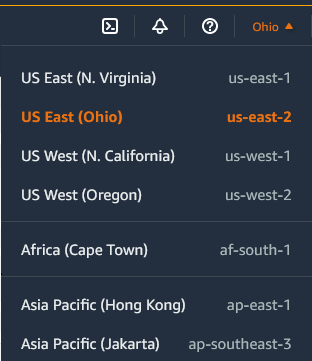
Amazon EC2 resources are specific to an AWS Region. From the navigation bar, choose a Region from the Regions selector.
-
In the navigation pane, choose the option that corresponds to the resource type. For example, to list all your instances, choose Instances.
Filter resources using the console
To filter a list of resources
-
In the navigation pane, select a resource type (for example, Instances).
-
Choose the search field.
-
Select the filter from the list.
-
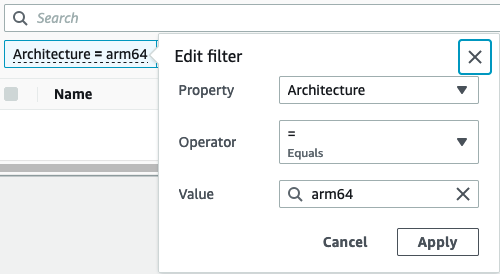
Select an operator, for example, = (Equals). Some attributes have more available operators to select. Note that not all screens support selecting an operator.
-
Select a filter value.
-
To edit a selected filter, choose the filter token (blue box), make the required edits, and then choose Apply. Note that not all screens support editing the selected filter.
-
When you are finished, remove the filter.
Supported filters
The Amazon EC2 console supports two types of filtering.
-
API filtering happens on the server side. The filtering is applied on the API call, which reduces the number of resources returned by the server. It allows for quick filtering across large sets of resources, and it can reduce data transfer time and cost between the server and the browser. API filtering supports = (equals) and : (contains) operators, and is always case sensitive.
-
Client filtering happens on the client side. It enables you to filter down on data that is already available in the browser (in other words, data that has already been returned by the API). Client filtering works well in conjunction with an API filter to filter down to smaller data sets in the browser. In addition to = (equals) and : (contains) operators, client filtering can also support range operators, such as >= (greater than or equal), and negation (inverse) operators, such as != (does not equal).
The Amazon EC2 console supports the following types of searches:
- Search by keyword
-
Searching by keyword is a free text search that lets you search for a value across all of your resources' attributes or tags, without specifying an attribute or tag key to search.
Note
All keyword searches use client filtering.
To search by keyword, enter or paste what you’re looking for in the search field, and then choose Enter. For example, searching for
123matches all instances that have 123 in any of their attributes, such as an IP address, instance ID, VPC ID, or AMI ID, or in any of their tags, such as the Name. If your free text search returns unexpected matches, apply additional filters. - Search by attribute
-
Searching by an attribute lets you search a specific attribute across all of your resources.
Note
Attribute searches use either API filtering or client filtering, depending on the selected attribute. When performing an attribute search, the attributes are grouped accordingly.
For example, you can search the Instance state attribute for all of your instances to return only instances that are in the
stoppedstate. To do this:-
In the search field on the Instances screen, start entering
Instance state. As you enter the characters, the two types of filters appear for Instance state: API filters and Client filters. -
To search on the server side, choose Instance state under API filters. To search on the client side, choose Instance state (client) under Client filters.
A list of possible operators for the selected attribute appears.
-
Choose the = (Equals) operator.
A list of possible values for the selected attribute and operator appears.
-
Choose stopped from the list.
-
- Search by tag
-
Searching by a tag lets you filter the resources in the currently displayed table by a tag key or a tag value.
Tag searches use either API filtering or client filtering, depending on the settings in the Preferences window.
To ensure API filtering for tags
-
Open the Preferences window.
-
Clear the Use regular expression matching checkbox. If this checkbox is selected, client filtering is performed.
-
Select the Use case sensitive matching checkbox. If this checkbox is cleared, client filtering is performed.
-
Choose Confirm.
When searching by tag, you can use the following values:
-
(empty) – Find all resources with the specified tag key, but there must be no tag value.
-
All values – Find all resources with the specified tag key and any tag value.
-
Not tagged – Find all resources that do not have the specified tag key.
-
The displayed value – Find all resources with the specified tag key and the specified tag value.
-
You can use the following techniques to enhance or refine your searches:
- Inverse search
-
Inverse searches let you search for resources that do not match a specified value. In the Instances and AMIs screens, inverse searches are performed by selecting the != (Does not equal) or !: (Does not contain) operator and then selecting a value. In other screens, inverse searches are performed by prefixing the search keyword with the exclamation mark (!) character.
Note
Inverse search is supported with keyword searches and attribute searches on client filters only. It is not supported with attribute searches on API filters.
For example, you can search the Instance state attribute for all of your instances to exclude all instances that are in the
terminatedstate. To do this:-
In the search field on the Instances screen, start entering
Instance state. As you enter the characters, the two types of filters appear for Instance state: API filters and Client filters. -
Under Client filters, choose Instance state (client). Inverse search is only supported on client filters.
A list of possible operators for the selected attribute appears.
-
Choose != (Does not equal), and then choose terminated.
To filter instances based on an instance state attribute, you can also use the search icons (
 ) in the Instance
state column. The search icon with a plus sign (
+ ) displays all the instances that
match that attribute. The
search icon with a minus sign ( - )
excludes all instances
that match that attribute.
) in the Instance
state column. The search icon with a plus sign (
+ ) displays all the instances that
match that attribute. The
search icon with a minus sign ( - )
excludes all instances
that match that attribute.Here is another example of using the inverse search: To list all instances that are not assigned the security group named
launch-wizard-1, under Client filters, search by the Security group name attribute, choose !=, and in the search bar, enterlaunch-wizard-1. -
- Partial search
-
With partial searches, you can search for partial string values. To perform a partial search, enter only a part of the keyword that you want to search for. On the Instances and AMIs screens, partial searches can only be performed with the : (Contains) operator. On other screens, you can select the client filter attribute and immediately enter only a part of the keyword that you want to search for. For example, on the Instance type screen, to search for all
t2.micro,t2.small, andt2.mediuminstances, search by the Instance Type attribute, and for the keyword, entert2. - Regular expression search
-
To use regular expression searches, you must select the Use regular expression matching checkbox in the Preferences window.
Regular expressions are useful when you need to match the values in a field with a specific pattern. For example, to search for a value that starts with
s, search for^s. To search for a value that ends withxyz, search forxyz$. Or to search for a value that starts with a number that is followed by one or more characters, search for[0-9]+.*.Note
Regular expression search is supported with keyword searches and attribute searches on client filters only. It is not supported with attribute searches on API filters.
- Case-sensitive search
-
To use case-sensitive searches, you must select the Use case sensitive matching checkbox in the Preferences window. The case-sensitive preference only applies to client and tag filters.
Note
API filters are always case-sensitive.
- Wildcard search
-
Use the
*wildcard to match zero or more characters. Use the?wildcard to match zero or one character. For example, if you have a data set with the valuesprod,prods, andproduction, a search ofprod*matches all values, whereasprod?matches onlyprodandprods. To use the literal values, escape them with a backslash (\). For example, "prod\*" would matchprod*.Note
Wildcard search is supported with attribute and tag searches on API filters only. It is not supported with keyword searches, and with attribute and tag searches on client filters.
- Combining searches
In general, multiple filters with the same attribute are automatically joined with
OR. For example, searching forInstance State : RunningandInstance State : Stoppedreturns all instances that are either running OR stopped. To join search withAND, search across different attributes. For example, searching forInstance State : RunningandInstance Type : c4.largereturns only instances that are of typec4.largeAND that are in the running state.
Save filter sets using the console
A saved filter set is a customized group of filters that you can create and reuse to efficiently view your Amazon EC2 resources. This feature helps streamline your workflow, enabling quick access to specific resource views.
Saved filter sets are only supported in the Amazon EC2 console and are currently only available for the Volumes page.
Key features
-
Customization: Create filter sets tailored to your needs. For example, you can create a filter set to display only your
gp3volumes that were created after a specified date. -
Default filter: Set a default filter set for a page, and the default filters are automatically applied when you navigate to the page. If no default is set, no filters are applied.
-
Easy application: Select a saved filter set to apply it instantly. Amazon EC2 then displays the relevant resources, with the active filters indicated by blue tokens.
-
Flexibility: Create, modify, and delete filter sets as needed.
Create a filter set
To create a new filter set
Open the Amazon EC2 console at https://console.aws.amazon.com/ec2/
. -
In the navigation pane, choose Volumes.
Note
Saved filter sets are currently only available for Volumes.
-
In the search field, select filters for your filter set.
-
Choose the arrow next to the Clear filters button, and choose Save new filter set.
-
In the Save filter set window, do the following:
-
For Filter set name, enter a name for the filter set.
-
(Optional) For Filter set description, enter a description for the filter set.
-
(Optional) To set the filter set as the default filter, select the Set as default checkbox.
Note
The default filter is automatically applied every time you open the console page.
-
Choose Save.
-
Modify a filter set
To modify a filter set
-
From the Saved filter sets list, select the filter to modify.
-
To add a filter, in the search field, select a filter to add to your filter set. To delete a filter in the set, choose the X on the filter token.
-
Choose the arrow next to the Clear filters button, and choose Modify filter set.
-
In the Modify filter set window, do the following:
-
(Optional) To set the filter set as the default filter, select the Set as default checkbox.
Note
The default filter is automatically applied every time you open the console page.
-
Choose Modify.
-
Delete a filter set
To delete a filter set
-
From the Saved filter sets list, select the filter to delete.
-
Choose the arrow next to the Clear filters button, and choose Delete filter set.
-
In the Delete filter set window, review the filter to confirm this is the filter you want to delete, and then choose Delete.
List and filter using the command line
Each resource type has a corresponding API actions that you use to describe, list, or get resources of that type. The resulting lists of resources can be long, so it can be faster and more useful to filter the results to include only the resources that match specific criteria.
Filtering considerations
-
You can specify up to 50 filters and up to 200 values per filter in a single request.
-
Filter strings can be up to 255 characters in length.
-
You can use wildcards with the filter values. An asterisk (*) matches zero or more characters, and a question mark (?) matches zero or one character.
-
Filter values are case sensitive.
-
Your search can include the literal values of the wildcard characters; you just need to escape them with a backslash before the character. For example, a value of
\*amazon\?\\searches for the literal string*amazon?\. -
You can't specify a filter value of null. Instead, use client-side filtering. For example, the following command uses the --query option and returns the IDs of the instances that were launched without a key pair.
aws ec2 describe-instances \
    --query 'Reservations[*].Instances[?!not_null(KeyName)].InstanceId' \
    --output text
View resources across Regions using Amazon EC2 Global View
Amazon EC2 Global View enables you to view and search for Amazon EC2 and Amazon VPC resources in a single AWS Region, or across multiple Regions simultaneously in a single console. For more information, see View resources across Regions using AWS Global View.
