Configure dynamic fields in the No-code builder UI in Connect Customer
This topic explains how to configure dynamic fields in components to display runtime data instead of hardcoded values when building agent and customer interfaces using the No-code builder UI in Connect Customer.
You may have scenarios where you want the data displayed to an agent or customer to be dynamically populated instead of hardcoded. For example, if you are making a screen pop, you might want to surface the customer's name and profile ID. You need the data to be dynamic because the values of these fields change from contact to contact.
To dynamically populate a component field:
-
Open the properties tab for that component.
-
Select the dynamic icon (the lighting bolt icon) that appears next to the field you want to be dynamic.
The most common fields that require dynamic values are:
-
The Value field for display fields.
-
The DefaultValue field in form inputs.
It's technically possible for any field that is both visible and hidden to an agent to be dynamically determined at runtime. This is why every field in the Properties tab can be set to dynamic (the lightning bolt icon).
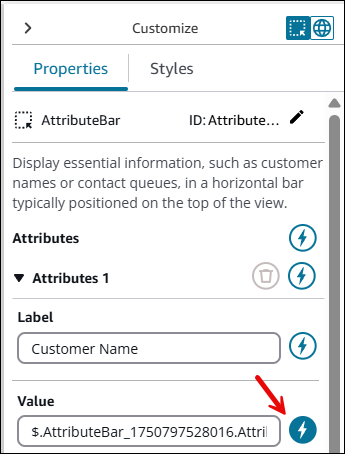
For example, look at the AttributesBar component in the following image.
-
The Label of Attribute 1 is statically defined as Customer Name.
-
The Value of the attribute is set to dynamic (the lightning bolt icon is selected).
With these settings, the value of AttributesBar is determined by the data that gets passed in at runtime into the Show view block.
When a field is set to dynamic, its static value is replaced with a dynamic reference. A Sample Data section appears below the field. You use this section to define sample data.
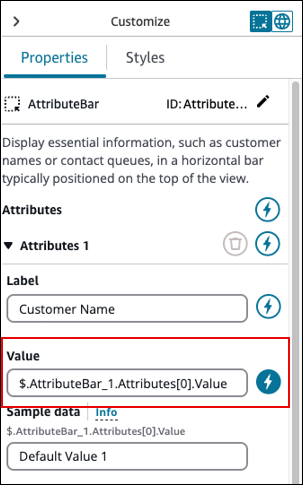
The dynamic reference reflects the data structure expected by the Show view block when
setting up runtime data. For example, consider the Value of
Attribute 1 in the AttributesBar
-
When set to dynamic, the field becomes
$.AttributeBar_1.Attributes[0].ValuewhereAttributeBar_1is the Id of the component. -
This indicates that in the Show view block, the
AttributeBar_1field should receive an object. -
The object contains an
Attributesarray where the first item ([0]) is expected to be an object with aValuefield.
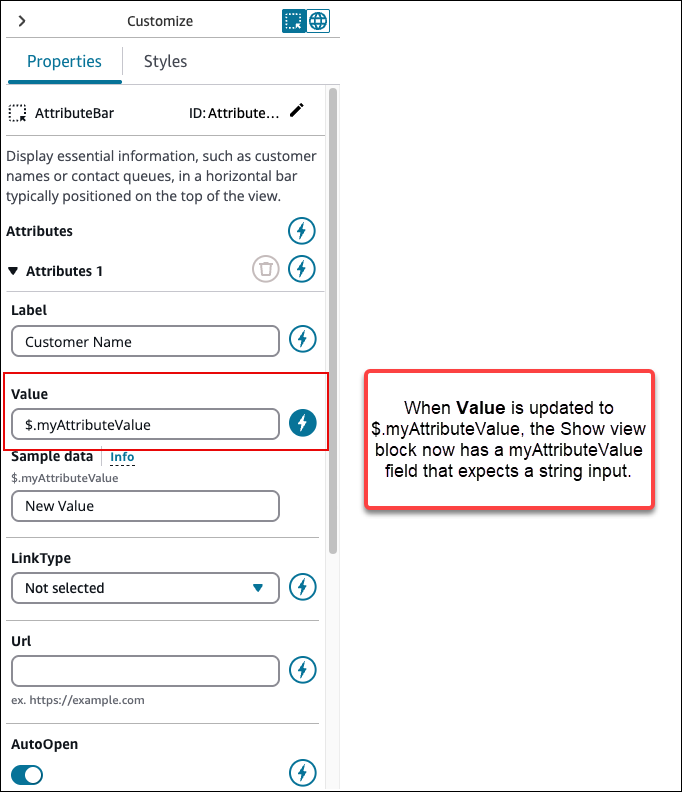
You can edit dynamic references for clarity or reusability. Dynamic references can
be shared across multiple fields and components within the View. For example, in the
following image of the AttributeBar$.myAttributeValue. The Show view block now has a
myAttributeValue field that expects a string input.
Important
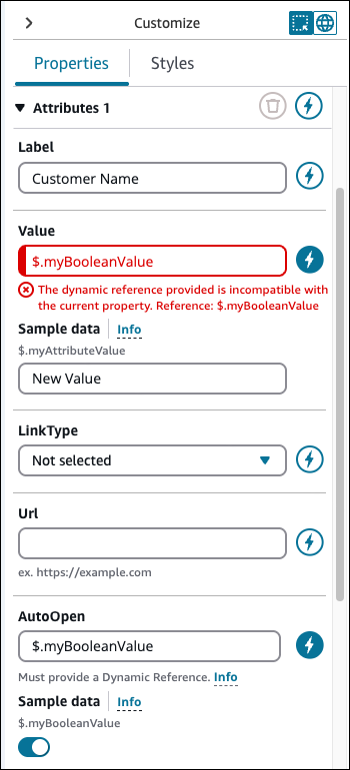
The type of the dynamic reference must match the expected type of the field. For example, you can't use a string-based dynamic reference in a Boolean field. The following image shows an example error message when the dynamic reference doesn't match.
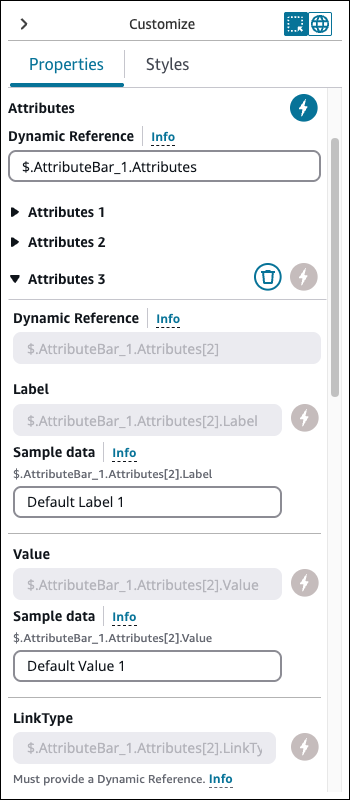
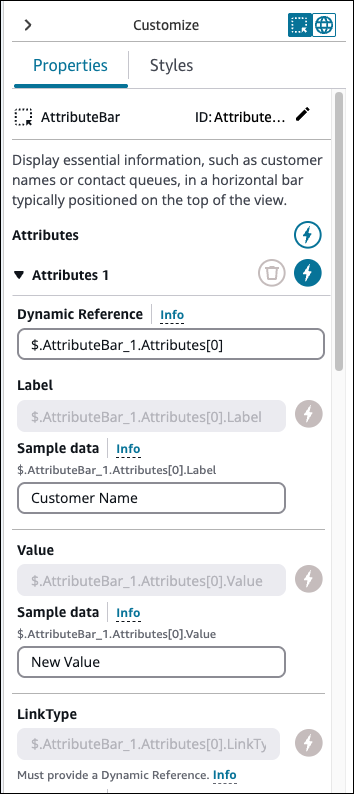
You also have the option to set all properties of an attribute in a component as dynamic. In the following image, everything about this attribute, including the label, is determined at runtime based on the values passed into the Show view block. For example, Customer Name is now sample data that you can use to get a sense of what the agent will see when they use a guide. However, this value is not viewable to the agent.
For certain components, such as AttributesBar